Group Teams in an Organization
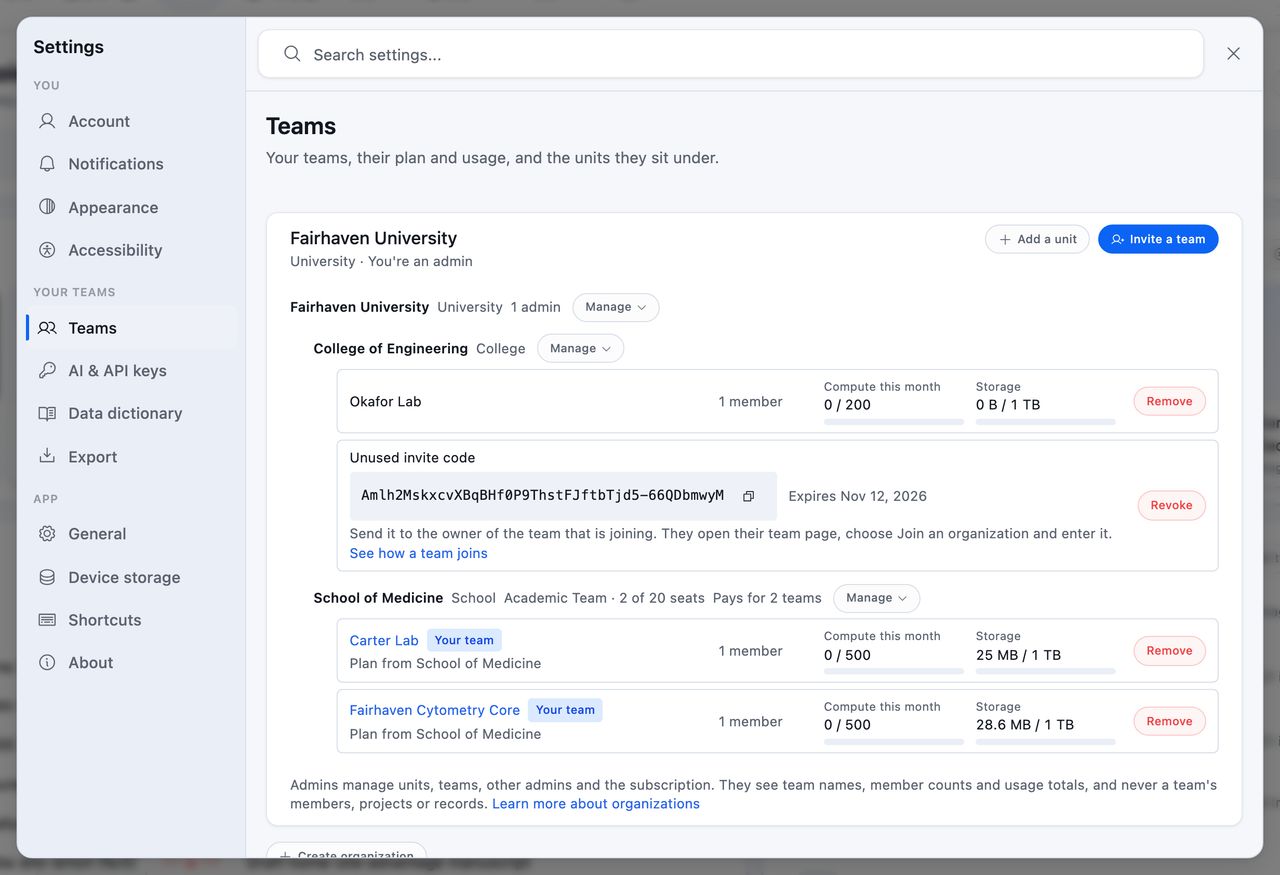
An organization is the university, company or institute your teams belong to. It holds units, such as a school, a department or a division, and each team sits under one of them. Its admins manage the units, the teams, the other admins and, when the organization pays for its teams, the subscription. They see each team's name, how many members it has and its compute and storage totals, and nothing inside it.
What an Organization Holds
- Units form a tree. Each has a name and an optional Kind, such as University, School, Department, Institute, Company or Division. Kind is free text, so type whatever your institution calls it.
- Teams sit under one unit each, and a team belongs to one organization at a time.
- Admins are named on a unit and manage that unit and everything under it.
Teams in the same organization can share instruments with each other. See Share an Instrument with Another Team.
Joining an organization leaves a team as it was. It keeps its members, its projects and its data, and its Owner and Admins keep their roles. Organization admins can't open a team's projects or records, and they don't see its member list.
Creating an Organization
- Open Settings and choose Teams
- Click Create organization
- Give it a Name and, if you like, a Kind
You become its first admin. One person can administer up to 10 organizations.
Adding Units
Click Add a unit, choose the unit it goes Under, and name it. Units nest up to 8 levels deep, and one unit holds up to 200 units directly under it.
Every unit has a Manage menu beside its name:
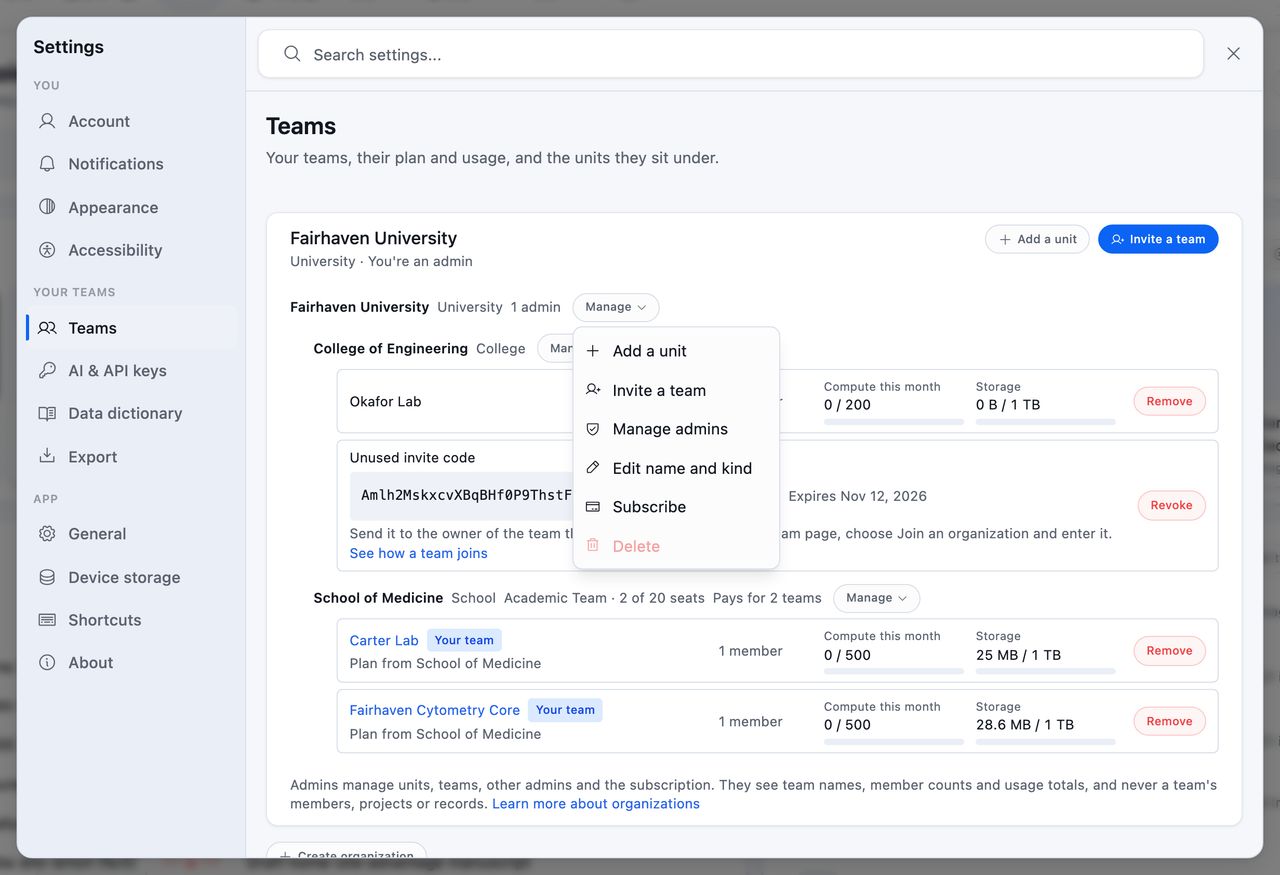
| Menu item | What it does |
|---|---|
| Add a unit | Adds a unit under this one |
| Invite a team | Creates an invite code that places a team under this unit |
| Manage admins | Lists this unit's admins, and adds or removes one |
| Edit name and kind | Renames the unit or changes its kind |
| Subscribe | Starts the conversation with us about a subscription that pays for the teams under this unit |
| Manage billing | Opens the billing page of a unit that has subscribed |
| Delete | Deletes the unit, once no unit and no team sits under it and it has no subscription |
Deleting the top unit deletes the organization. Teams and their research data are untouched either way.
Inviting a Team
A team joins with an invite code that you hand to its Owner. Nothing is emailed for you.
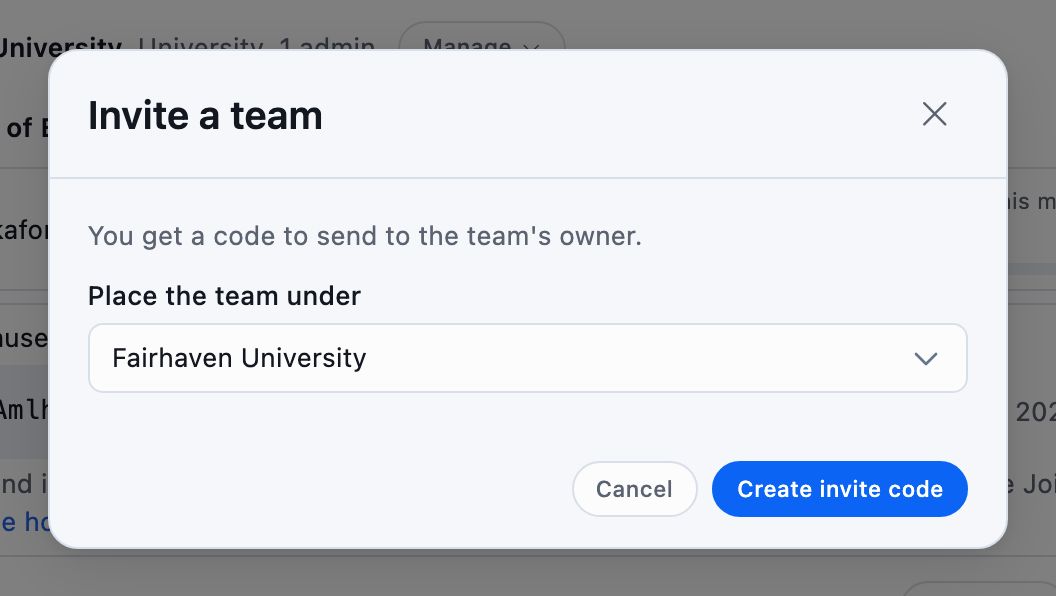
- Click Invite a team
- Choose the unit under Place the team under
- Click Create invite code
- Copy the code and send it to the team's Owner
A code works once and expires after 30 days. Until then it's listed under its unit with its expiry date, a copy button, and Revoke, which stops the code working. A unit holds up to 20 open codes.
To take a team out, click Remove beside its name. The team keeps its members, projects and data, and can come back only with a new code. A team that was running on the organization's plan goes back to its own, as described under When a team leaves or the subscription ends.
Joining and Leaving as a Team
Only a team's Owner can bring it into an organization or take it out.
- To join, open the team's page, click Join an organization, enter the invite code, and click Join organization.
- To leave, click Leave organization on the team's page and confirm. Coming back takes a new invite code from an admin of the organization. The confirmation says so when leaving also changes the team's plan.
Once the team is in, its page reads Part of followed by the unit's name, for every member. A team already in an organization has to leave it before joining another.
An invite code can't be checked before you use it. A code that was already used, revoked or expired is turned down with the same message, so ask the organization's admin for a new one.
Paying for Teams as an Organization
A unit can hold one subscription that pays for the teams under it, so each lab doesn't have to buy its own plan. The subscription covers every team beneath the unit that has no paid plan of its own. An organization subscribes to Commercial Team, the plan the pricing page calls Business. Like every Business plan it's quoted for you, so it starts with a conversation.
Subscribing a Unit
Admins of a unit, or of a unit above it, can subscribe it.
- Open Settings, choose Teams, and open the unit's Manage menu
- Choose Subscribe
- Click Contact us and tell us which unit is subscribing and roughly how many people its teams have
We agree the seats and the billing interval with you and set the subscription up. Seats have to cover the members those teams already have.
Once the subscription is running, the unit's row shows its plan and its seats, such as Commercial Team · 14 of 20 seats, and how many teams it pays for.
How Seats and Usage Are Shared
One seat is one person, on any team the unit pays for. A team can join a paying unit only when its members fit in the seats that are left.
Storage and compute usage stay with each team. Every team on the unit's plan gets that plan's storage and monthly usage allowance for itself.
Each team's row in the tree shows its Members, its Compute this month and its Storage, each as a total. Plan says where its plan comes from:
| Plan reads | What it means |
|---|---|
| Plan from and a unit's name | The team runs on that unit's plan and shares its seats |
| Pays for itself | The team has a paid plan of its own, with its own seats and billing, and takes none of the unit's seats |
| Nothing | The team is on its own plan, with no unit above it paying |
What a Team on the Organization's Plan Sees
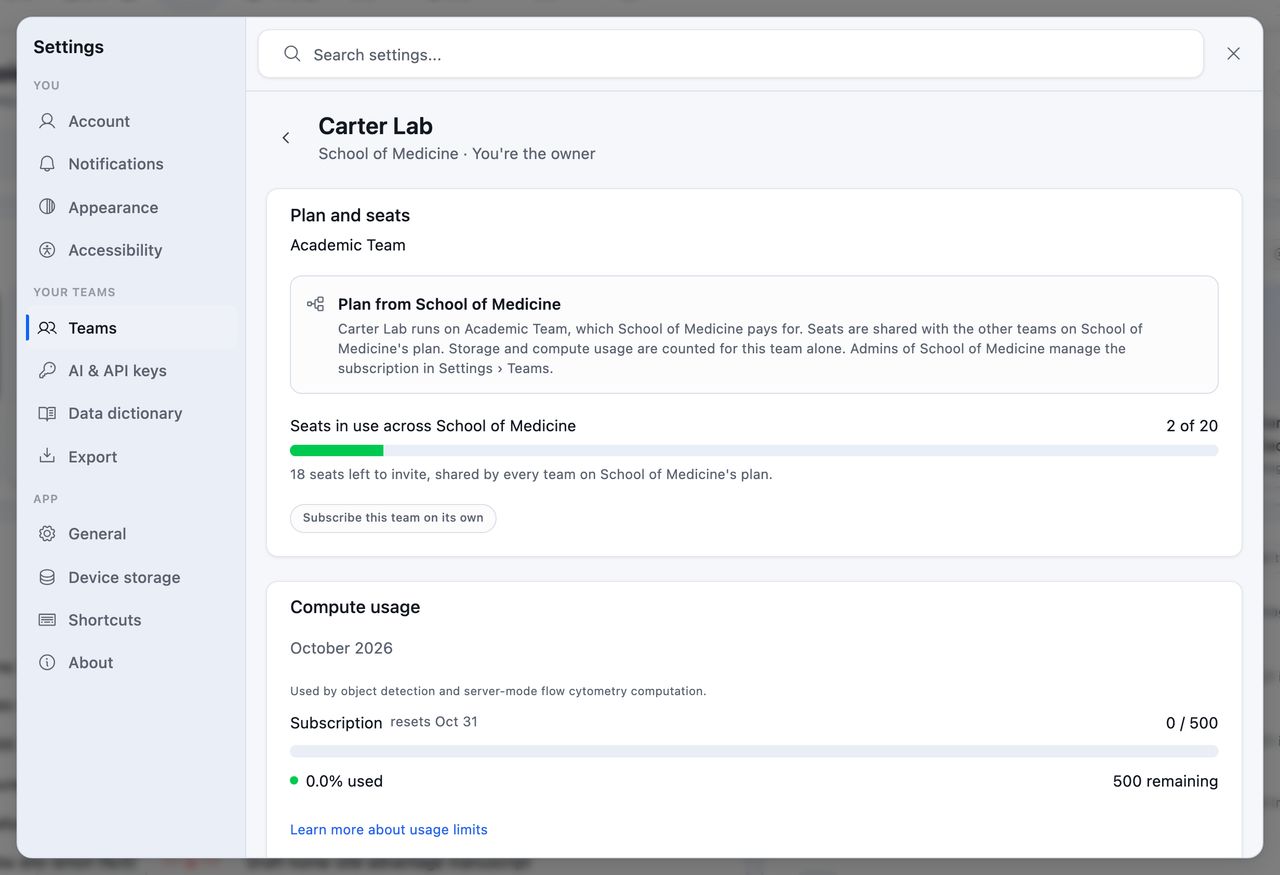
- The team's Owner sees Plan from and the unit's name on the Plan and seats card of the team's page in Settings → Teams, with the plan's name.
- The seat meter reads Seats in use across and the unit's name. It counts the members of every team on that plan.
- Invitations draw on those shared seats. When they run out, the invite dialog names the organization, and one of its admins adds seats.
- Subscribe this team on its own opens the plan cards, for a team that would rather pay for itself. Its own plan then takes the place of the organization's.
Managing Billing
Manage billing in the unit's menu opens the billing page for that unit's subscription. There you change the number of seats, update the payment method, download invoices, and cancel. A unit with a subscription can't be deleted, so cancel there first.
When a Team Leaves or the Subscription Ends
A team goes back to its own plan when it leaves the organization, when an admin removes it, or when the organization's subscription ends. With no paid plan of its own, that's the Free plan:
- A team of two people or fewer carries on, within Free's limits
- A larger team becomes read-only until its Owner removes members or subscribes
Nothing is deleted either way. What happens if your subscription lapses covers what read-only allows.
Managing Admins
Choose Manage admins from a unit's menu to see who was made an admin of that unit. Admins of a unit above it manage it too, and they're listed on the unit they were added to.
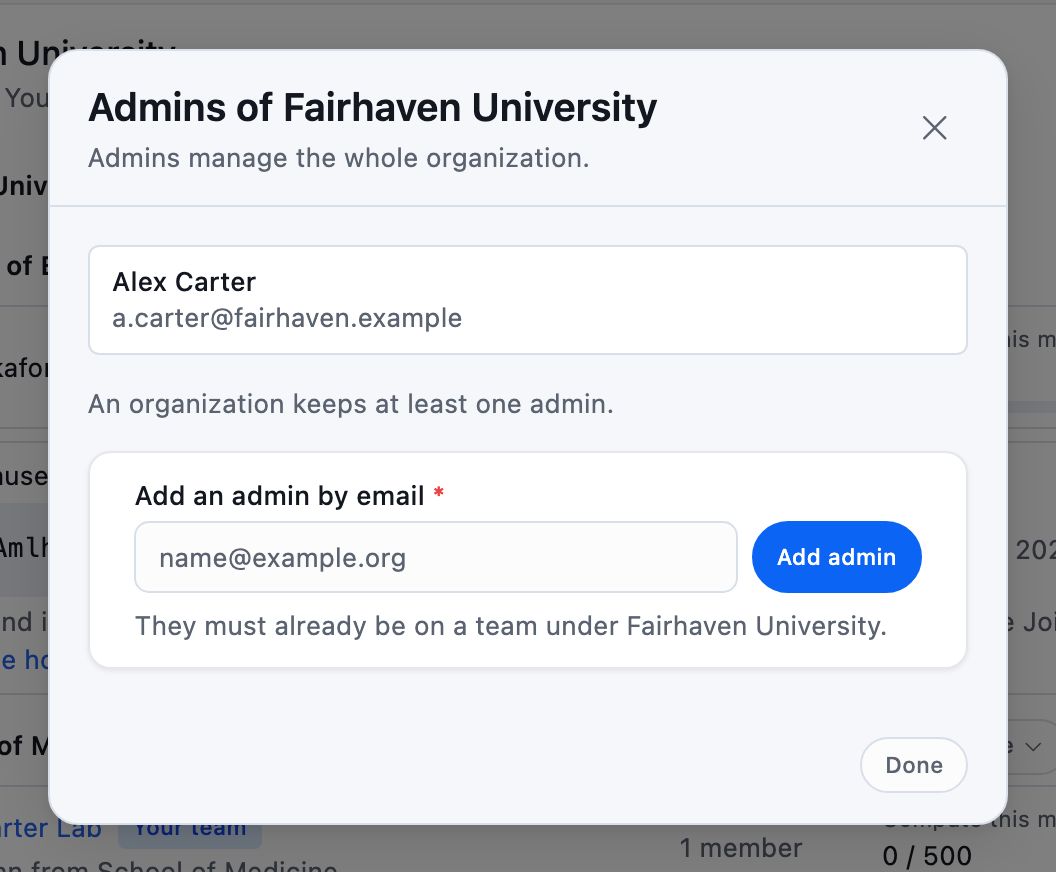
To add one, type their email under Add an admin by email and click Add admin. The person must already be a member of a team under that unit, so invite their team first.
Remove takes someone's admin role away and leaves their place on their own team as it is. An organization keeps at least one admin on its top unit, so add a second before removing the first.
If you're the only admin of an organization, you can't delete your Conspecta account until you add another admin or delete the organization.
What Team Members See
Members who aren't admins see where their team sits, and nothing else of the organization. In Settings, Teams lists each of their teams under Your teams, with the units above it under the team's name, nearest first:
Dept. of Immunology › School of Medicine › Northfield University
When a unit pays for the team, its Plan reads Plan from and that unit's name.
Someone on one team lands on that team's page, which names the unit directly above the team under its name.