Build Figures
In Figures you build publication-ready multi-panel layouts for a paper, a poster, or a lab meeting. Panels are filled from your own images, your analysis results, and your data tables, so a figure stays connected to the data behind it.
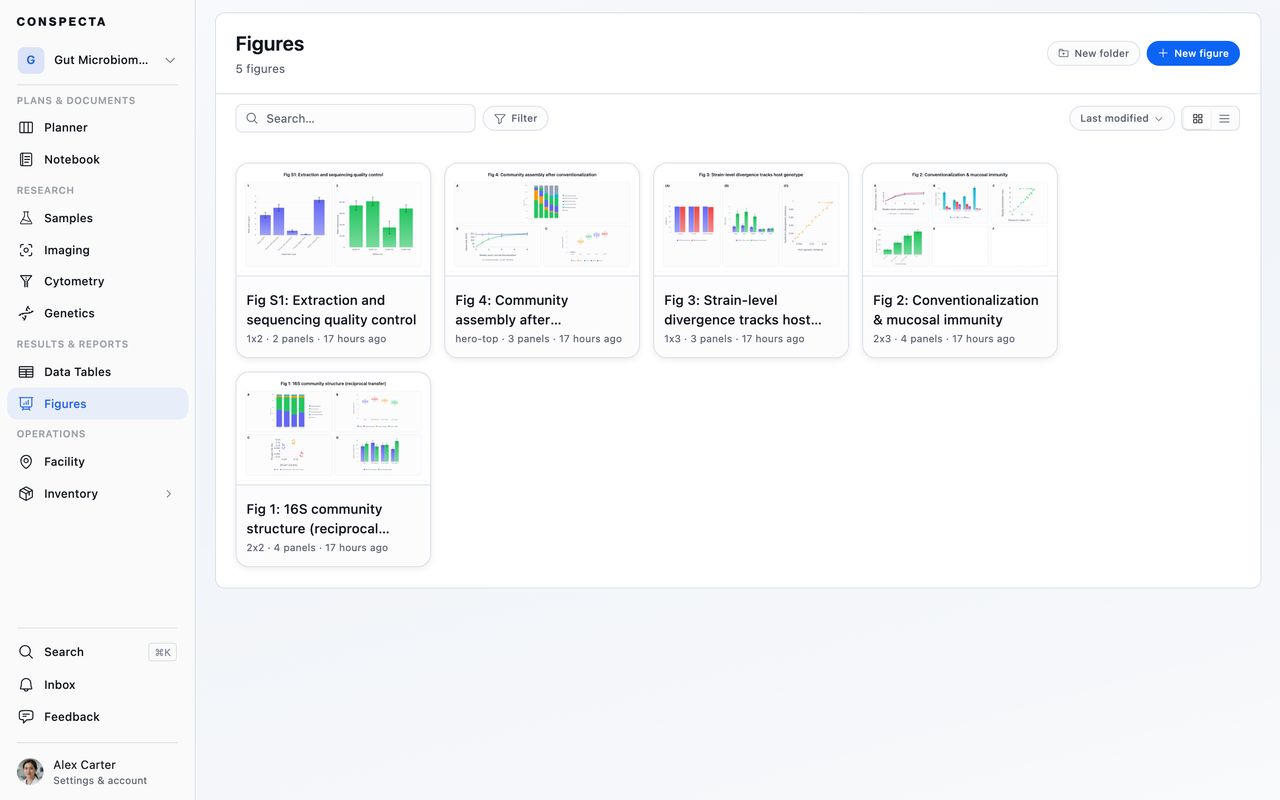
Creating a Figure
New figure asks for a name and whether it's private or shared before it creates anything, then opens the figure with two panels side by side.
Reading a Figure and Changing One
A figure opens for reading. The bar across the top holds the way back, the figure's name, its status, Activity, Present, and the ⋯ menu. That menu carries Export figure, the analysis behind each of the figure's charts, and the actions a figure has on the Figures landing: Star, Move to…, Duplicate figure and Delete figure.
Press Edit on that bar to change the figure. The sidebar arrives on the left with the staging area and the layout controls, the seams between panels become draggable, and each panel shows a toolbar when you point at it. The button reads Done editing while you are in it, and pressing it returns the figure to reading. A figure saves as you work in either mode.
A new figure opens ready to edit. A view-only member always gets the reading view, with no Edit button.
Editing a Figure Someone Else Has Open
Two people can work on the same figure at once. If you rework panel A while a teammate recaptions panel B, both changes stay, and theirs appear on the figure you have open without a reload.
If you both changed the same panel or setting, a box above the figure shows Some fields were updated by another user. with each version under Keep mine and Use theirs, and a panel is named by its letter, such as Panel B. Nothing else you change saves until you choose and click Apply.
When a save doesn't go through, the top bar reads Not saved with a Retry button. If a change is still unsaved when you close the tab, the browser may ask before you leave.
Signing off, asking for a review, moving the figure to another project and duplicating it save your latest change first. If that change can't be saved, while you're offline for example, the action doesn't happen and a message says the figure couldn't be saved.
Layout
A figure is a canvas of rectangles. Each panel has a position and a size, and can be any shape you want.
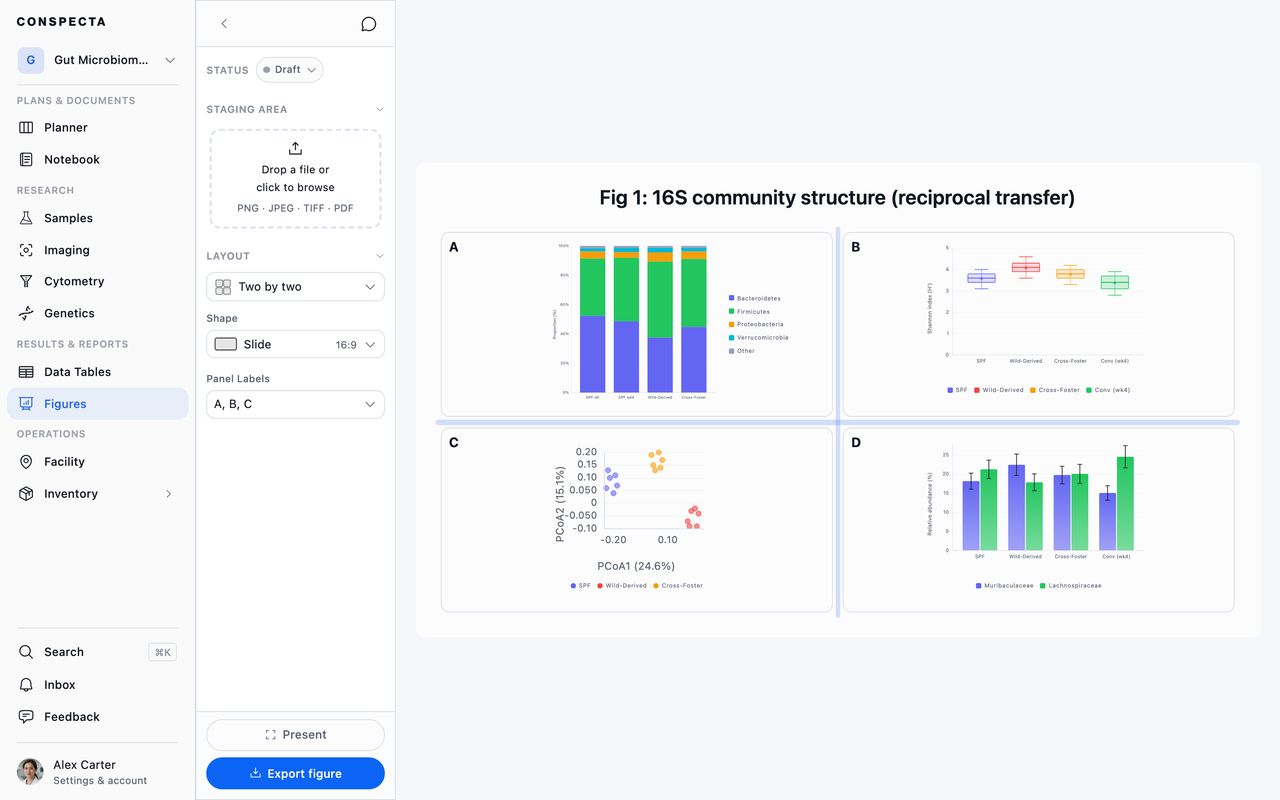
Choosing an Arrangement
Arrangement, under Layout in the sidebar, opens Choose layout, with 23 arrangements grouped by how many panels they hold, from one to nine. Each has a name, such as Two stacked, Wide top + 2, Large left + 2, and 3 / 3 / 2.
An arrangement with fewer panels than the figure holds moves the extras to the Staging area in the sidebar. Each group in the dialog box says how many would move, and picking one asks first. Pick a bigger arrangement later and those panels go back to the cells they left. Panels you parked there yourself stay where they are.
Reset in the layout dialog box re-tiles everything evenly. It asks first, because a hand-tuned layout can't be recovered afterwards.
Shaping Panels
A panel's actions sit on a toolbar along its bottom edge, which appears when you move the pointer over the panel.
- Split into columns and Split into rows on a panel's toolbar divide it in two, and both halves stay inside it
- Add row and Add column at the figure's edges add a panel spanning the whole width or height
- Drag the gutter between panels to change their relative sizes
- Move repositions a panel
For a panel that runs the whole way across (a wide blot under two plots, a strip of text along the bottom, a key down the side), move the pointer to that edge of the figure. A blue bar appears along it with Add row or Add column. Add fills the new panel with anything a panel can hold, and dragging the gutter above it resizes it.
Clearing a Panel
The panel's ⋯ menu has one action for each way of clearing it. Both ask first, and both say what stays behind in your project, since a chart panel's analysis or table is untouched either way.
| Action | What it does |
|---|---|
| Remove image, Remove chart, or Remove text | Empties the panel and leaves it on the canvas for whatever goes there next |
| Delete panel | Takes the panel itself, and the panels around it grow to fill the space. An empty panel has it on its own toolbar too |
On a Tablet or Phone
On a tablet, the toolbar's actions sit in the ⋯ menu in the panel's top right corner. Add under Layout in the sidebar shows a small picture of your figure with a button on each edge, and does what the edge bars do.
On a phone, tap a panel and a sheet slides up:
| Action | What it does |
|---|---|
| Open | Fills the screen with that one panel, with the zoom, pan and drawing tools. Chevrons in the top bar step to the panel either side |
| Move | Steps the panel across the figure, swapping it with its neighbor |
| Split | Divides the panel in two |
| Size | Adjusts a gutter without a mouse. Pick an edge of the panel and drag the slider to change its width or height |
| Edit | On an image panel, opens the same image editor as the toolbar's Edit |
| Text | On an image panel, sets its title and caption |
With the phone turned sideways, ☰ on the top bar opens the sidebar. Reading one panel at a time is in the ⋯ menu once a figure holds more than one panel.
Canvas Shape
Shape, next to Layout, sets what the whole figure is for:
| Shape | Ratio | For |
|---|---|---|
| Slide | 16:9 | Talks and lab meetings, and the default |
| Journal, full width | 3:2 | Spanning both columns of a paper |
| Journal, single column | 3:4 | One column, taller than wide |
| Poster panel | 1:1 | A square block in a poster grid |
| Banner | 2:1 | Headers and timelines |
Exports capture at this aspect ratio, so choosing it up front saves reworking the layout later.
Filling a Panel
Add on an empty panel offers everything a panel can hold, grouped by kind:
| Kind | Options |
|---|---|
| Image | From the project, or Upload a file |
| Chart | From a data table, New chart from scratch, From an image analysis, or From flow cytometry |
| Text | Text |
Each option is badged Linked or Static. A linked panel stays connected to its source and can be refreshed. A static panel is a picture.
Tip: The Staging area in the sidebar holds panels that aren't on the canvas. Park one there while you rearrange by dragging it off the canvas by the grip at its top edge, or from the panel's own menu, and place things once the layout is settled. You can also upload straight into it. A panel in staging keeps its content while it is off the canvas.
Chart Panels
From a data table charts any table in the project, built and kept in Data Tables. From an image analysis or From flow cytometry offers the chart types those workspaces produce, such as object counts by image, coverage over time, population frequencies, or a median-intensity heatmap.
Click Edit on a chart panel for the full editor: chart type, axes and labels, clustering for heatmaps, statistical comparisons, and appearance. That editor has its own page, Customize a chart.
A plot drawn live from flow data (a density, scatter, contour, or histogram panel from Cytometry) opens a different editor. It keeps the panel's title, subtitle, and annotation, and adds a Plot section of its own: plot type, axis scales and labels, color scheme, text sizes, and switches for gate outlines, gridlines, axis values, and the legend.
Every control starts on Same as analysis. Take a setting over to style the panel for the page it will land on, and pick Same as analysis again to follow the analysis once more.
Charts built from manual data can be saved back out. The editor's data panel offers three ways:
- Save to Data Tables for data you typed in
- Save changes to update the table a chart came from
- Save as new to fork it
A chart panel keeps the columns it draws, and its editor opens on those. To work with the rest of the table, press Change Table and pick the same table again. That loads all of it, and it is what Save changes writes back.
Keeping a Chart Current
A linked chart never updates on its own. It shows the numbers as of when you built it, and keeps them until you refresh it.
When the source changes, a bar appears on the panel with a Refresh button. Press it when you want the new numbers.
If the source leaves the project, whether you deleted it or moved it to another project, the panel says the data is not in this project and keeps drawing the last picture it had. Move the source back and the panel picks it up again. An image panel in that state offers Replace image, which points it at another image in the project, and the panel's ⋯ menu has it too.
A plot drawn live from flow data redraws from its analysis every time the figure opens. If the analysis is saved again while the figure is open, the same bar appears, and Refresh pulls in the new events while keeping everything you set in the panel's editor.
Refresh data from source and an Open link to whatever the panel came from are also in its menu, and the ⋯ menu on the top bar lists every analysis that contributed to the figure, each one a link back. When the source is no longer in this project, the Open link is removed.
Image Panels
Image panels take anything in the project (samples, gallery, image analysis output) or an upload. Accepted formats are the usual image types plus TIFF and PDF, and a PDF becomes an image as it uploads. The pickers list pictures only, and a video dropped on a figure is refused. A panel that already points at a clip draws the clip's still frame.
A multi-channel or z-stack image keeps the channel, slice, projection, and enhancement you set in the panel, so the figure shows the view you set up.
Sizing the Picture
Hover an image panel and a small blue square marks each top corner of the picture. Drag either one to resize the picture, anywhere from filling its panel down to half that. With the top right square focused, the arrow keys move it in 5% steps.
Resize on the panel's toolbar offers the same range as a Size slider. On a phone or tablet, where the corner squares are smaller than a fingertip, that slider is a row of the panel menu.
Adding a Title and Caption
Title and caption on an image panel's toolbar opens a small box beside the panel with a Title and a Caption field, each with its size on the same row. On a tablet the box opens from the panel's ⋯ menu, and on a phone from Text in the panel sheet.
The minus and plus buttons change a size one step at a time, from 6 up to 48, and Reset puts it back to 14 for a title or 12 for a caption. Click anywhere else or press Esc to close the box and save.
On a lettered panel the title sits on the same row as the letter, with the picture directly below it and the caption under the picture. The picture keeps half the panel, so a long caption shows only the lines that fit. A caption that runs to a paragraph belongs in a text panel.
Text Panels
Text panels hold captions, legends, and lines such as "n = 3, mean ± SEM". Formatting covers bold, italic, underline, strikethrough, highlight, subscript, and superscript, plus font size, horizontal alignment, and vertical anchoring to the top, middle, or bottom of the panel. Fit text to panel sizes it automatically.
Text panels are skipped in the letter sequence by default.
Annotations
Open a panel in focused mode to draw on it: brush, rectangle, ellipse, polygon, arrow, and scale bar, plus text labels and a counter, with color, fill, stroke width, and opacity. Eraser removes one, Delete all clears the panel. Arrange picks up what's already drawn to move, resize or turn it, in focused mode and in the image editor that Edit opens.
Focused mode and the image editor that Edit opens on an image panel each keep their own undo and redo for what you draw there, with Undo and Redo in the toolbar or Cmd/Ctrl + Z and Cmd/Ctrl + Shift + Z. Undo in the image editor steps back through its marks and leaves the figure behind it alone. In focused mode, the arrow keys step you between panels without leaving it.
Marks on an image panel sit on top of the picture. They show on the figure canvas the moment you save, they stay editable when you reopen the panel, and they come out of an SVG export as shapes you can select and recolor one at a time. Drag one on the figure canvas to nudge it into place without opening the panel.
Panel Labels
Panels are lettered automatically. Panel labels, under Text in the sidebar, sets the style for the whole figure, and any individual panel can hide its letter from the panel's own menu.
Label size, below it, sets how large the letters are drawn, and Title size at the top of Text does the same for the figure's title, so you can match a journal's artwork guidelines. Label size is hidden while Panel labels is set to None.
The minus and plus buttons change a size one step at a time, from 6 up to 48. Reset puts a size back to where it started (24 for the title, 16 for labels).
Status, Review, and Sharing
A figure carries a status you set from the bar across the top: Draft, In progress, Ready, or Archived. While you are reading the figure the status shows as a badge, and Edit turns it back into a picker.
Beside the status sits a colored mark for where the figure's review stands, filled in from its sign-offs and review requests. Hover the mark to read it in words, or click it to open Activity, where the decision and who made it live. The figure's card on the Figures page shows the same mark, and the list view spells it out in its Review column.
| Mark | Review column reads | Means |
|---|---|---|
| Green | Approved | Signed off |
| Amber | Review requested, Changes requested, or Approved · edited since | Someone still owes a review, changes were requested, or the figure changed after it was signed |
| Red | Rejected | A reviewer rejected it |
The Activity panel is where the figure gets discussed and signed off, with comments and approvals.
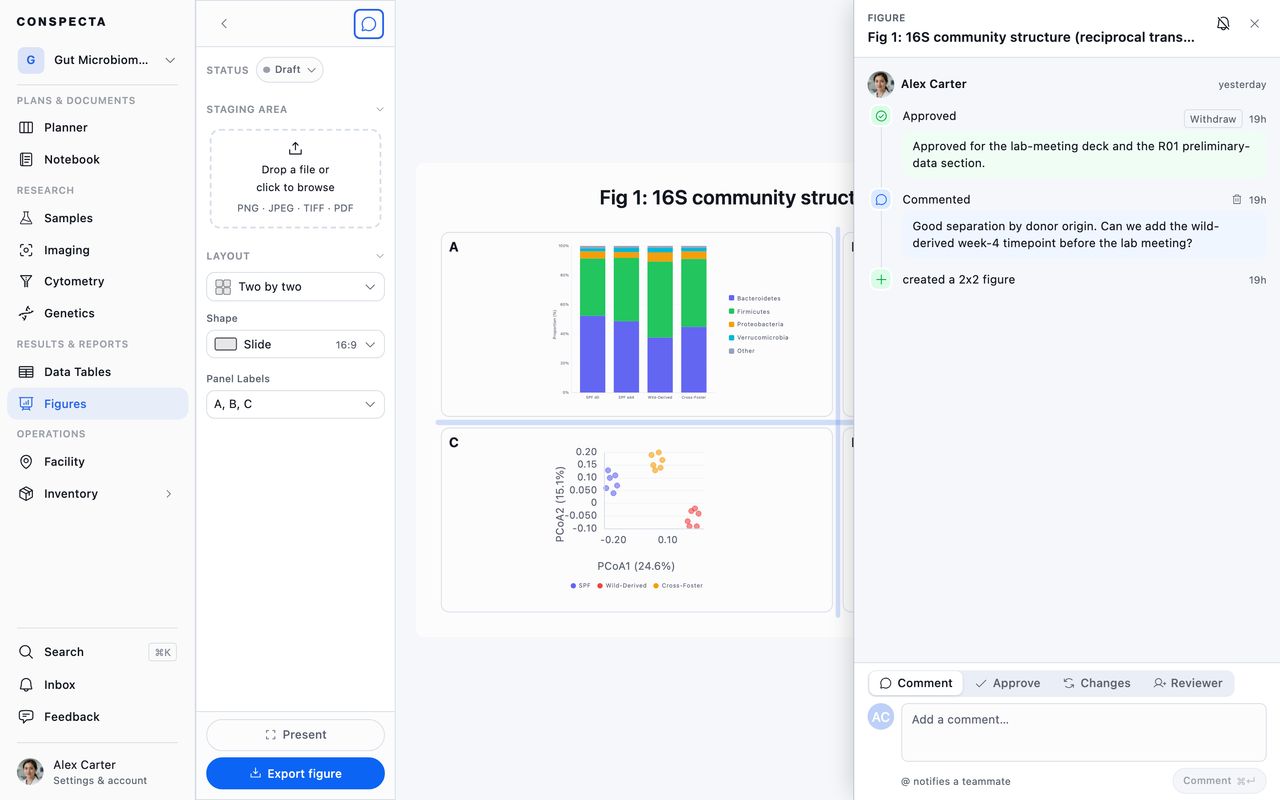
Editing a figure after it's approved marks the sign-off stale. An approval refers to the figure as it looked at that moment, so any change flags it for a fresh look.
Project members with view-only access can open, present, and export a figure and take part in its review, but the layout, staging, and panel controls aren't offered.
Presenting
Present on the top bar fills the screen with the figure and hides everything else, for showing it on a projector. It works on a phone and a tablet as well as a laptop.
Two buttons at the bottom choose what it shows, both on a light page in either theme:
| Mode | What it shows |
|---|---|
| Whole figure | The canvas at its output shape. Tap a panel to open that panel |
| Panel by panel | One panel at a time, at its shape in the figure and as large as the screen allows, with its title, caption and markings, the figure's title above, and the panel letter in the corner. Empty panels are skipped |
Arrow keys step between panels, a swipe steps on a touch screen, and Esc goes back a step. A panel's own Fullscreen button starts in Panel by panel too.
Exporting
Exporting One Figure
Export figure, in the ⋯ menu on the top bar, writes four formats at the sizes journals ask for.
| Setting | Choices |
|---|---|
| Width | Fits one journal column (89 mm), Fits both journal columns (183 mm), Fills a presentation slide (254 mm), or a Custom width in millimeters |
| Resolution | 150, 300, or 600 DPI. The panel shows the pixel dimensions your choices produce, so you know the file meets a submission requirement before you write it |
| Theme | Light or Dark, whatever theme the app is in. It starts on Light, and a figure's thumbnail, Download, and the workspace Export always use light |
| Format | What it holds |
|---|---|
| PNG | A picture at the size and resolution you chose, for slides and documents. |
| SVG | Vector for Illustrator or Inkscape, where every bar, point and label stays a separate object. |
| TIFF | Lossless pixels for a journal's photographic artwork, with the resolution written into the file, so a submission checker reads 300 DPI. |
| A vector page at the printed width, for a journal's line art, with text that stays text. |
SVG and PDF print at the chosen width at any resolution.
In an SVG, each chart's bars, points, axis ticks and gridlines are objects you can select one at a time, panel labels and captions are live text, and every panel is its own named layer. Microscopy images are embedded as pictures, and the arrows, labels and scale bars drawn on them stay editable shapes on top, as a cytometry panel's gate outlines do over its events.
A single panel exports on its own from the panel's menu, as Export chart, Export image, or Export text depending on what it holds. The same dialog box opens, with widths measured against the panel's own box, and the file is named for the figure and the panel's letter. A chart also exports from the chart itself, in the same formats and sizes, or copies to the clipboard.
Exporting Several Figures
- Export in Settings, with Figures ticked, writes every figure as SVG, PNG, TIFF or PDF at the width you ask for, plus a resolution for PNG and TIFF. The archive holds one file per figure, with a spreadsheet as its manifest.
- Export in the Figures landing header writes the figures at 183 mm and 300 DPI, or the list as a spreadsheet with a row per figure (title, folder, status, layout, label style, how many panels hold work, its sharing, and who made it when). A scope holding more figures than the page has loaded is refused, with the count shown. For another size, use Download.
- Download, after you select figures on the Figures landing, asks the same format and size as a single figure and applies it to everything selected. Several figures arrive as one archive with each file named after its figure, and one figure arrives as one file. A large custom width at 600 DPI can reach more pixels than one image holds, and the download names the size it came to, so lower the width or the resolution and run it again.
A figure nobody has opened since it was made, or since an AI assistant or the API last changed its panels, needs opening once before it exports with the rest:
| Route | A figure nobody has opened |
|---|---|
| Export in Settings | Left out. The export row counts what it left out and names the first few |
| Export in the landing header | Counted and named before you press Export. When none in the scope has been opened, the button stays off |
| Download | Arrives as a short text file naming it |
A figure built on work a colleague keeps private stays out the same way even after you open it, because those panels come up blank for you. The colleague gets the picture from their own export, and it comes through in yours once they share the panel's source with the project.
Organizing
Figures sort by last modified, creation date, name, or status, and filter by status, modification date, and review. The Review filter offers Review requested, Changes requested, Approved, Rejected, and No review. Folders and stars work as they do elsewhere. Deleting a figure sends it to Trash for 30 days.
A folder carries a ⋯ menu on its card and on its row in the list, and in the list each figure's row has one too:
| Item | What it does |
|---|---|
| Rename, Move to... | Renames or moves the folder or figure |
| Star | Stars it. It reads Unstar once starred |
| Download | On a folder, opens the header's Export dialog box scoped to that folder and everything in it, with Whole workspace beside it when the workspace holds more. On a figure, asks the format and size for that figure alone |
| Share or Make private | Changes who sees the figure. On a folder it changes the figures inside, because a folder has no sharing of its own |
| Duplicate figure | On a figure only. See Duplicating a Figure |
| Delete | On a folder, trashes it with everything inside, and the confirmation lists what goes with it |
On a folder, Star and Download are open to anyone who can see the project, and the rest to anyone who can edit it.
A folder shows Share or Make private, whichever way the figures inside can go, and a large workspace can show both. Only the person who created a figure can change who sees it, so Share on a folder holding a colleague's figures shows a message and leaves those figures as they are.
Duplicating a Figure
Duplicating keeps two arrangements of the same figure, each drawing from the same data and edited on its own. Duplicate figure, in a figure's ⋯ menu on the Figures page or on the top bar of an open figure, makes a copy in the same folder and opens it. Duplicating needs edit access to the project.
The copy:
- is named <name> (Copy), and a second copy of the same figure becomes (Copy) (1)
- keeps the layout and every panel, with the annotations, panel labels, canvas shape and text sizes, and takes the original's sharing
- draws each chart from the same analysis, table or record as the original, and offers Refresh when that source changes
- gets its own copy of images you uploaded onto the figure, so deleting either figure leaves the other's images intact. An image that belongs to a sample, an image analysis or an image set stays a link to that image
- starts its own history. It belongs to you, reads as Draft, and has no sign-offs. Its activity opens with a line naming the figure it came from, and the original's activity gains a line naming the copy
The copied images count toward your team's storage. When they would not fit, a message says so and no copy is made.