Track Reagent Inventory
Inventory tracks what the lab consumes and uses: reagents, chemicals, consumables, media, kits, and equipment. It tells you from your desk how much is left, where it is, and whether more is on the way.
Inventory and Orders sit side by side under Operations in the sidebar: Inventory for the things themselves and Orders for what's been requested. Both belong to the project you're in. The suppliers you buy from are in Contacts, which belongs to the whole team.
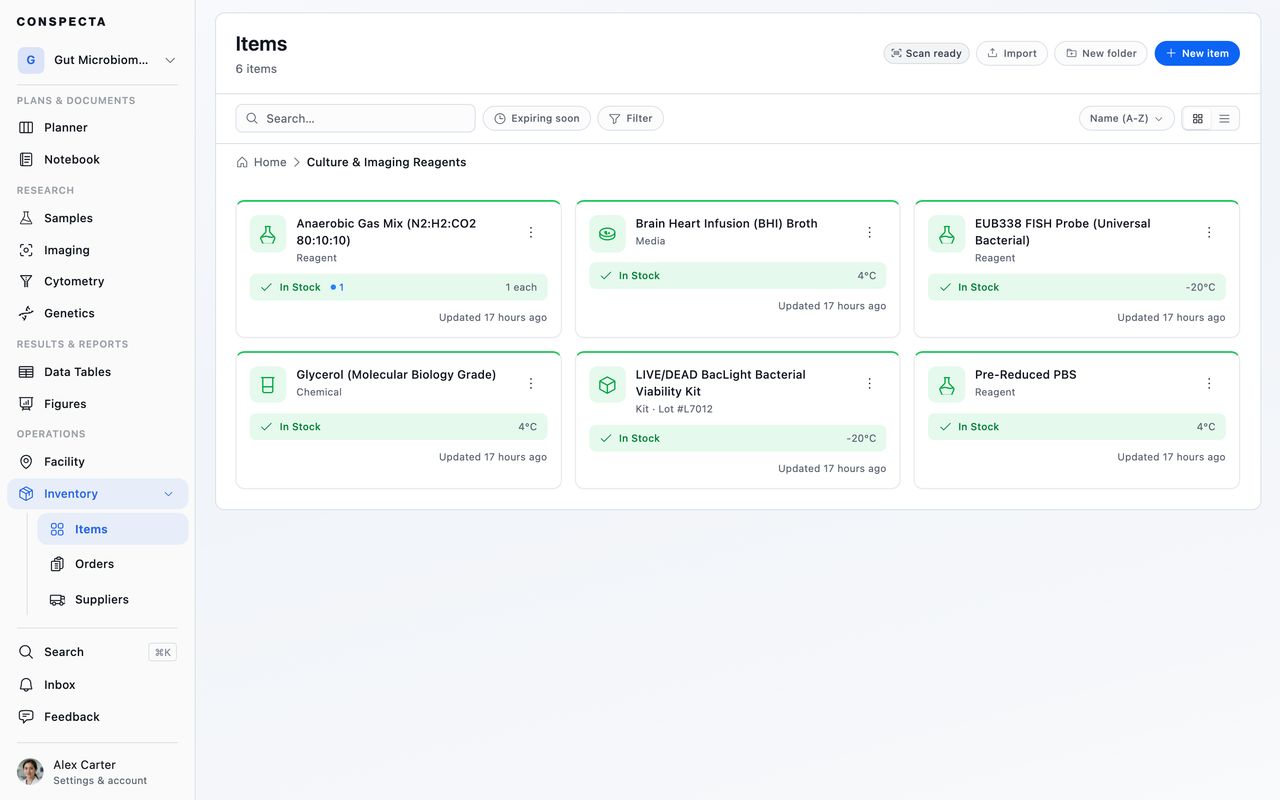
Adding an Item
New item asks for a category, then a name and whether it's private or shared. The item exists at that point, and everything else is filled in on its profile, which saves each field as you finish it.
Clicking the picture at the top of the item's sidebar opens Choose Item Image, and dragging an image onto it goes straight to Adjust Item Image, where you pan, zoom, straighten, and rotate to choose the part that shows.
Once the item has a picture, clicking it offers View, Change, and Remove. View shows the full picture, since the sidebar shows only a band of it.
The seven categories organize your items, and a Reagent also carries the Antibody fields described under Item Details. Pick the one that fits:
| Category | For |
|---|---|
| Reagent | Enzymes, antibodies, stains |
| Consumable | Tips, tubes, plates, gloves |
| Equipment | Instruments and hardware |
| Chemical | Solvents, buffers, acids |
| Media | Growth media and agars |
| Kit | Assay kits and bundles |
| General | Anything else |
Equipment here is a catalog entry: what the thing is, what it cost, where it sits, and what stock of it you hold. The instruments people book time on, with their schedules, downtime, and service logs, live in Facility, because a shared machine belongs to the whole lab.
Import takes a CSV or TSV, or drag one onto an empty workspace. Column headers are matched loosely, including the names other lab tools export, and a default category covers rows that don't name one.
Name is the only required column. Expiry, shelf life, storage condition, weight, volume, concentration, purity, form, CAS number, controlled substance class, export control, regulatory status, lead time, minimum order, handling notes, and links to the safety data sheet, certificate of analysis, and technical data sheet are all recognized.
Write dates as YYYY-MM-DD. A cell like 03/04/2026 is refused, because it means March 4 in one country and April 3 in another. Any row the app can't read is flagged in the preview and skipped, so you can fix it and import again.
Stock
The number on an item comes from the transactions recorded against it, so every change has a reason and a name attached.
Consume and Receive sit at the top of the Stock card. The three dots beside them open the rest:
- Receive adds what arrived from a delivery or purchase, and asks which batch it went into
- Consume removes what you used
- Transfer moves quantity to a different location
- Adjust corrects the number after a physical count
- Dispose writes off stock that went in the bin rather than into an experiment
Tip: Adjust asks for the new total, not the difference. If you counted 14 tubes on the shelf, type 14. An empty shelf is a count too, so 0 is a valid total. The other three take an amount to add or remove.
Consuming more than you have is refused. Transferring everything moves the item's location along with the quantity.
Under the number, the card says where the reorder point is, how much is on its way, and which batch is closest to its date. A batch already past its date carries a Dispose button on that line, so you can clear the shelf from where you read about it.
Stock status follows from the number and the item's reorder point:
| The number is | Status |
|---|---|
| At or below zero | Out of Stock |
| At or below the reorder point | Low Stock |
| Anything higher | In Stock |
It counts what is on the shelf and says nothing about dates. A full bottle that went out of date last week still reads In Stock, with a red stripe on its card and a red expiry line saying how long ago it went.
An item raises a low-stock alert once it has a reorder point, has received stock at least once, and has run low. A newly created material stays at zero without alerting, and so does a list you imported with thresholds set against empty shelves.
Who hears about it follows the item's visibility. A shared item alerts everyone on the project, and a private one alerts its owner. The alert arrives in the inbox, and on your phone or by email if you've ticked those channels in Settings.
Request more opens an order prefilled with this item. It lives in the three-dots menu, and it moves onto the card itself once the item is at or below its reorder point with nothing on order. While an order is open, the card says how much is arriving and in how many orders, so you don't double-order, and clicking that line opens the order. An order placed in a different unit from the item shows as a count instead, because the two amounts can't be added.
Lots
Reagents that arrive in batches get lot tracking. Add Lot records a lot number, its quantity, and its expiration date, so you can use the oldest stock first and trace a result back to the batch that produced it.
Receive carries a Batch field, so a delivery is entered once: pick the batch it topped up, or choose New batch and give it a number and an expiration on the same form. The amount you typed lands on the batch and on the item's total together. On a controlled substance the field offers the batches you already have, since the movement waits for a second person. A batch that was written off takes no more stock.
If someone changed the same field of a lot while your form was open, both values show with Keep mine and Use theirs, and Apply saves the one you pick.
Lots record batches, and the item's total is kept separately: only receiving moves both. Deleting a lot removes its batch record and leaves the item's total alone, which is what you want for a lot entered by mistake. For a batch that went in the bin, use Dispose.
Disposing of stock
Dispose records stock that left without being used: past its date, contaminated, dropped, spilled. It asks how much and what happened to it, and the entry keeps your name, the amount, the reason, and the batch. Like every other stock entry it cannot be edited or deleted afterwards.
It sits on a lot's ⋯, on the item's Stock panel, on an item row's ⋯ on the Inventory list, and in the bar that appears when you tick rows, so a shelf of dead reagents is one pass rather than one item at a time.
Disposing a batch retires it. The batch keeps its place in the item's list marked Disposed, with the date and the reason, so the record of what the lab held is still there. It stops counting toward the item's expiry, which is what takes the item out of Expiring soon, and it can no longer be edited or deleted. Writing off the last of an item clears the item's own expiry date too, since the date described something that is no longer there.
Tip: Consume and Dispose both take stock away, and the ledger keeps them apart. Consume is stock that did its job, and Dispose is stock that didn't. Six months later that's the difference between a reagent you get through and one you keep throwing away.
Controlled substances
Give an item a controlled substance class on its Details tab and its stock moves only with a second person's approval. The card shows the class next to its buttons, which read Request consume and Request receive, and all five moves are held, Transfer, Adjust and Dispose included.
Each one raises a request and says so, and the number on the shelf stays where it is until someone other than you approves it. How long a request waits depends on the schedule:
- Schedule I and II also ask that approver for a witness signature, and the request expires after 24 hours.
- Schedule III to V expire after 48.
Reviewing a Request
Waiting requests gather under Awaiting approval at the top of Materials, with a count. Open one and Review shows what was asked, who asked and how long is left, and approves or denies it with a comment, a DEA license number and a witness signature where the schedule calls for one.
- Approving moves the stock, and denying leaves it.
- A request to lower or clear a class waits in the same list, and approving it changes the class instead.
- You can't decide a request you raised yourself.
- A request that runs past its window leaves the list and reads as expired, so raise a fresh one.
The item you raised a request on lists it above its Stock card, where Withdraw takes it back. Withdraw is offered to whoever raised the request and to the project owner.
The comment on a denial, and the reason on a withdrawal, are written to the permanent record along with the decision.
Imports and Protocol Runs
The approval is the only way the number moves, and two other routes to it stop short:
- Importing a spreadsheet that gives a controlled substance a different quantity, or a lower schedule, skips that row and tells you which one.
- A protocol run that consumes one stops at that step and names the material, so you withdraw it from the item's stock and check the step off once it's approved.
Deleting a Controlled Substance
You can't delete a controlled substance while stock is still on it, and stock recorded against its batches counts. Write it off with Dispose, and once that approval comes through and the count reads zero you can delete the material.
A batch that held controlled stock stays. Writing one off with Dispose zeroes its amount and keeps the batch in the item's history as the record of what happened to it.
Counts That Go Stale
Adjust is the one move that can go stale while it waits. It sets the total rather than adding or removing an amount, so if stock arrives or leaves before the approver gets to it, the count describes a shelf nobody has looked at since.
Approving one of those is refused, and the message says what the item held when it was counted and what it holds now. Deny it and count again.
Changing the Schedule
Setting an item's schedule, or raising it, takes effect when you save. Lowering or clearing one waits for a second person the way a stock move does:
- The item keeps its class, the change goes to Awaiting approval, and it applies once someone other than you approves it.
- One of the two of you has to be a project owner, and Schedule I or II also needs a witness signature.
- Everything else you edited saves as usual.
Item Details
The Details tab holds everything you'd otherwise keep in a spreadsheet or on the bottle:
- Properties for the supplier, SKU, catalog and barcode numbers, unit, reorder point, unit price and currency, lead time, minimum order, expiry, shelf life, and how many days ahead to warn you
- Physical for weight, volume, concentration, purity, and form
- Antibody (on reagents) for the fluorochrome, clone, host species, and reactivity. The fluorochrome field suggests known dyes as you type, and any name you enter is kept. Panel design marks which dyes your lab already holds from this field, and from the dye in the item’s own name where the field is empty, so an antibody recorded as "CD127 BV605 (clone A019D5)" counts as BV605 with nothing extra to type.
- Regulatory for CAS number, controlled substance class, export control, and regulatory status
- Safety for hazard classifications, storage conditions, handling notes, and links to the safety data sheet, certificate of analysis, and technical data sheet
Set a storage condition and Conspecta warns you if the item's assigned location doesn't match it, which catches an antibody parked in the wrong fridge.
Scan barcode on the Properties list reads a code from a connected scanner into the barcode field.
The Activity tab shows the item's history with its stock transactions woven in, so you can see who used the last of it. Each stock entry names the batch it came out of and the reason typed at the time, so writing off one batch of five reads as that batch.
What happened to the batches themselves is here too: added, edited, deleted, and brought back from Trash, each by number. A batch that went because the whole item was deleted says so. Show more at the foot of the feed reaches further back through both, however long the history is.
It also carries comments and sign-offs, on your own items as much as anyone's. Once someone else is on the project you can @ them and ask a named colleague for a sign-off.
Duplicating an Item
Duplicate item in an item's ⋯ on the Inventory list, or at the foot of an open item's sidebar, makes a copy in the same folder and opens it. The copy is named <name> (Copy), and a second copy of the same item becomes (Copy) (1). It keeps the category, the description, the supplier and ordering details, the reorder point, the physical, antibody, regulatory and safety fields, the tags, and the item's pictures, and it takes the original's sharing.
The copy starts with no stock. It belongs to you and holds 0, with no batches or stock history, and its barcode, location, box position, expiry date and last purchase are empty, since those belong to the stock on the shelf. A controlled substance keeps its class, so the copy's stock moves only with a second person's approval, like the original's.
Its activity opens with a line naming the item it was duplicated from, and the original's activity gains a line naming the copy. Duplicating needs edit access to the project.
Editing an Item Someone Else Has Open
Two people can work on the same item at once. If you both changed the same field, the profile shows Some fields were updated by another user. with each value under Keep mine and Use theirs, and nothing else you edit saves until you choose and click Apply.
When a save doesn't go through, the top bar reads Not saved with a Retry button.
Finding Things
Sort, Filter and Search
View on the toolbar holds sorting and filtering. Sort by name, quantity, stock status, category, expiry, or when the item was created or updated. Two of the orders give you a list to work from:
| Sort by | Brings to the top | Work from it before |
|---|---|---|
| Stock | Out-of-stock, then low stock | An order |
| Expiry (Soonest First) | The overdue ones | A clear-out |
Filter by category or by Expiry, and search by part of a name, SKU, catalog number, CAS number, barcode, category, description, tag, form, or purity. What you have applied shows as labels under the toolbar.
Expiry offers Expiring soon, Expired, and Has a date, and reads each item's soonest date, so an item whose lot runs out before the item's own date counts from the lot.
When an item is within 30 days of its date or already past it, a line above the list says how many. Show them narrows the list to those items and sorts them soonest first, reaching every folder below the one you have open.
Folders
Folders group items by bench, project, or supplier. A folder's own ⋯ holds Rename, Move to..., Star, Download, Share or Make private, and Delete. Each one acts on that folder and the items inside it and leaves anything you have ticked elsewhere alone.
- Download opens the export dialog box on that folder and everything in it.
- Deleting one lists every item going with it before you confirm.
Acting on Items
In the list, each item's row carries the same ⋯ for that item alone, plus Duplicate item and Dispose, and its Download opens the export dialog box on that one item.
Select several for the bulk bar: Move, Share, Make private, Rename, star, Download, or Delete.
Share and Make private appear only when everything selected is your own, counting a folder as the items inside it, since only an item's creator can change its visibility. A folder's ⋯ offers neither when one of the items inside it is somebody else's.
Ordering
Order requests live in Orders, alongside their suppliers. Conspecta records what you asked for and tracks it through Requested, Processing, and Complete. You place the purchase itself in your supplier's own portal.
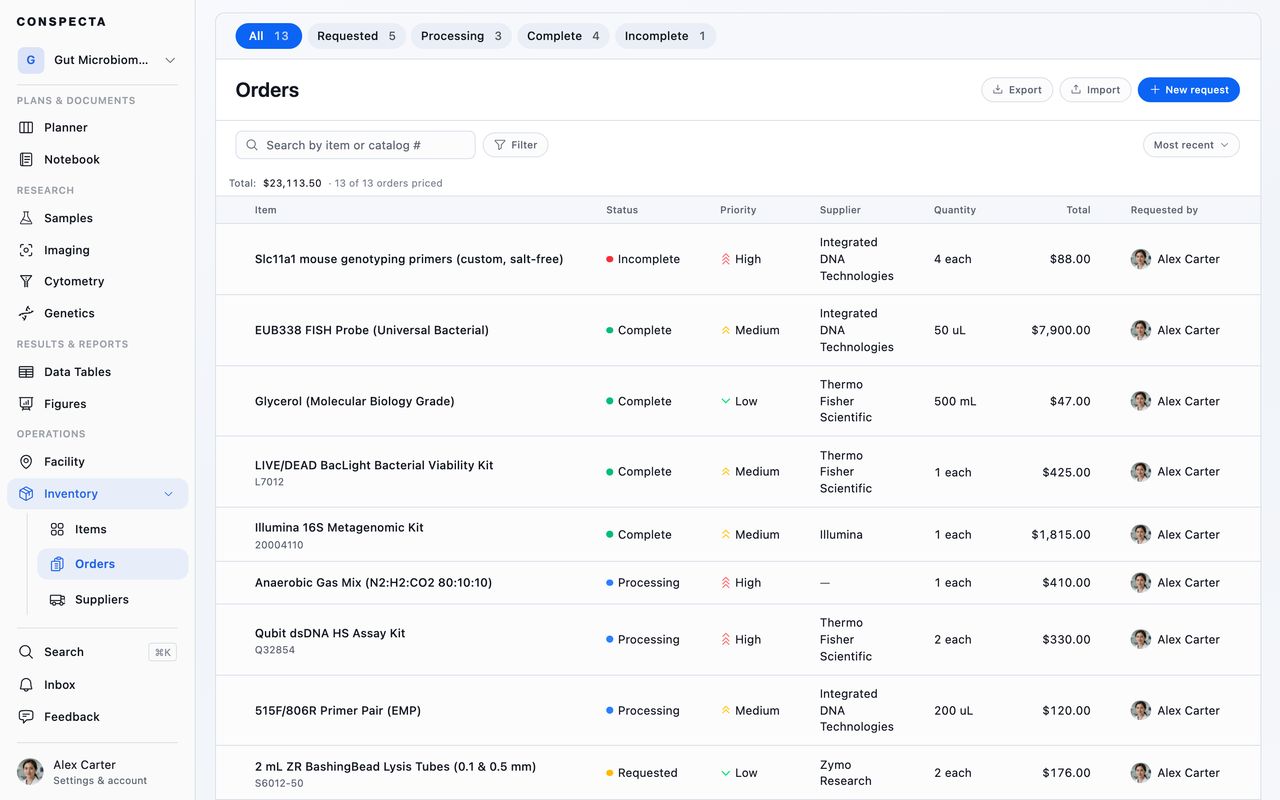
On a phone, status moves into the filter menu beside the search box, with its counts.
An order that has been signed off or sent for review says so in the table's Review column, which appears once any order in view has a review. It reads Review requested, Changes requested, Rejected, Approved, or Approved · edited since.
Moving an order through its statuses or adding its receipt details leaves an approval standing. Changing what was requested, such as the quantity, price, or priority, marks it edited since.
View on the toolbar filters by Review too, offering Review requested, Changes requested, Approved, Rejected, and No review.
Completing an order that's linked to an item receives the delivery into stock, so the quantity, the lot number, and the transaction all land in one step. That flow, along with the vendor list, is covered in Work with suppliers.
Select several orders for the bulk bar:
- Mark processing, Mark complete, or Mark incomplete
- Download them through the same dialog box the header's Export opens
- Move them to another project
- Delete
Each order's row has a ⋯ with the same actions for that order alone. A status an order can no longer reach is left off both, so an order already marked complete offers no Mark complete or Mark incomplete.
Orders belong to the project they were raised in, so a request filed against the wrong project can be moved to the right one. See Moving work between projects.
Exporting
Export in the workspace header opens a dialog box that asks three things:
| It asks | The choices |
|---|---|
| Scope | This folder only, this folder and everything inside it, or the whole workspace, each with a live count and the same search, filters, and sort you have on screen |
| Columns | A grouped checklist, with All and None |
| Format | CSV, or Excel with an Export Info sheet naming the project, scope, and filters |
The export carries each item's folder, quantities, expiry dates, where the item sits, and its position in a tracked box. The column names match what Import reads, so a file you export here comes back in without remapping.
Small exports download at once. A large one is emailed as a link, the button reads Email me a link, and any member who can edit may run it.
Save as preset… keeps a set of choices under a name for next time. Select items and choose Download in the bulk bar to export only those.
The whole-workspace export is in Settings → Export, and produces an Excel workbook with three sheets: the items with their quantities and suppliers, the lots with their numbers and dates, and every stock transaction with who performed it and when.