Image Analysis Pipeline Steps
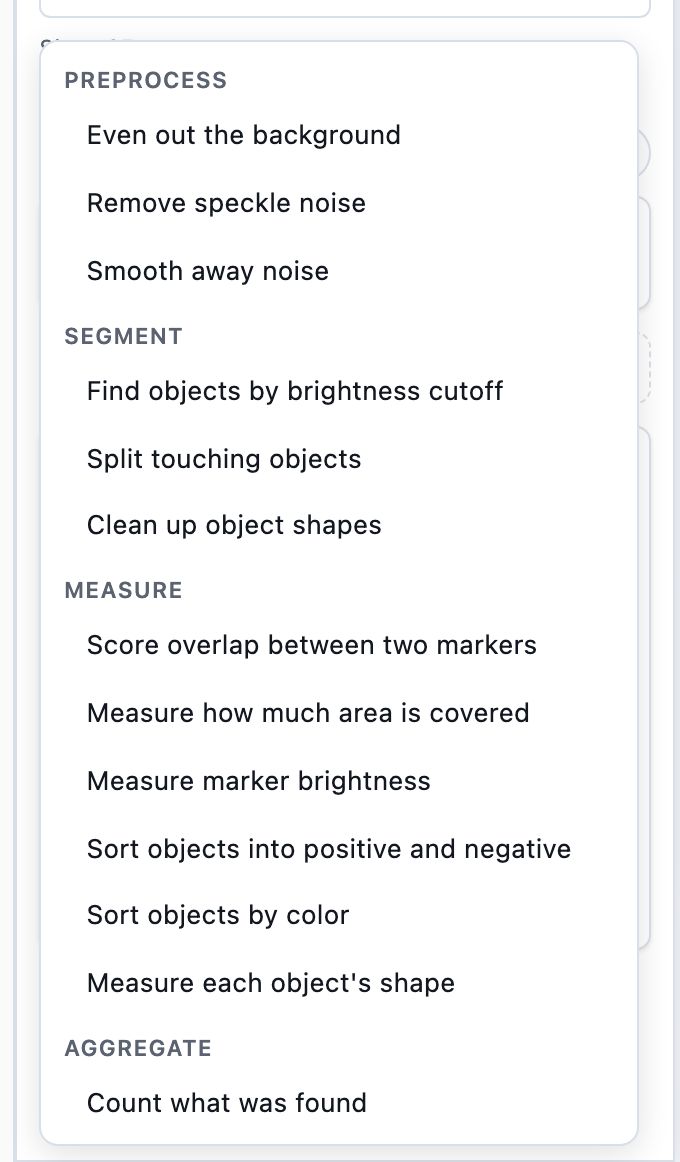
An image analysis runs a pipeline: a list of steps, each one reading what an earlier step produced. Add step offers the steps that fit where you are adding, and this page is the full list of what it can offer.
Adding a Step
Add step at the foot of the pipeline puts the step you pick at the end, open so you can set it. The grip beside any step offers Add step above and Add step below, which put it at that place instead. Either way the menu holds only the steps that fit there, under six headings in this order: Preprocess, Segment, Measure, Relate, Gate, Aggregate.
Where a step reads an image, the choice at the top of its settings lists the image itself and any plane an earlier cleanup produced. A LIF, or another acquisition that stores a plane per channel, adds each channel by the name the microscope recorded. A JPEG, PNG or flattened TIFF is a single picture, so its list holds the image and the cleanups alone. Where a step reads objects, the choice lists each step that found some. An input with one candidate is bound for you and shows no picker.
The tables below name each step's settings and leave the explaining to the app, which does it where you set them: the info button beside a setting's name covers that setting, and How it works at the top of an open step covers the step. Tune an image analysis covers the settings you reach for most, among them Threshold strategy, Expect threshold between, Match by and Overlap thresholds. Six steps have no settings at all, and open on the line Nothing to adjust for this step.
Detecting with an AI model is a setting on a detection step rather than an entry in this menu. Open Find objects by brightness cutoff and switch it to Colonies on a plate or Fluorescent cells or nuclei, described under Detecting with an AI model.
What Each Step Does
Preprocess
Cleans up an image before anything reads it. A cleanup added above a detection becomes the image that detection reads, and a measure keeps reading the image as it was acquired until you point it at the cleaned plane.
| Step | What it reads | Its settings |
|---|---|---|
| Remove speckle noise | An image | Smoothing radius |
| Smooth away noise | An image | Blur radius |
| Even out the background | An image | Background level, Background offset, Expect background offset between |
Segment
Finds objects, or reshapes objects an earlier step found.
| Step | What it reads | Its settings |
|---|---|---|
| Find objects by brightness cutoff | An image | Measure the, Threshold, Minimum region size, Threshold strategy, Expect threshold between |
| Split touching objects | Objects found earlier | Split depth, Closest two centers |
| Clean up object shapes | Objects found earlier | Shape cleanup, Cleanup radius, Cleanup passes |
Measure
Turns pixels into numbers. Every measure reads an image, so each one carries the same channel choice. The first four can measure the frame as a whole, which is why they are offered before anything has found objects.
| Step | What it measures over | Its settings |
|---|---|---|
| Score overlap between two markers | The whole image or objects found earlier | Marker A channel, Marker B channel, Overlap thresholds, Marker A cutoff, Marker B cutoff |
| Measure how much area is covered | The whole image or objects found earlier | Measure the, Threshold, Threshold strategy, Expect threshold between |
| Measure marker brightness | The whole image or objects found earlier | Nothing to adjust |
| Sort objects into positive and negative | The whole image or objects found earlier | Positive cutoff |
| Sort objects by color | Objects found earlier | Nothing to adjust |
| Measure each object's shape | Objects found earlier | Nothing to adjust |
Sort objects by color reads the color of each object's pixels, so it needs a color (RGB) image. The menu offers it wherever objects exist, which includes a single-channel fluorescence image, where there is no color to sort on.
Relate
Works out which objects sit inside which.
| Step | What it reads | Its settings |
|---|---|---|
| Match objects to the region that holds them | Two sets of objects, the containing regions and the objects inside them | Match by, Smallest share inside |
Gate
Drops objects from everything below it.
| Step | What it reads | Its settings |
|---|---|---|
| Keep only objects in the chosen range | A measure that ran over objects | Gate cutoff, Gate on, Gate comparison, Gate lower bound, Gate upper bound, Gate kept values |
The objects it keeps follow the measure you point it at, since gating on one set of objects while keeping another would keep nothing. Gate on lists what that measure recorded, such as circularity, aspect or mean brightness, and Gate comparison decides how the number is read: At least, Between and One of each use a different one of the bounds below them. Filter under the image is the same idea with a handle instead of a form, described under Filtering what counts.
Aggregate
Turns what the pipeline found into the rows of the results table.
| Step | What it reads | Its settings |
|---|---|---|
| Count what was found | Objects found earlier | Nothing to adjust |
| Count objects inside each region | A match step | Nothing to adjust |
| Summarize the measurements | A measure that ran over objects | Nothing to adjust |
| Check controls | Every image's finished number | The conditions to check and the range each should land in |
Check controls is the one step that sits where it sits. It judges what every other step produced, so it goes last in the pipeline and carries no grip to move it, and a pipeline holds one of them, so the menu drops it once you have added it. Its ranges, and what a run's control images came to, are covered under Controls.
Why the Menu Is Shorter on Some Pipelines
A step is offered once everything it reads exists, so the menu grows as the pipeline does. Nine steps are offered on any pipeline: the three cleanups, Find objects by brightness cutoff, the four measures that can read the frame as a whole, and Check controls. The other nine wait, in four groups:
| Offered once the pipeline has | These become available |
|---|---|
| Found objects | Split touching objects, Clean up object shapes, Measure each object's shape, Sort objects by color, Count what was found |
| Found two separate sets of objects | Match objects to the region that holds them |
| A measure that ran over objects | Keep only objects in the chosen range, Summarize the measurements |
| A match step | Count objects inside each region |
A measure pointed at the whole image opens neither the gate nor the summary, because both read a value per object. Point a measure at a detection first and both appear.
So an analysis built from Area coverage measures the frame and has found nothing, and its menu holds those nine. An analysis built from Count objects has a detection, and its menu holds five more. Adding a second detection and a match step brings up the last four.
Settings That Add a Step
Four settings on the counting analysis types add or remove a whole step rather than change a number. Count objects carries all four, and Count touching objects carries Background cleanup and Reduce noise.
| Setting | What it adds |
|---|---|
| Background cleanup | Even out the background, above the detection |
| Split touching objects | Split touching objects, below the detection |
| Fill holes | Clean up object shapes, set to fill interior gaps, between the detection and the split |
| Reduce noise | Remove speckle noise, at the top of the pipeline |
Turning one off takes its step back out. Open the step it added to reach that step's own settings, such as Cleanup radius on the shape cleanup, and to point it at a different image or set of objects.