Settings and Preferences
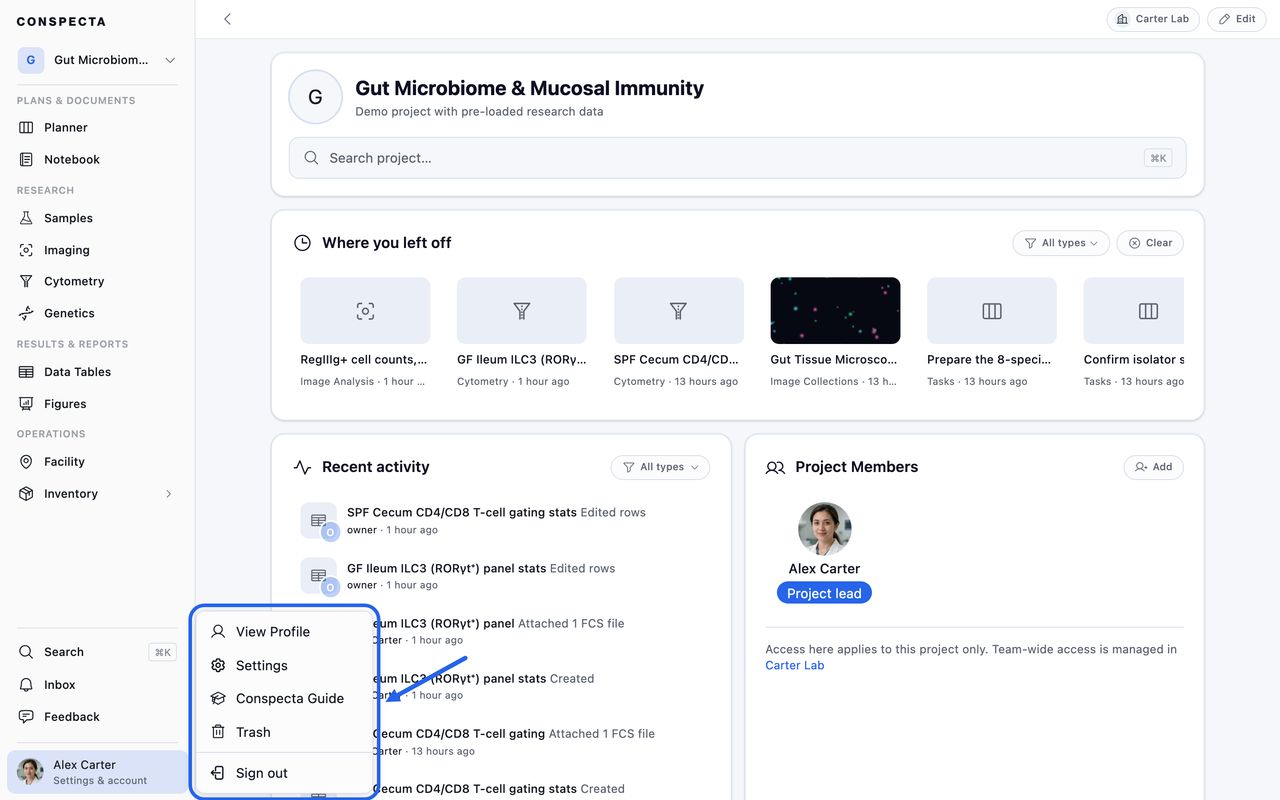
Open Settings from your account menu at the bottom of the left sidebar, or with Cmd + Shift + , (Mac) / Ctrl + Shift + , (Windows and Linux). The Settings panel opens as a dialog box with sections listed down the left side:
| Group | Holds |
|---|---|
| You | Personal settings |
| Your team's name, or Your teams when you belong to more than one | Team-scoped settings |
| App | App-wide settings |
Each section is its own page. On a phone the section list becomes a menu button in the top left of the dialog box. Searching jumps you into the first section with a match and narrows it to the matching settings.
Account
Manage your Conspecta identity:
- Email Address and Password, each with a path to change it
- Two-Factor Authentication with TOTP support
- Active sessions showing where you're signed in, with a way to sign out this device or one you no longer have
- Delete Account, covered at the bottom of this page
Turn two-factor authentication on once your account is established. It adds a one-time code at sign-in. Use any standard TOTP authenticator app (Authy, 1Password, Google Authenticator).
Keep a second copy of the code somewhere safe, such as a password manager that syncs across your devices. If you lose access to your authenticator, only we can switch it off, and we confirm it's you by email first. The sign-in screen links to the contact form when you need that.
Notifications
Notifications are set in a grid. Each row is something Conspecta can notify you about, and each column is a way to reach you: In-app, Push, and Email. Rows are grouped by where the work happens. You can set every column from any browser, and a Push tick is saved to your account, so the phone app uses the same ticks you set at your desk.
| Group | Rows |
|---|---|
| Plans | Review requests and their answers, task assigned to you, task deadline approaching, task scheduled time approaching, task deadline missed |
| Notebook | Mentions |
| Teams & projects | Team invitations, project additions |
| Inventory & orders | Inventory alerts, orders you follow |
| Facility | Instrument scheduling, covering the reminder before a session, downtime that cancels a booking, notices on instruments you've booked, and overdue service |
| Billing | Usage alerts, plan status |
| Security | Sign-in and account changes, always on |
In-app starts on and email starts off, so nothing lands in your mailbox until you ask for it. Plan status is the exception and starts as email only, because a lapsed plan has to reach the people who can fix it. It goes to owners and admins.
The Security group is display only. New sign-ins, password changes, two-factor changes, an email address change, a team ownership transfer in either direction, and a requested account deletion are always emailed, and you can't turn them off. Account & billing notices, meaning renewals, receipts, and failed payments, are always emailed too.
To review the orders you follow, open the Orders workspace and apply the Orders you follow filter.
Appearance
Pick the app's Theme:
| Choice | How the app looks |
|---|---|
| Light | Light backgrounds with dark text. This is where everyone starts. |
| Dark | Dark backgrounds with light text. |
| Auto | Light or dark, changing with your device's own light or dark setting, or with a schedule you set. |
With Auto chosen, pick what it switches by. Your device's light or dark setting changes along with your computer or phone. A schedule goes dark from the time you set until the time it ends, for example from 19:00 until 07:00.
The same three choices sit at the foot of your account menu, as the sun, moon and half-filled circle buttons beside Sign out. Cmd/Ctrl + Shift + D flips between light and dark from anywhere.
Your choice applies to every device on the same operating system, so all your Macs share one theme and your iPhone can keep another.
Exports and printed pages come out light in the dark theme, so a figure you edit at night still saves as a white page. Exporting a figure or a chart offers a Theme choice for a file in Dark, and the figure canvas follows the theme on screen. Flow cytometry plots follow the theme on screen too, and their Export Figure screen offers the same Theme choice.
Below the theme, Navigation sets whether the left sidebar is Auto, Expanded, or Compact. Auto hides labels when the window is narrow. This one is desktop only.
Accessibility
Two preferences that change how the app looks and moves:
- Reduce motion and animation collapses fades and transitions across the app. A reduced-motion setting on your device is respected either way, even with this off.
- Increase contrast strengthens secondary text, hints, and dividers to make them easier to read, in both the light and dark themes.
Subscription
Your team's plan and billing, with a picker at the top when you belong to more than one team. See Plans and billing for what each plan includes and how seats work.
This section isn't in the mobile app.
Usage
Inspect your team's monthly compute usage and history.
- A meter for this month's usage, with the date it resets
- An Additional row showing what's left of any extra usage your team holds on top of the monthly allowance
- The Compute Jobs list with every job your team has run, including who ran it, the project, type, duration, status, and usage
- Export CSV for the full job log
See Compute usage for the full compute model.
AI & API keys
A key lets an outside tool reach your lab's data on your behalf without signing in, which is how you connect Claude or another AI assistant. A key can never do more than you can do yourself.
Create a key takes a name, an access level of Read only or Read and write, and an optional list of projects to limit it to. Read only is the default. Your keys lists what you've made, which projects each one reaches, and when it expires, with a way to revoke any of them immediately.
Keys last a year. A key in its last two weeks is marked Expires soon, and Conspecta emails you before it stops working.
Keys come with every paid plan. On the free plan this section names the plans that include them, and the key controls appear as soon as your team is on one (or once the feature is switched on for your free account individually). See Connect your AI assistant for the full setup, including what a key can and cannot do.
Storage
Manage local browser caching and inspect cloud-storage usage:
- Cloud Storage for your team's server-side quota
- Local Storage for what notebooks and data tables hold in this browser
- File Caching with a toggle, a total cache limit, and a maximum size for any one cached file
See Cache and storage for more detail.
Data Dictionary
The fields every project in your team shares, in the same list and form as the Data dictionary dialog box in the Notebook. It shows the dictionary of the team that owns the project you have open, so open a project first.
Export
Pick a project, then say how much of it you want:
- Pick what you need lists every workspace as a row you tick, each with what it holds and the file it writes (Excel, ZIP, or TAR.GZ). Ticking a row opens the choices it has: Format (Excel or CSV, GenBank or FASTA on Genetics, PDF, Word, Markdown or Markdown with images on Notes), Columns on Samples, Inventory, Orders, Contacts, Facility, Genetics, Image Analysis, and Panels, and Include on Samples, which adds notes, lineage, an image manifest, and connections.
- The whole project takes every workspace plus full-resolution images as two downloads, Project data and Images, which runs for tens of minutes on a large project. Each gets a Download button under Latest export once it's ready, and an emailed link too. Only the project owner can run it, so on someone else's project you see the checklist alone.
- Export All Projects when you own more than one
Each workspace you tick runs as its own job, and you get an email with a link for each one, so the button counts them, reading Email me 3 files for three. The list under it shows the progress of each, from Queued to Done, with the reason beside anything skipped or failed. See Share and export for what each export contains.
General
Tune the basics of how the app behaves for you:
- Date & Time Format with a date format (System Default, US, European, or ISO), a 12 or 24-hour clock, whether the week starts Monday or Sunday, and your working hours. Calendars open on your working hours and dim the rest, and you can still schedule outside them.
- Workspaces to show or hide individual workspaces in the sidebar and the phone home screen. A hidden workspace is still reachable from search, links, and shortcuts. On a phone this covers the bench tools too (Timers, Calculators, Converter, Manual Count, Plate Count).
- Measurement Units to pick metric or imperial for rulers, scale bars, and dimension labels.
- Orders for the currency new order requests start in. You can still change it per order.
Shortcuts
A live reference for the current shortcuts in the app, covering global, navigation, and editor shortcuts. See Keyboard shortcuts for the printable version.
About
Mobile App is where you pick up Conspecta for phones and tablets, with a Download on the App Store badge and a Get it on Google Play badge. On a computer the card also shows a QR code for each store.
Below it, the copyright notice and a link to Attributions, which lists the open-source projects and public data sources Conspecta is built on.
Tip: All settings save and take effect as you change them.
Delete Your Account
The Delete Account button at the bottom of the Account section in Settings lets you permanently delete your Conspecta account.
When you confirm, you're signed out and the sign-in page confirms your account is scheduled for deletion with a 30-day grace period:
- During the 30 days nothing is removed yet. Sign back in at any time and use the banner at the top of the app to cancel.
- After 30 days deletion is permanent and cannot be undone. Your sign-in is removed, so the same email can register a fresh account later.
Permanent deletion removes:
- Your profile, including your name, photo, cover image, and bio
- Every project that only you can access, with all of its samples, images, notes, figures, sequences, inventory, and files
- Anything you kept private inside colleagues' projects, along with its files and, for notes, their version history
- Your personal templates, sessions, devices, and notification history
Work you shared into a colleague's project stays with that project, under the project lead's name. Deleting your account never takes away something the lab could already see. To keep a copy of your own work, run an Export before the grace period ends, because it can't be recovered afterwards.
Private materials are the exception. A material you kept private stays once its stock has moved, or once a controlled-substance sign-off has been filed against it, because both are part of the lab's permanent inventory record and refer to that material. It stays private, and nobody can open it once your account is gone.
A few records are kept for legal compliance (for example, financial records and controlled-substance audit logs), but your name and email are replaced with an anonymous placeholder in all of them, so they no longer identify you. The placeholder is unique to you, so a project's history still shows that one person did those things, without saying who.
Own a team? If you're the owner of a team that has other members, the deletion dialog lists each one and lets you hand ownership to another member right there, so the team always has an owner. A team with no other members is deleted along with your account. If a team you own has an active subscription, cancel the subscription first.
Lead a project others use? A project you lead that teammates or collaborators can access isn't deleted out from under them. The deletion dialog lists each of those projects and lets you choose a new lead from the project's team right there. Projects only you can access are deleted with your account, including anything you've already moved to the trash.