Keep Contacts and a Log
Contacts keeps the organizations your lab deals with and the people at them, with a dated log of every call, email, and meeting. Your suppliers live here as organizations of the type Supplier, beside the cores, collaborators, and customers you work with.
Contacts sits under Operations in the sidebar. It belongs to the team, so every project in the lab sees the same list, and it stays open when no project is selected. A link saved from the old Suppliers workspace opens the same record. Buying from a supplier and tracking the order are covered in Work with Suppliers.
Organizations
The Organizations tab lists every organization with its Type, People, and Last contact.
| Type | Use it for |
|---|---|
| Supplier | A vendor you buy from. Only suppliers appear in the supplier pickers on orders and inventory items |
| Service provider | A core, a sequencing service, or the company that services an instrument |
| Collaborator | Another lab or institution you work with |
| Customer | An organization you do work for |
| Other | Any organization that is none of the above, such as a university or a department |
New organization asks for the type first. Choosing Supplier offers a searchable list of common vendors with their websites filled in, and vendors already on your list are hidden from it. The other types, and a supplier that isn't on the list, start from a blank profile. Change a type later with Type in the organization's sidebar. Suppliers show a truck in lists, and every other type shows an office building.
Mark the organizations you use most as Preferred, and the list sorts them first by default. These change what the list shows:
| Control | What it does |
|---|---|
| Sort | Orders the list by name, lead time, last contact, or when each organization was created or updated |
| Type | Narrows the list to one type |
| Preferred filter | Shows Preferred Only or Standard Only |
| Created, Updated | Narrow the list to a range of dates |
The list opens as rows, and it can also show cards. A card carries a Preferred tag in its corner, and with a project open it counts the shared materials there that name the organization. Search matches part of a name, website, address, or notes.
Import takes a CSV, TSV, or Excel file if you're bringing a list from elsewhere. A row's contact name, email, and phone come in as a person, the organization's main contact. An email or phone number in the file that isn't valid comes in blank, and the import says how many.
Group organizations with tags: give each the tags you file it under, and pick them under View options to narrow the list. Tags belong to the team along with the organizations, so everyone in the lab sees the same grouping. To show that one organization sits inside another, such as a department inside a university, use Part of on its page.
An organization's ⋯ holds Star, Download and Delete.
Deleting an organization affects every project in the lab. Items and orders lose it in every project, including ones you can't open. Conspecta warns you before you confirm.
An Organization's Page
An organization's page has three tabs: Materials, People, and Activity. The sidebar holds its type, main contact, websites, address, notes, and lead time.
On People, Add people opens a list of everyone in Contacts with the organization's people ticked. Tick someone to add them, untick them to take them off, and press Done. Anyone at another organization is marked with it, and ticking them adds this organization to theirs. If the person isn't in Contacts yet, New person at the top of the list starts them with what you typed.
Set a logo from the picture at the top of the sidebar. Clicking it opens Choose Organization Logo, and dragging an image onto it goes straight to Adjust Organization Logo, where you pan, zoom, straighten, and rotate to choose the part that shows. Once there is a logo, clicking it offers View, Change, and Remove, which asks first. The logo belongs to your team, like the organization, so it shows in every project your team runs and in the team's own Contacts list.
An outside ID the organization is known by, such as a ROR ID, is listed under Identifiers, below Address.
The page saves each field as you finish it. If you and a colleague changed the same field, it shows both values with Keep mine and Use theirs, and Apply saves the one you pick. A save that doesn't go through reads Not saved in the top bar, with Retry.
Choosing the Main Contact
Main contact, in the sidebar, shows the person the lab deals with there, with their email and phone, and their name opens their page. You change those details on the person's page, and wherever the organization's contact appears, such as a supplier card in a note, it shows the change.
With no main contact, Choose a main contact picks one of the organization's people, and Add a person starts the first one while there is nobody yet. Make main contact on a person's page makes them the main contact of their organization.
What an Organization Supplies
Materials lists what the organization supplies from the project's inventory, with a search over names and catalog numbers. Add materials links more of your items to it.
Once any material is at its reorder point or within 30 days of its expiry date, Needs reorder and Expiring narrow the list to those. Under Needs reorder, Request order on a row starts an order for that material.
Part of and Affiliated With
An organization's sidebar has Part of and Affiliated with under Relationships. Add on either row links it to another organization. The arrow on a linked row opens the other organization, and its ⋯ holds Change or Remove.
| Link | Use it for |
|---|---|
| Part of | The one organization this one belongs to, such as the school a department is in |
| Affiliated with | Any number of organizations it works alongside |
Once another organization is part of this one, its page gains a fourth tab, Organizations. It lists everything within it at every level, with each one's type and how many people belong to it. A Part of that would make an organization part of one within it is refused.
On the People tab of an organization with others within it, Include organizations within adds their people to the list, each named with the organization they are at. The switch is off each time you open the page.
People
The People tab lists everyone the lab keeps, with their organization, title, and last contact. New person asks for a name, and optionally an organization, a title, an email, and a phone number. If someone with that name or email is already in Contacts, the dialog names them so you can use that person instead. An email has to be an address like name@example.com, and a phone number can have spaces, dashes, brackets, a leading + and an extension such as ext 204.
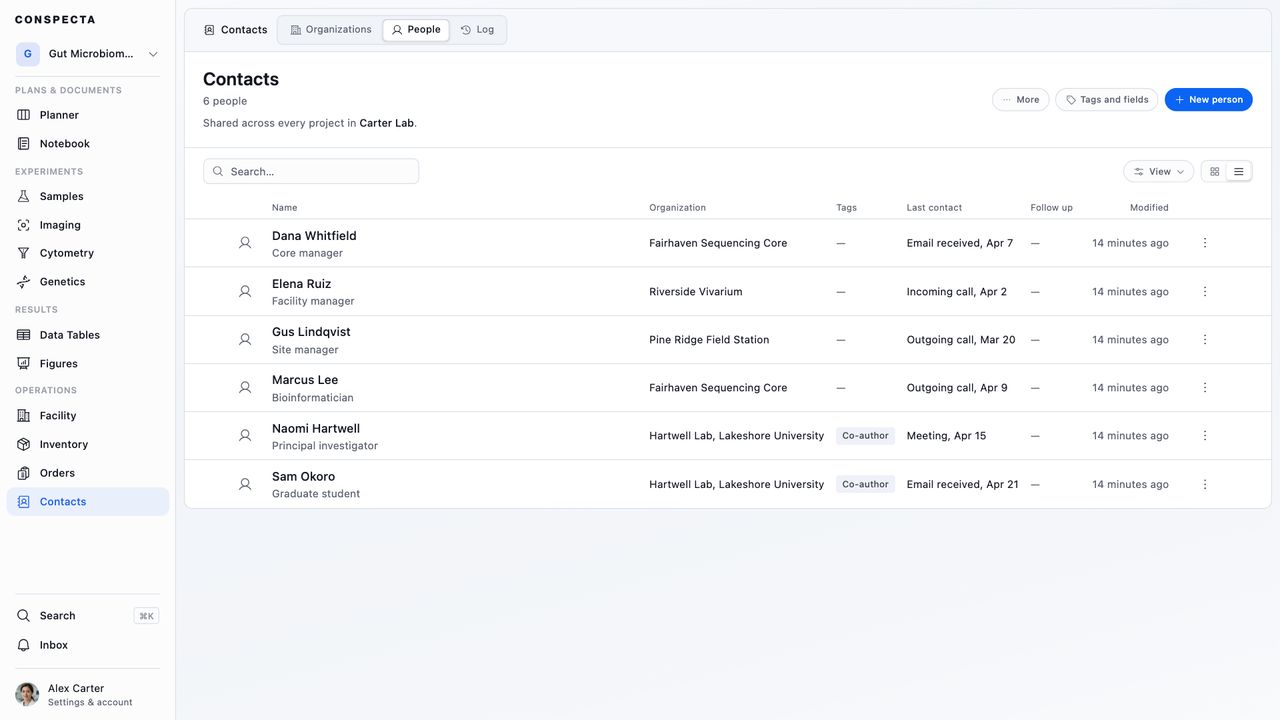
The list opens as rows, and it can also show cards. A card shows the person's picture, or their initials when they have none, their organization, or their title when they have none, and a Main contact tag on anyone who is one. Search matches part of a name, title, email, or organization, and a whole email address finds the person who has it. These filters narrow the list:
| Filter | Narrows the list to |
|---|---|
| Organization | The people at one organization, or the people with No organization |
| Main contact | Yes for the people who are their organization's main contact, No for the rest |
| Follow up | Scheduled for the people with a follow-up date, None for the rest |
| Contact | Where things stand after the newest call, email, or meeting: Awaiting reply when it is an email you sent, Replied when it is a call or an email that came in, Contacted when it is a meeting, a call you made, or one logged with no direction, and Never contacted when there is none yet |
| Tags | The people who carry every tag you tick, up to five |
| Source | The people with a value read from one source |
| Added by | The people one teammate or assistant added |
Contact appears once your team logs which way a call or an email went. Tags, Source, and Added by appear once your team has a tag, a source, and a second person adding people. Once your team tags anyone, the list gains a Tags column in place of Title, and the title shows under the name.
Import, under the ⋯ in the header, takes a .csv, .tsv, or .xlsx with one person per row, and an empty list takes a file dropped onto the page.
It reads six columns: Name, which every row needs, and Organization, Role, Email, Phone, and Tags.
An organization is matched by name to one already on the Organizations tab, whatever its capitals. A name that matches none brings the person in with no organization, and an email or phone number that isn't valid comes in blank.
Tags holds tag names separated by semicolons, and a tag your team doesn't have yet is created. The import says how many people came in, how many tags it created, and what it left blank.
Export, in the same menu, writes a CSV or an Excel file of All people, or while a search or filter is on, of the people matching it. Each row carries the person's name, organization, title, email, phone, and websites, whether they are a main contact, their follow-up date, their last contact, and the dates they were created and updated. A value marked wrong is written blank, as Marking a Value Wrong describes.
A short list downloads at once, and a longer one is built for you and emailed as a link, with the button reading Email me a link. A search or filter that matches more than 4,000 people asks you to narrow it first.
Once your team uses them, the file also carries each person's tags, every organization they belong to, whether they are marked Do not contact and why, the sources their values came from, who added them, and a column for each field your team keeps.
Tick people to act on several at once. Download exports the ones you ticked, and Delete moves them to Trash. If some can't be deleted, one message gives both counts. The ⋯ on a row holds Star, Download and Delete for that person.
A person's page holds their Title and their Contact details, which are Email, Phone, and Websites, and the organization they belong to. The arrow beside the organization opens it. An email opens your mail app, addressed. An outside ID they are known by, such as an ORCID iD, is listed under Identifiers, below Websites.
Give a person a picture from the circle with their initials at the top of the sidebar. Clicking it opens Choose Person Picture, and dragging an image onto it goes straight to Adjust Person Picture, where you choose the part that shows. Once there is a picture, clicking it offers View, Change, and Remove, which asks first. The picture belongs to the team, like the person, so it shows in every project your team runs. It goes to Trash with the person.
Inside a project, the star at the top of a person's page stars them, the same as Star on their row. Search finds people as well as organizations under its Contacts tab, and the people you open show among its recent items.
The Activity tab names who added a person or an organization.
Several Organizations
A person can belong to more than one organization. Choose Add organization under their organization, pick one, and give their Role there, the day they Started, and the day they Ended if they have left. Picking another organization from the Organization row adds it the same way.
Once a person has a second organization, or a date on their first, the page lists them all. The Primary one comes first, and its organization is the one the People list and their card show. The role at each organization is its own, apart from the person's title. Former organizations are grayed out at the end.
The ⋯ on a row holds Edit, Make primary, End today, and Remove. End today keeps the organization on their page as a former one. Remove takes it off once you confirm, and their Activity still records that they belonged to it.
The first person you add to an organization becomes its main contact. Make main contact on another person's page moves it to them.
A person's page has two tabs, Activity and Tasks. Activity holds their log, described below, and who changed which of their details and when. A change of title, organization, main contact, or follow-up date shows what it was and what it became, such as Changed the title from Postdoc to PI or Moved from Harbor Institute to Lakeside University. A change to the name, email, phone, or websites names the field alone.
Deleting a Person
Delete, at the foot of a person's page, moves them to Trash. Inside a project, the message that says so has Undo. A card that linked them reads This person was deleted until they are back.
Restore them from Trash within 30 days and they return with their details, picture, and log. After that they are gone for good, along with every log entry about them.
Marking Someone Do Not Contact
When someone asks you to stop writing, or the lab decides to, open their page, press Do not contact at the foot of the sidebar, and give a Reason. Their page then shows the reason, who set it, and when. The People list and their card in a note carry a Do not contact tag.
The button, the notice, and the tag appear once anyone on your team is marked, which a connected AI assistant or the API can do.
The mark is a notice to read before you reach out. The person stays in Contacts, and you can still edit them and log contact with them. Remove on the notice takes the mark off once you confirm, and erases the recorded reason.
Tags and Your Own Fields
Tags group the people and organizations your lab keeps, such as Prospect or Tier 1, from one set the team shares between both lists. Fields hold what your lab tracks that Contacts has no place for, such as a career stage.
Tagging People and Organizations
On a person's or an organization's page, choose Add a tag in the sidebar, tick the tags it should carry, and press Done. The cross on a tag takes it off.
Typing a name the team doesn't have yet offers Create tag, which makes the tag and ticks it. With nothing typed, New tag opens Tags and fields to name one.
Tags and fields, in the header of People and Organizations, lists every tag with how many people and organizations carry it. Rename a tag there, select its colored dot to pick one of nine colors, or delete it, which takes it off everyone who carries it once you confirm.
The Tags filter on Organizations narrows the list to one tag, and on People to the people who carry every tag you tick.
Keeping Your Own Fields
Define a field in Tags and fields, on People fields or Organization fields, with a name and one of four types:
| Type | Takes |
|---|---|
| Text | Up to 500 characters |
| Number | A number, such as 12 or 3.5 |
| Date | A day, typed as YYYY-MM-DD |
| Choice | One of the choices you list. Renaming a choice renames it on every record that holds it |
A field's type is fixed once it is saved. The arrows beside a field set the order the fields show in. Archive hides a field and its values on every record, and Restore, under Archived, brings both back. Tick Holds contact details for a field that keeps an address or a phone number, and a connected assistant never receives its values.
To fill one in, choose Add a field under Fields on a person's or an organization's page. Values show there, where you edit them in place. Emptying a value clears it.
An export of People or Organizations writes Tags and one column for each live field after its other columns, once your team uses them. An organization's export also writes Part of. A choice is written by its name and a date in full.
Where a Value Came From
A value that a connected assistant or another program loaded from a source, such as a staff directory, has a small i in a circle after it. Click it to see the source, the page the value was read from, and the day it was read.
| Record | Values that can show a source |
|---|---|
| A person | Name, title, email, phone, each website, and each organization they belong to |
| An organization | Name, type, each website, address, and notes |
These markers appear once a value on your team cites a source, which a connected AI assistant or the API can save.
Mark source unreliable in the same panel marks the source for the whole team. Every value that cites it then shows Unreliable beside the source's name, with the reason you gave. The values themselves stay as they are.
Marking a Value Wrong
Mark wrong, in a value's source panel, records that the value is wrong, with a Reason if you give one. It appears, with the marked values, once a value on your team has been marked wrong, which a connected assistant or the API can do. The value stays on the record, struck through, with who marked it, when, and why beneath it. Any value in the table above can be marked except an organization's type and notes.
Once a value is marked, a save that sets the field to it again is refused with a message saying so, and a connected assistant can't write it back or remove the mark. To correct the value, type the right one over it. Remove mark under the value takes the mark off.
An export of People or Organizations writes a marked value blank and leaves a marked website out of the Links or Website column.
The Log
The log is a dated record of contact, kept on the Activity tab of a person or an organization. Pick Note, Call, Email, or Meeting at the top of the tab, set the date, which can be today or earlier, and write what was said, sent, or agreed. Press Add time to say when it happened, too. A time on today's date can't be later than now.
An email is Sent or Received, and a call is Outgoing or Incoming. Choose one in the entry's form, or leave both off. A note or a meeting has no direction.
Each entry shows its kind's icon, which way it went, the date, and the time if it has one. It sits on the timeline at the moment it happened, among the edits to the record and, on an organization, its comments and sign-offs. Edit or delete an entry with the buttons on its row.
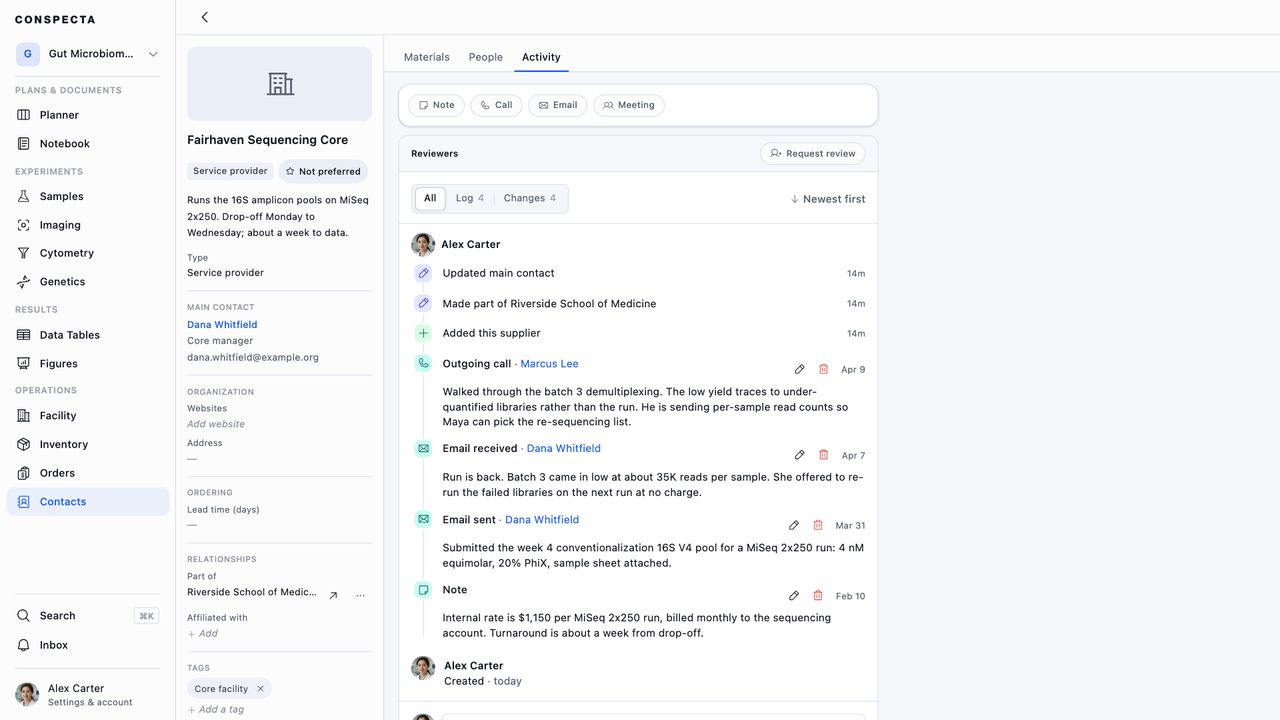
An organization's log includes the entries about its people, each naming its person. The newest entry shows as Last contact on both tabs of the list, with which way it went, so sorting by it puts the people you haven't spoken to lately where you can see them. Once your team logs which way a call or an email went, Awaiting reply on People marks anyone whose newest call, email, or meeting is an email you sent.
Reading the Whole Log
The Log tab of Contacts lists every entry your team has logged, newest first, with who it was with, its kind and direction, what was said, and who logged it. Click an entry to open that person or organization on its Activity tab, scrolled to the entry. The back button returns you to the Log tab.
Sort offers Newest First, Oldest First, and Recently Logged. The first two go by the date each entry is about. Recently Logged goes by when it was written, so a call from last month that someone logged today sits at the top. An export of the log keeps the order you chose.
Search finds text in what was said, a person's name, or an organization's name. Four filters narrow the list:
| Filter | Narrows the list to |
|---|---|
| Kind | Notes, calls, emails, or meetings |
| Direction | Sent or outgoing, or Received or incoming |
| By | The entries one teammate logged |
| Date | Last 7 days, Last 30 days, or Last 90 days |
Export, in the header, writes a CSV or an Excel file of the entries the tab lists, under its search and filters. Each row carries the entry's kind, direction, day, time, person, organization, who logged it, and what was said. A short log downloads at once, and a longer one is built for you and emailed as a link.
Following Up
Follow up on a person's page takes a date and files a Planner card named Follow up with and their name, hidden until that day, with the person linked at the top. The card comes onto the board that morning, as Hiding a Task Until Later describes. With no project open, Follow up asks which project gets the card.
Changing the date moves the card. Clearing it sends the card to Trash if it is still hidden.
The Tasks tab on a person's page lists the Planner cards in the current project that link them. While no card links them yet, Open Planner opens the project's Planner.
Linking a Person in a Note or a Task
In a note or a task description, the insert menu offers Link a person and Link an organization. Link a person lists your teammates under On this team and the people you keep under Contacts. On a notebook page, typing @ finds the same people among the records.
A person's card shows their title, organization, email, and last contact, with a Do not contact tag on anyone marked, and clicking the name opens their page. A teammate's card shows their name and their role on the project.
Who Sees What
Contacts are for the team that owns them. A collaborator on one project who isn't a member of the team can read the card of a person linked in a note they can open, with the name, title, organization, and email. The list of people, the log, and the Do not contact mark stay with the team.
A connected AI assistant can list people, add and edit them, and mark them Do not contact. It can read the whole log or one person's, and add and edit entries with their direction. Give it an email address and it finds the person who has it. It can also load a list of people or organizations up to 100 at a time, matched by an identifier such as an ORCID iD or by email address, so loading the same list twice adds nobody twice.
It can tag people and organizations, set your team's own fields, and list people by tag, contact, source, or who added them.
It can save an email address or a phone number you give it. It never receives one, and it can't delete a person, a log entry, or a tag.