Navigating the App
Every workspace in Conspecta is reachable from the left sidebar, wherever you are in the app. Pick a project and a workspace there, and the working area beside it shows what you open. This page covers the parts you use no matter which workspace you're in.
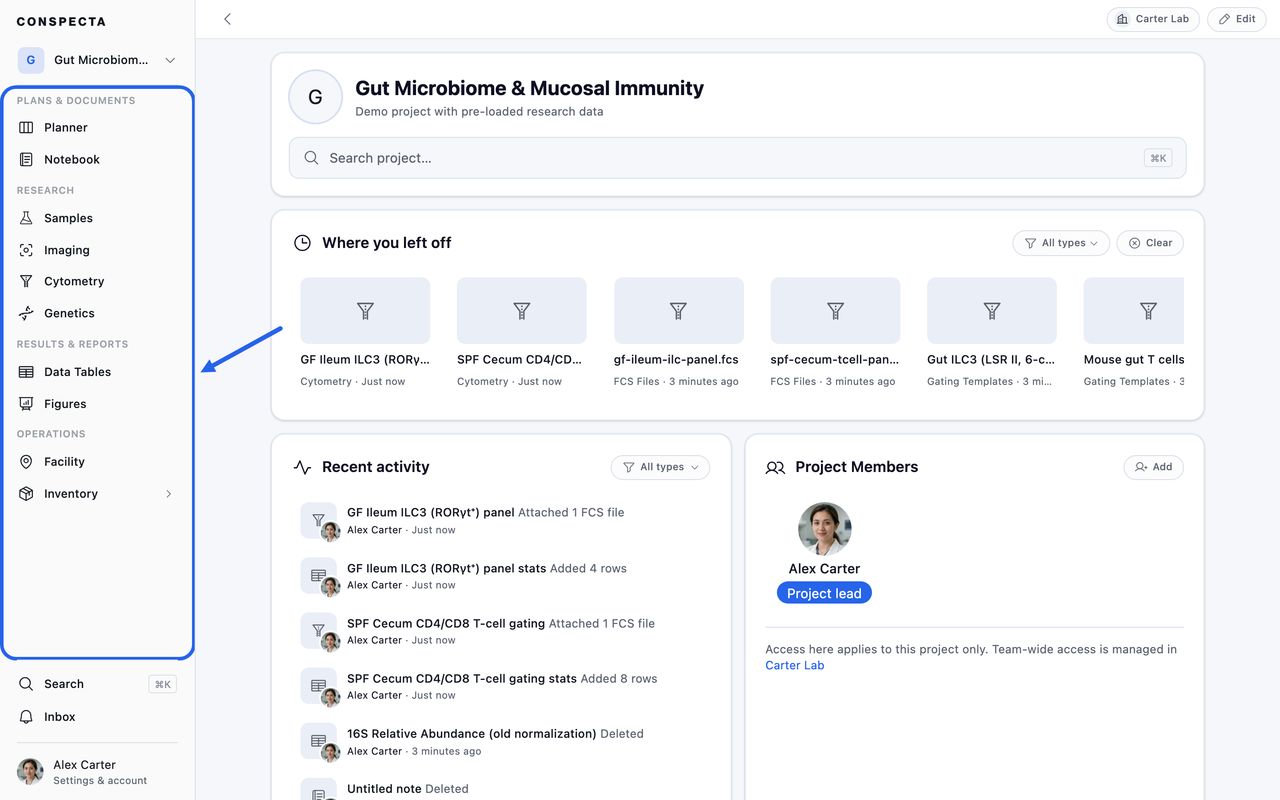
The Sidebar
From top to bottom:
- The Conspecta wordmark, which takes you home
- The project picker, showing the project you're in
- The workspaces, in four titled groups
- Search and Inbox, pinned above the bottom
- Your account menu at the very bottom
The workspaces are grouped the way a project tends to run:
| Group | Workspaces |
|---|---|
| Plans & Documents | Planner, Notebook |
| Experiments | Samples, Imaging, Cytometry, Genetics |
| Results | Data Tables, Figures |
| Operations | Facility, Inventory, Orders, Contacts |
Facility and Contacts belong to the team, so they stay available even when no project is selected. Everything else needs a project and stays locked until you pick one.
Your account menu opens on your name and email. Under them sit View profile, Settings and Trash, then Conspecta Guide, Feedback and Get the mobile app. The bottom row holds Sign out, with the light, dark and auto theme buttons beside it.
Hide any workspace you don't use under Settings → General. Hidden workspaces leave the sidebar and the phone home screen but stay reachable from search, links, and keyboard shortcuts, and you can bring them back anytime.
Tip: Switch the sidebar to compact mode in Settings → Appearance for a sidebar of icons alone, which leaves more width for your data. Hovering a workspace still shows its name.
Switching Projects
The project picker shows the project you're in. Click it, or press Cmd/Ctrl + Shift + P, to open it. Inside you'll find:
- A search box for finding a project in a long list
- Your projects, grouped under the team that owns them
- Any pending team invitations, each with Accept and Decline
- New project under each team, and New team pinned at the bottom
If your role on a project is view only, a View only badge sits next to the project name, which is why some actions aren't offered.
The Project Page
Selecting a project without picking a workspace lands you on the project page.
A button beside the project name shows the profile pictures of who has access and how many members there are. Click it to open Project Members, which lists everyone with their role, and is where people are added or removed and the project lead is handed over. An Add button sits beside it for anyone who can add people.
Picking Up Where You Left Off
Where you left off is a row of the dozen things you most recently created or changed, of any type, with thumbnails. It shows your own work only. What teammates have been doing is in Recent activity.
Filter it by type, or clear it when you're switching to something new. Clearing is local to your browser and to that project, later work refills it, and there's an undo if you didn't mean it.
Until you've created or changed something in the project, you see a map of how the workspaces connect instead, whether the project is brand new or you were added to one that already has work in it.
Your Open Tasks
Your tasks lists the open tasks on you in this project, under Overdue, Today, This week, Later, and No date, with a line above it counting anything already past its date. Click a row to open the task, or See all for the Planner with Assigned to me already on.
Work assigned to you shows here whatever dates it carries, and work nobody has claimed joins it once it has a deadline or a scheduled time. On a project with more than one member, an unclaimed row carries an Unassigned badge.
The Project's Activity
Recent activity is the project's feed, with a type filter, and it groups runs of related edits into one entry. Alongside what people created and changed, it shows who commented on a record, who asked for a review, and who approved one or asked for changes. Each entry sits under the record it's about, so a comment on a sample reads as sample activity and clicking the entry opens that sample.
Search
Press Cmd/Ctrl + K from anywhere. Search reaches across every project you have access to, and you can narrow it without leaving the dialog box.
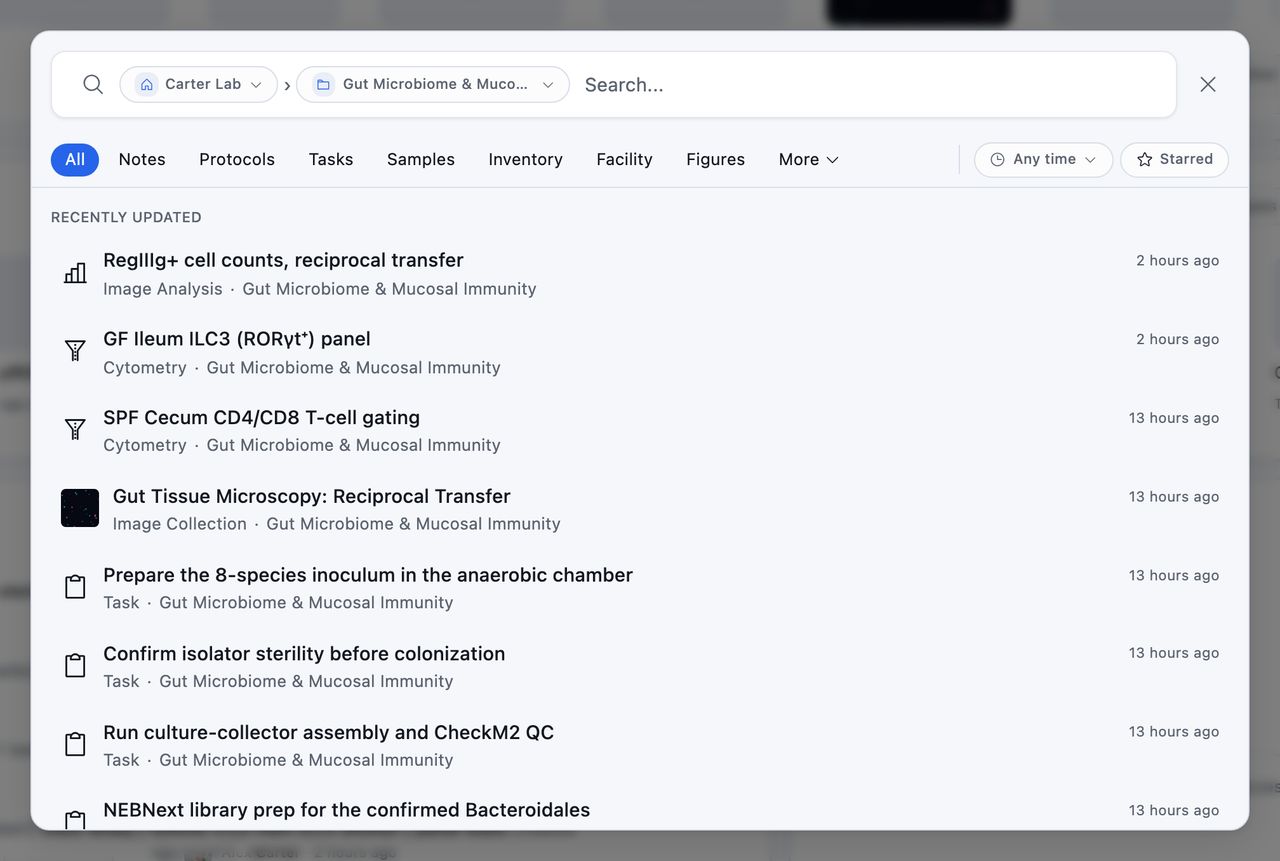
Type tabs run along the top, some of them under More:
| Where | Tabs |
|---|---|
| In the row | All, Notes, Protocols, Tasks, Samples, Inventory, Facility, Figures, and People |
| Under More | Image Analysis, Image Collections, Cytometry, FCS Datasets, Gating Templates, Plate Templates, Data Tables, Genetics, and Contacts |
The FCS Datasets tab finds both datasets and the individual files inside them. Contacts finds the people and organizations your lab keeps in Contacts, and People finds your teammates. Accounts in the panel design beta also get Panels under More, covered in Design a Flow Cytometry Panel.
Filters sit on the right: a time range, Starred, and, depending on the tab, a status or a category. Team and project pickers live in the search bar itself, so you can widen to every team or narrow to one project without switching projects first.
With the box empty, search shows what you and your collaborators changed most recently, so it doubles as a way back to yesterday's work. Set a time range and the list becomes everything that changed inside it, newest first.
Search also opens places by name. Type to jump to Settings, Inbox, the Conspecta Guide, or any workspace. You can also select several results and export the selection as PDF, Excel, or CSV in one go.
Tip: Search by whatever you remember, such as a partial name, a sample ID, or a date.
How Workspaces Are Arranged
Most workspaces share the same layout: a toolbar with search, View, and a grid/list toggle, a landing page of items, and a detail view when you open one.
The Toolbar
| Control | What it does |
|---|---|
| Search box | Covers the folder you have open and everything inside it, so a record filed two folders down still comes back. At the top level that is the whole workspace |
| View | Holds Sort, Group by, and Filter as sections of one card |
| Grid and list | Grid is for scanning pictures, list is for scanning names and dates |
| ⋯ | Holds Import and Export, in the same corner on every workspace |
| New folder and the create button | Sit on the right |
Each search match found below the folder you are standing in carries its folder trail under its name, and a matching folder comes back the same way. Clear the box and the list returns to the folder you are in.
Each View choice you apply shows as a tag under the toolbar, spelled out in words. Dismiss a tag to drop that choice, or use Clear all to put the list back the way it first opens.
Some workspaces add to the toolbar:
- A third view built for their data, such as the Board and Calendar in Planner, the box map in Facility, the sequence viewer in Genetics, and the editor in Figures.
- A button for a tool of their own beside the ⋯, such as Templates on Samples, Registry on Genetics, and Dye reference on Panels.
Folders
Folders group items by experiment, paper, or topic. The trail above the list shows where you are and lets you click back out.
Each folder carries a ⋯ of its own, in grid and list alike. Every choice in it acts on that one folder and everything inside.
| Choice | What to know |
|---|---|
| Rename, Move to..., Star | On every folder |
| Delete | Lists what goes with the folder before you confirm |
| Download | Where the workspace offers it |
| Share or Make private | Where the workspace offers it. Sharing reaches the items inside, so it appears only on folders whose contents are yours to change |
Dragging files things without the menu:
- Drag items onto a folder to file them, or drag a folder onto another to nest it.
- Drop items on the trail above the list. Home brings them back to the top level, and any folder along the trail moves them out of the folder you are in.
- On a touch screen, hold a card or row until its checkbox fills in, then keep your finger down and move to carry the selection into a folder.
Items
In the list, every item carries a ⋯ as well, holding what the bulk bar offers when that one item is ticked, so you can act on one record from its own row. While anything is ticked, every ⋯ is hidden and the bulk bar acts on what you ticked.
The faces in the corner of a card, and in the list's Created by column, are everyone who has created or edited the item, most recent first, with the creator's name printed beside them in the list. Hover a face to read the name. Someone who has left the project keeps their place in gray initials, read as a former member, and an item nobody has edited since it was made shows its creator alone.
Starred items get their own band at the top of the landing page, above folders.
Expiring Items
Expiry is a filter in Samples and Inventory. When something is within 30 days of its date or already past, a line above the list says how many, and Show them narrows the list to those items and orders them soonest first. The choice sits under the toolbar as a tag you can take off, and it reaches every folder below the one you have open.
Trash
Deleting almost anything sends it to Trash, in your account menu, where it stays for 30 days and can be restored. Everything sits in one list with the newest deletion at the top, deleted projects included. Empty Trash clears it early, and asks first. For what a permanent delete removes and what it keeps, see Delete and restore.