Conspecta at the Bench
Conspecta runs on whatever screen you have with you: a desktop in the office, an iPad or an Android tablet on a cart, a phone in your pocket. In a browser there is nothing to install, and there is an app for iPhone, iPad and Android.
Every device opens the same projects and the same data, and the layout fits the screen. On a narrow screen it rearranges for use with one hand free, while you scan a tube, check what's in a box, start a timer, or work out a dilution.
Get the App
The Conspecta app is on the App Store for iPhone and iPad, and on Google Play for Android phones and Android tablets. It signs in with the same account and opens the same projects as the browser, so a sample you register standing at the freezer is on your laptop before you are back at your desk.


Get the mobile app sits in the account menu at the bottom of the sidebar, and opens a card with both store links. On a computer that card carries a QR code for each store, so you can point your phone's camera at it to get the app.
From the iPhone Home Screen
Press and hold the Conspecta icon and three things are one tap away.
| Action | Where it lands |
|---|---|
| Scan a label | The camera, ready for a QR code |
| Timers | The countdown tab, with your presets under it |
| New note | The notebook in the project you were last in |
A Conspecta link opens the app as well. Tap a link to a sample in an email or a message and you land on that sample. Sign-in and invitation links open in a browser.
The icon carries the same number the Inbox does, so you can see what is waiting before you open the app. It follows the notification settings you gave Conspecta, so switching badges off in iOS Settings switches this off too.
Which Layout You Get
The layout follows the size of the screen you are on, and there is nothing to set.
| Where you're working | Layout |
|---|---|
| A phone | The compact layout: a workspace grid, four tabs along the bottom, Scan, and Bench Tools, all in reach of a thumb. |
| A tablet, a laptop, or a desktop | The full layout, with the sidebar down the left, the same on a tablet as on a laptop. |
A phone gets the compact layout however you hold it. A narrow window gets the compact layout too, so you see it on a tablet sharing its screen with another app, and in a laptop window dragged narrow.
On a tablet, or in a laptop window well short of full width, the sidebar shows its icons without their labels to leave room for your work. Set Settings → Appearance → Sidebar Mode to Expanded to keep the labels at any width.
Getting Around
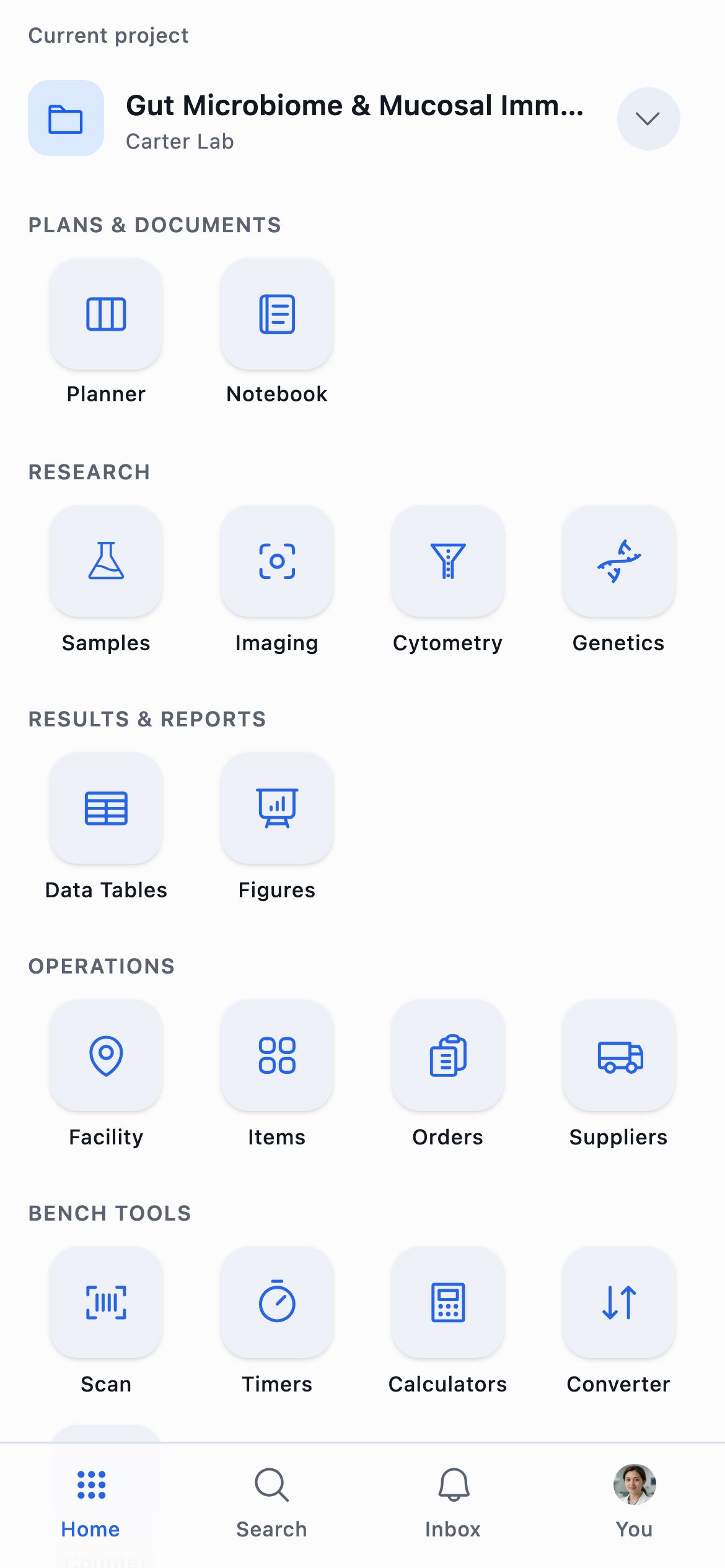
The compact home screen shows the project you're in and a grid of its workspaces, with Bench Tools below them. Four tabs sit along the bottom:
- Home for the workspace grid
- Search for the same search as the full layout, across every project you can reach
- Inbox for invitations, mentions, task reminders, and alerts
- You for your profile, settings, and sign out
Tap the project name at the top to open its project page, and tap the chevron beside it to switch projects. The same workspaces are here as in the full layout, minus any you've hidden in Settings → General.
On a phone every card and row shows its checkbox, and a folder card shows its folder icon in that spot. Tap either one to select it and the action bar slides up. Holding a finger on a card or a row selects it too. Keep holding and move, and the selection follows your finger, so you can drop it into a folder.
In the Conspecta app on a phone, pull in from the left edge of an open record to leave it. You land where the back arrow at the top of the screen goes, so a sample, a note, a data table and a sequence all close the same way.
Where a sideways drag already moves something it keeps doing that, which covers the plots in Cytometry, an image or a figure you can pan, a well plate's map, and the Planner board's columns. Leave those by the back arrow.
A few views change shape as the window narrows:
| View | In a narrow window |
|---|---|
| The Planner calendar | Drops its Week view and opens on Day |
| Cytometry | The tool menus and each plot's own Plot style and Plot actions panels move into a bottom sheet |
| A sequence | Analysis and Cloning open as a sheet over the map, and the view and layer buttons move into the sidebar |
| A well plate | Its four workflow steps sit in a row above the map, with that step's tools in a bar along the bottom |
| A figure | Read one panel at a time in the sidebar gives you the panels as a single column when you want to look at one closely |
Scanning
Tap Scan on the compact home screen to open the camera. Point it at a Conspecta label and you land on that sample, item, or location.
Labels carry a QR code, which the app's scanner reads without any setup. Scan it from Conspecta, because the phone's built-in camera app shows only the code. If a code isn't linked to anything yet, you're offered Link to a sample or Link to an item, so you can label a box of pre-barcoded tubes by scanning each tube and picking its record.
A scan finds records shared with the project plus your own, the same set search shows you. A labmate's private tube reads as unlinked, so linking that code to a new record will tell you the id is already taken.
Camera scanning comes with the narrow layout, and Scan items in on a location's header opens the same camera to fill a box or a freezer, which Organize Lab Spaces covers. With a handheld barcode scanner plugged in, scanning works from anywhere in the app without opening anything first, and Scan ready under a scannable workspace's title shows that a scan will be picked up.
Older 1D laser scanners can't read Conspecta labels. The labels use QR codes, which need a phone camera or a 2D imager. If your lab has a laser wand that only reads barcodes, it won't see them.
Bench Tools
Bench Tools are five utilities under the workspace grid. They sit on the compact home screen, so you reach them on a phone or in a narrow window. Hide any of them from Settings → General.
Timers, Calculators, Converter and Manual Count work outside any project and keep working if the lab's Wi-Fi drops. Sending a count to a notebook page needs a connection, and so does Plate Count, which counts colonies in the project your home screen shows.
Timers
The Timers screen has three tabs, and all of them keep running when you switch between them or leave the app. A timer keeps counting through a reload, a move to another screen, and a locked screen.
Counting Down
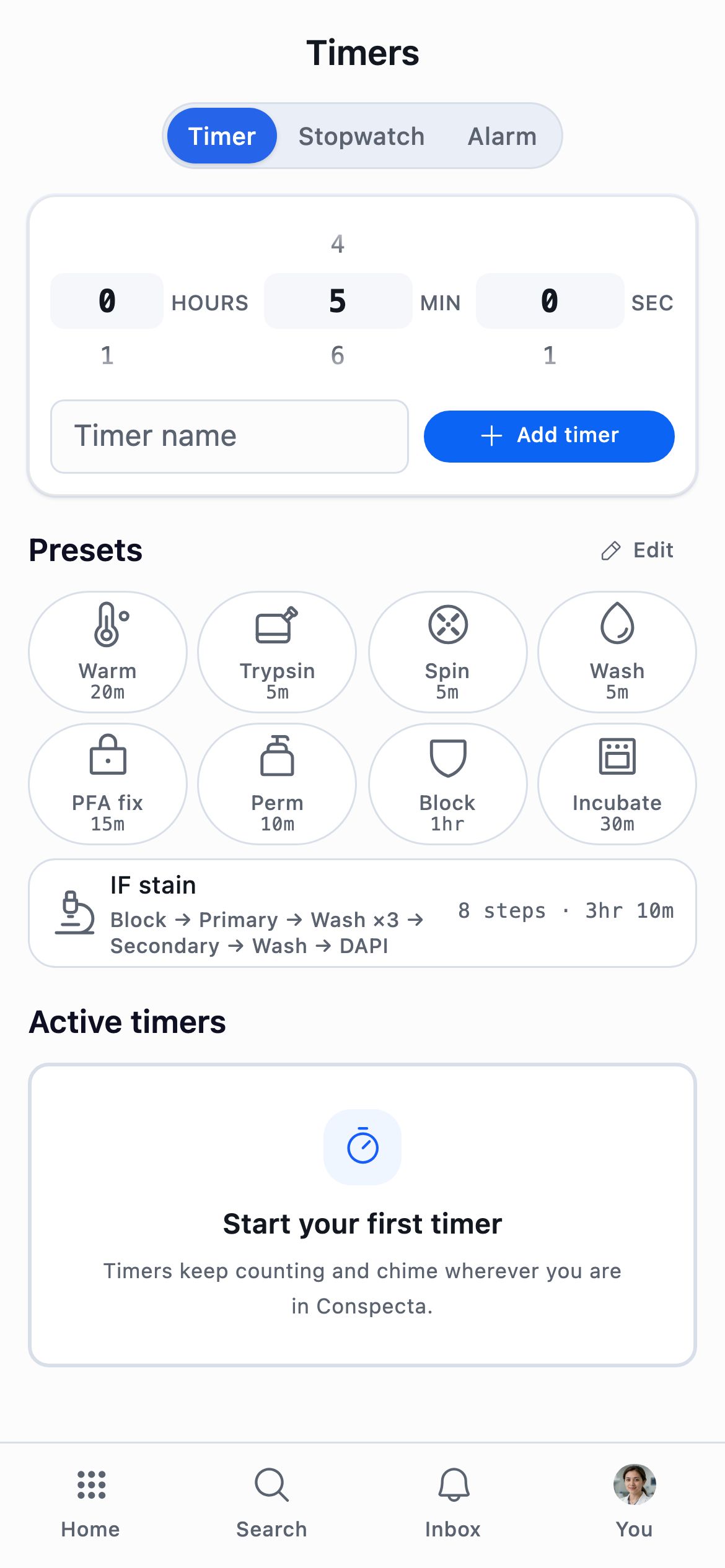
Timer sets a countdown with an hours-minutes-seconds wheel, and takes an optional name so three at once stay straight. Swipe a timer to delete it, and a running or paused one asks first. A finished timer always chimes.
Presets
Under Presets sit your named durations, each a name and a time you set once, like "Trypsin" at 5 minutes. Tapping one starts a timer carrying that name and icon, so you can tell a row of countdowns apart.
A new account arrives with eight covering the everyday ones, Warm, Trypsin, Spin, Wash, PFA fix, Perm, Block and Incubate, plus one worked sequence, IF stain, in a row of its own beneath them.
Edit beside the heading is where you shape them:
- Rename one, or re-time it
- Drag them into the order you want
- Add preset for one of your own, and Restore defaults to put the original set back
- Tap a preset's icon for a picker holding the lab icons and a searchable library
Presets belong to your account, so signing in on the tablet at the bench brings them with you, and they keep working with the Wi-Fi down.
Sequences
A preset can hold more than one step, which turns it into a sequence. IF stain is a block, a primary, three washes, a secondary, a final wash and a DAPI, and starting it runs all eight back to back.
Sequences sit in full-width rows under the grid of presets, each spelling out its chain, its step count and how long the run takes, because tapping one starts the full run.
While it counts, the card leads with the run's own name, puts the step you're on under it, like "Wash · step 3 of 8", and shows what the whole run has left below that. Tap that last line to open the whole run, every step in order, the ones behind you ticked off, the one counting showing its time, and the rest showing the durations they're set to. Tap it again to close.
Each step ends by itself, chimes, and the next one starts. Four controls sit on the running card:
| Control | What it does |
|---|---|
| +1m | Gives the step another minute |
| Skip | Ends the step you're on early. A message with Undo in it stands for a few seconds and puts that step back with the time it had left. |
| Pause | Holds the run where it is until you start it again |
| Stop | Ends the run |
In Edit, a preset with one step shows Add a step beneath it. Add one and the row opens into a numbered list you can rename, re-time, reorder, and delete a step from, up to twelve. A preset back down to a single step goes back to being an ordinary timer.
Where a Running Timer Reaches You
A countdown follows you off the Timers screen, so you can start one and go back to work.
| Where you are | What the timer does |
|---|---|
| Another screen in Conspecta | Rides along in a bar at the bottom of the screen, showing the one finishing soonest and a count of the rest. It chimes there when it ends, in the middle of a notebook page or anywhere else. |
| Another browser tab | Shows a desktop notification with its name |
| A browser with Conspecta closed | Chimes when you next open the tab |
| A locked phone | Counts down on the lock screen in the iPhone and Android apps, and rings from there the moment it ends, with the app closed |
Tapping that bar or the notification opens where that timer lives. A step timer opens that step inside its run, which Run a Protocol shows, and one you set yourself opens your timers. The first timer you start or alarm you set asks permission to send notifications. Until you grant it, the Timer and Alarm tabs carry a line with an Enable button, and if you turned it down earlier that line names the browser or device settings that switch it back on. Dismiss puts the line away for good.
The lock screen readout matches the bar inside the app, showing the one finishing soonest with a count of the others, and on an iPhone it appears in the Dynamic Island too. A multi-step run names the step it is on and counts down that step, moving to the next one by itself as each ends, and a protocol step shows its place in the run, like 3 of 12.
A running stopwatch appears the same way, counting up, and the readout clears when the last one stops. On iPhone this needs iOS 16.2 or later, and on Android it sits in the notification shade.
Active Timers
Active timers lists every countdown you have going, wherever you started it. A timer on a protocol run step and a Timer block in a note run on the same clock as the ones you dial here, so they appear in this list too, under the step and the protocol they belong to, with a link back to that step.
Stopwatch and Alarm
Stopwatch counts up, for timing something whose length you don't know in advance.
Alarm rings at a clock time, which suits the step you have to be back for at 4:15. It rings at that time every day until you switch it off. An alarm stays on the device you set it on, while presets follow your account.
How it rings depends on where you set it:
- In the iPhone and Android apps the ring comes from the lock screen, so it reaches you with Conspecta closed, and tapping it opens your alarms.
- In a browser it rings while the Timers screen is open, within five minutes of the time, and an alarm you miss rings again the next day.
Calculators
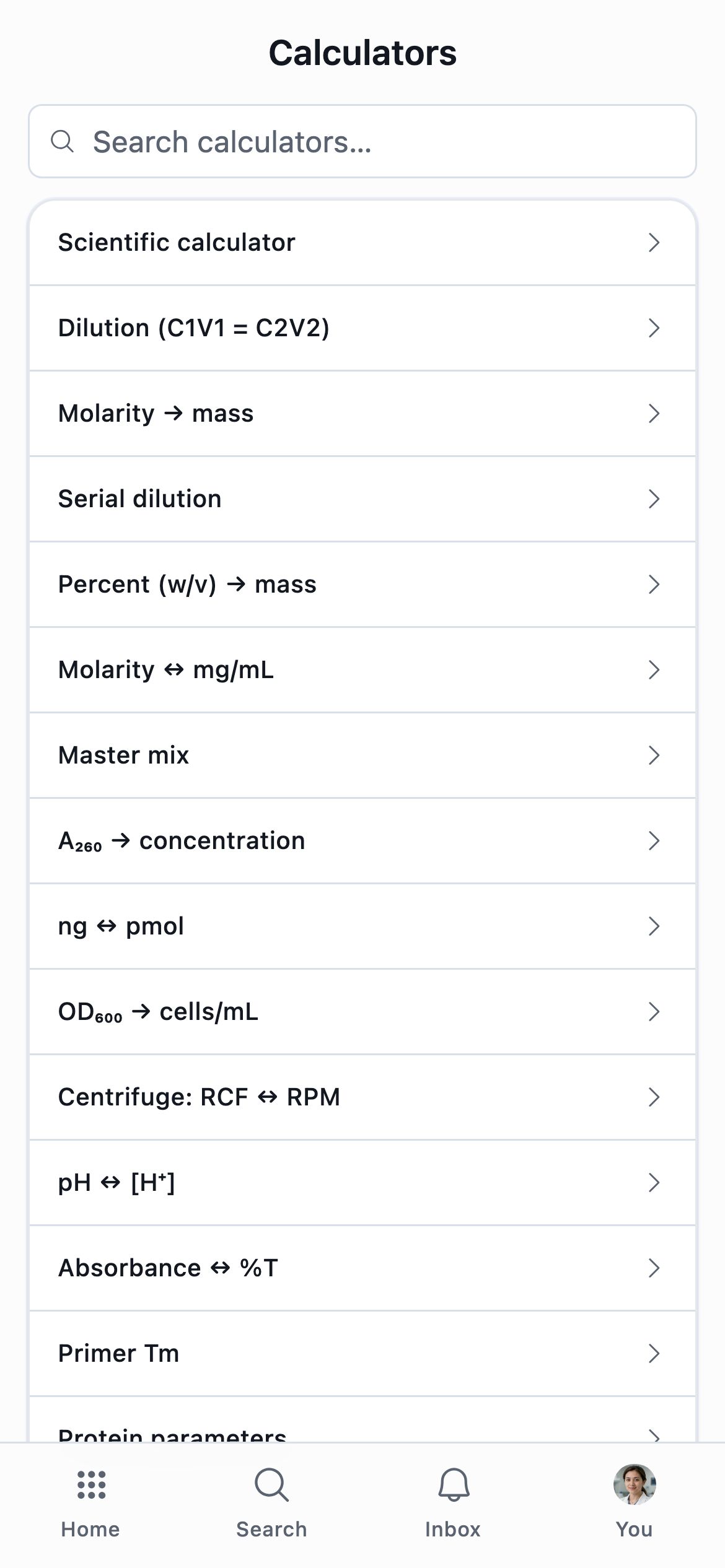
Fifteen calculators, with a search box at the top so you can type "dilution" or "Tm" to find the one you need.
| Calculator | What it works out |
|---|---|
| Scientific calculator | A full keypad, for the arithmetic that isn't one of the others |
| Dilution (C1V1 = C2V2) | How much stock and how much diluent to reach a target concentration |
| Serial dilution | A whole fold-dilution series, ready to pipette into a row of tubes |
| Molarity → mass | How much to weigh out for a given molarity, volume, and molecular weight |
| Molarity ↔ mg/mL | Converting between molar and mass concentration, both ways |
| Percent (w/v) → mass | Grams needed for a percent solution |
| Master mix | Per-reaction volumes scaled to your reaction count, with overage |
| A₂₆₀ → concentration | Nucleic acid concentration from a spectrophotometer reading |
| ng ↔ pmol | Mass to moles for DNA, RNA, oligos, and protein |
| OD₆₀₀ → cells/mL | Cell density from a culture's optical density |
| Centrifuge: RCF ↔ RPM | Converting g-force to rotor speed, using your rotor radius |
| pH ↔ [H⁺] | Proton concentration from pH, and back |
| Absorbance ↔ %T | Absorbance to percent transmittance, and back |
| Primer Tm | Melting temperature for a primer sequence |
| Protein parameters | pI, extinction coefficient, molecular weight, and hydropathy from a sequence |
Converter
A unit converter covering 31 categories, from volume and mass through molar concentration, enzyme activity, osmolarity, UV dose, and radioactivity. Search matches a category name, a unit symbol, or a unit's full name, so typing rpm finds Rotational speed.
Conversions that need a second value are in Calculators. RCF to RPM needs the rotor radius, mass to moles needs a molecular weight, and ng to pmol needs a sequence length.
Manual Count
Count anything by hand at the microscope or over a plate, from a plain tally to live and dead cells in a hemocytometer. Pick a preset under Presets and each thing you're counting gets its own pad, so you can tap by feel, with a haptic tick, and keep your eye on the sample. Undo takes back the last tap, whichever pad it landed on.
| Preset | Pads | What it works out |
|---|---|---|
| Tally | One | The total |
| Live / dead | Live, Dead | Viability, plus live and total cells/mL over four hemocytometer squares with trypan blue mixed 1:1 |
| Positive / negative | Positive, Negative | Percent positive |
| Normal / abnormal | Normal, Abnormal | Percent abnormal |
| Colonies | One | CFU/mL from a plate of the 10⁻⁶ dilution with 0.1 mL plated |
| Blue / white | Blue, White | Percent white |
A preset counted in squares shows the square you're on under its name, with a bar that fills as you go, and each pad shows that square's count under the running total. Next square moves on. The row above the pads keeps the total and the percentage in view while you count.
Edit beside Presets opens your presets. Drag them into the order you want, delete the ones you don't use, and tap one to change its name, what you're counting, its categories and their colors, which categories the percentage is of, what it works out, and a total to chime at. What it works out can be cells per mL from a hemocytometer, CFU or PFU per mL from plates, a count per field, or an H-score over 0, 1+, 2+ and 3+.
Add preset lists fifteen more, grouped by field, among them mitotic index, WBC differential, reticulocytes, parasitemia, IHC score, plaques, embryo survival, germination and stomatal index. Search matches a preset's name, one of its categories, or its field, and Blank preset starts one of your own. Restore defaults puts the original six back. Presets belong to your account, so they follow you to every device you sign in on.
Finish shows what the count works out, a table of every pad by square, and when and how you counted. Cells/mL is worked out over the squares you counted, so finishing after three of four still gives the right figure, and a plate outside 30 to 300 colonies is marked as outside the countable range.
Keep counting picks the count up again. On a preset without squares, New count starts a fresh count and keeps the one you were on, which suits a row of plates counted one after another.
Send to notebook on a finished count adds it to the end of a notebook page you pick, in the project your home screen shows unless you choose another above the list of pages. The page gets four things:
- A heading naming the count
- A line saying who counted, when, and how
- A table of every pad by square with each one's share
- The result
Once it lands, the count reads Sent and Open page takes you there. A send that can't reach the server leaves the count Not sent, ready to try again.
Your counts wait under Recent counts, each marked Not sent or Sent, and tapping one opens it where you left it. Swipe a count to delete it. An unsent count asks first. The phone keeps your 20 most recent counts, and starting another after that removes the oldest sent count, or asks before removing the oldest when every count is still unsent.
Plate Count
Count the colonies on a plate from a photo of it. Tap Plate Count and a dialog box opens at the bottom of the screen, naming the project the count opens in. Pick where the image comes from:
- Take photo opens the camera.
- Device images takes one image or several from the device you're using.
- Project images opens the new image analysis ready to add images from the project's collections.
The image analysis is created once you choose a source, so backing out of the camera adds nothing to the project. The images open in a new image analysis in the project your home screen shows, named "Plate count" with the date and time.
It detects colonies with the same AI detector as Colonies on a plate in Analyze Images, so each image counts toward your team's monthly usage. The line under the three choices shows how much of this month's compute usage is left, and turns amber when it runs low or runs out. On a plan without compute usage, the three choices stay in view but can't be tapped, and that line says why.
Counting the Photos
The photo on screen starts counting as soon as it finishes uploading, and the button at the end of the row of images under it shows how long the count has taken. The first count can take a minute or two, and a photo counted right after it is quicker.
When you pick several photos, the others wait. Once the first has a count, that button reads Run on all N, shows how much of your usage the rest will take, and counts them. You can also open each photo to count it on its own.
A photo you take later from that image analysis starts the same way as the first, so a row of plates can be photographed one after another. Back returns you to the home screen.