Compute Usage
Some work is too heavy for a browser and runs on Conspecta's servers instead. That work is tracked as compute usage. Each plan includes a monthly allowance, and data exports are always free.
How Compute Usage Works
Compute usage draws from two buckets:
- Included usage comes with your plan and resets on a fixed date each billing period
- Additional usage is a top-up your team has bought separately. It never expires and is only used once your included usage is used up. It appears in the app as the Additional row
Usage is pooled at the team level. Every project in a team draws from the same monthly allowance, and every team member contributes to it.
What Uses Compute?
Two workspaces consume usage. In Imaging, only AI detection on your images uses it, as Image analysis compute covers.
In Cytometry it's only a run you hand to a server. Clustering and dimensionality reduction carry a Compute Location setting.
| In Cytometry | Uses |
|---|---|
| A clustering or dimensionality reduction run with Server chosen | 1, or 5 for the two heaviest algorithms (DBSCAN and Graph clustering). The size of the file doesn't change it |
| That same run started by an AI assistant on one file | The same usage |
| Counting populations for an AI assistant | One per file |
| Applying a gating strategy | Nothing |
| Everything else, including gating, compensation, statistics, plotting, and any run left on Local | Nothing |
Detection usage grows with the number of images and slices a run covers. Detection runs and server flow runs both show their estimated usage before you start them.
You can have 3 runs going at once on a paid plan and 1 on the free plan, counted across every project you work in. Every server run counts, including an image analysis run, a flow clustering run, and an export, and an image analysis run you stopped keeps counting until it finishes saving the images it completed. Starting one more is refused with:
You have too many runs going. Wait for one to finish before starting another.
Exports Are Always Free
Every export (project data, notebook PDFs, raw images, FCS files, Excel tables) is free. Exports do appear in the Compute Jobs list so you can track their progress, but they don't count toward your usage.
Checking Your Usage
- Click your profile in the top corner, or open Settings (
Cmd/Ctrl + ,) - Go to the Usage tab
- If you belong to more than one team, pick the team you want to inspect
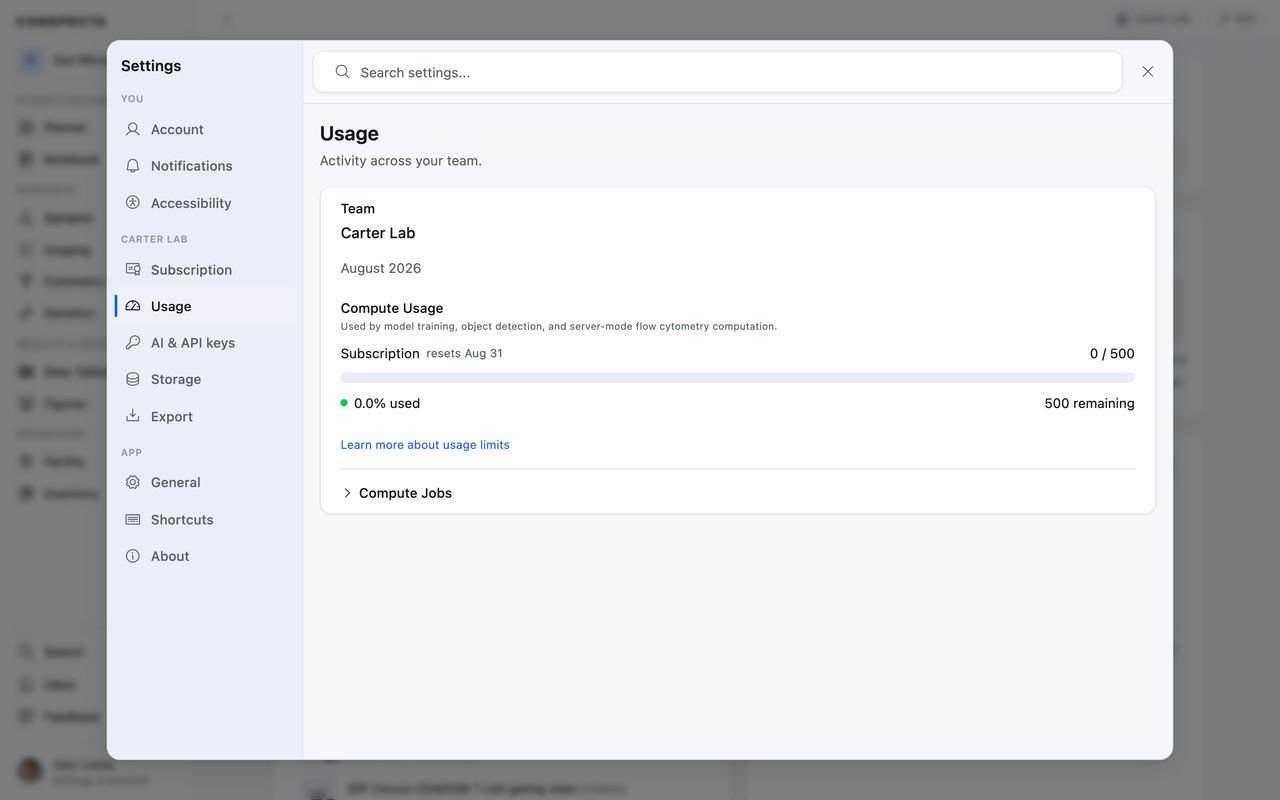
You'll see your Compute usage, which shows:
- A Subscription row with the reset date, used/total, a progress bar, and how much remains
- An Additional row, if your team has any additional usage still available
- A colored warning if you're close to using up this month's usage, or have used all of it
Warning Colors
The progress bar shifts color as your monthly usage fills up:
- Green below 75%
- Yellow between 75% and 90%
- Red at 90% and above
Once you cross 80%, a warning appears telling you how much of this month's usage you've used.
What Happens When You Run Out
When this month's included usage is used up, the Usage tab shows:
This month's usage is used up. Runs now use your additional usage.
If your team has additional usage, it's used next, automatically, with no second confirmation. Nothing is blocked while any of it remains.
Only when both are empty do compute jobs stop accepting new work, and the Usage tab shows:
You've used all of your available usage.
Exports, project navigation, editing, and every non-compute feature continue to work normally.
Failed and Canceled Jobs
If a compute job fails, its usage is returned to your team automatically, whatever went wrong and however far the run got, with one exception covered below: a run that times out without sending anything back. The refund shows in your remaining usage, and the job stays in the Compute Jobs list marked Failed with its usage shown as Refunded. A run that times out is refunded the same way, except for the two runs below, which settle by the part they finished.
A job that completes still counts even if the result isn't what you hoped for, such as a detection run that finds less than you expected.
Canceling a Job
Canceling returns the usage of a job that hasn't started yet. Once a job has been picked up and is running, canceling stops it and keeps the usage it has already spent. Its row shows the figure it used.
If you press Stop on an image analysis run, it keeps every image it finished and returns the usage for the rest. Its row is marked Cancelled and shows only the usage the finished images used.
Runs That Settle in Parts
Counting populations settles file by file. If a count runs out of time partway through, only the files whose numbers came back use your team's usage. The rest returns automatically, and the result names each file the run never reached, so you can run those again on their own.
An image analysis an AI assistant runs settles image by image:
- If it runs out of time partway through, the images it analyzed use your team's usage and the rest returns automatically, and the run lands in the Compute Jobs list with the images it finished.
- If it can't report every image in one answer, it marks the ones it skipped and returns their usage too.
- A run that times out without sending anything back keeps its usage, so run fewer images, or a shorter pipeline, and try again. Its row appears in the Compute Jobs list marked Failed, showing the usage it kept.
Compute Jobs
Under the usage bar, expand Compute Jobs to see every job your team has run recently: detection, exports, and more. Each row shows the user, project, job type, start time, duration, status, and usage.
- Completed jobs show what they used
- Failed jobs show Refunded, except a run that timed out without sending anything back, which shows the usage it kept
- Cancelled jobs show Refunded when they were still queued, and the usage they spent when they were already running
- A job that returned part of its usage, such as an image analysis run you stopped partway, shows only the part it kept
- Exports always show 0 because they're free
Click Export CSV to download the full job history for your team. Use it to track usage over time or to attribute it to a particular member.
Team Limits
The monthly usage for each team is set by your plan. If your team is running low on compute before the period resets:
- Check the Compute Jobs list to identify which jobs are using the most
- Talk to your team owner about upgrading the plan or purchasing additional usage
- For usage limits by plan, see Pricing