Delete and Restore
Deleting in Conspecta is reversible for 30 days, and even a permanent delete keeps the record of what happened. This page covers what goes, what stays, and how to get something back.
Trash
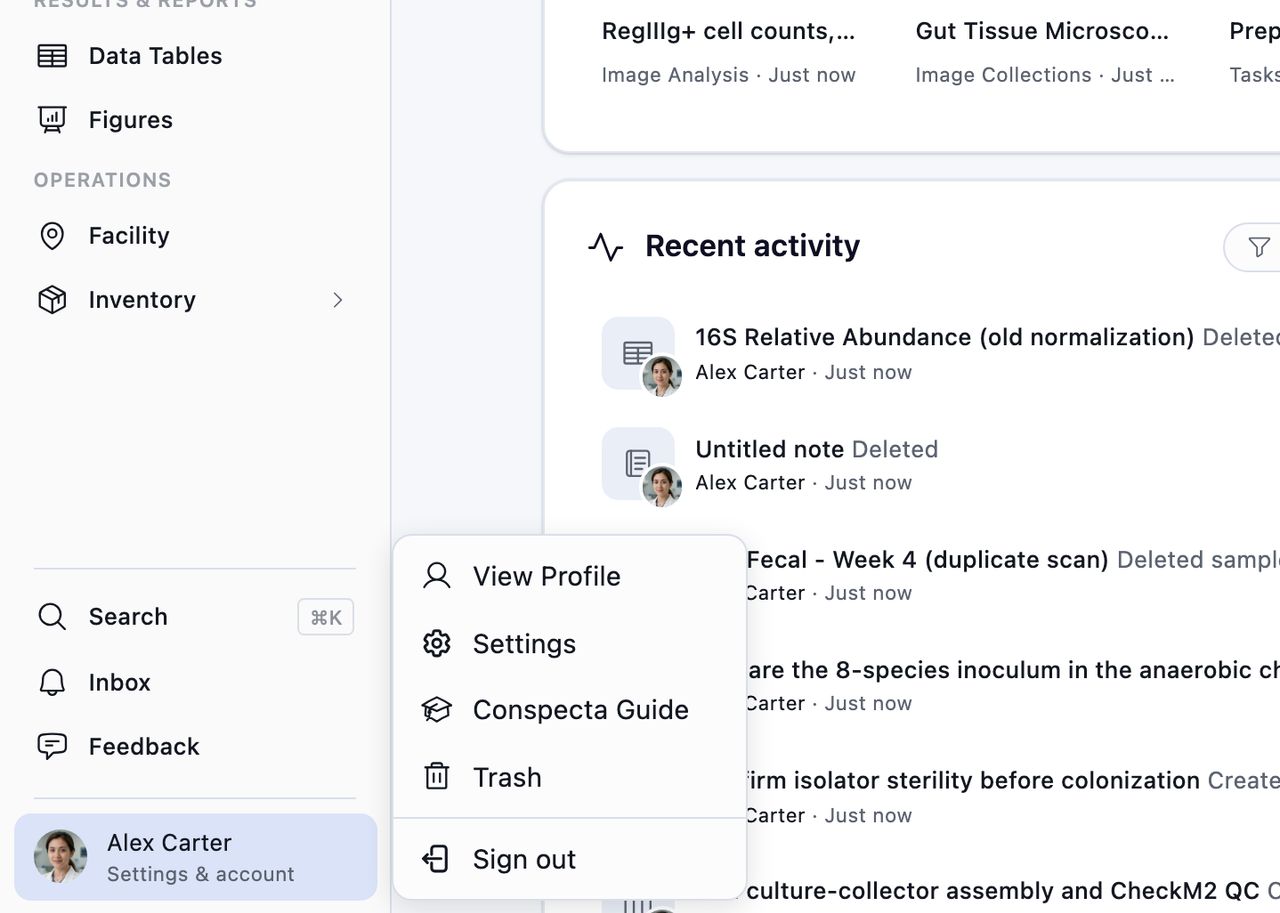
Trash is in your account menu, at the foot of the sidebar. Deleted work waits there for 30 days, then goes for good on its own.
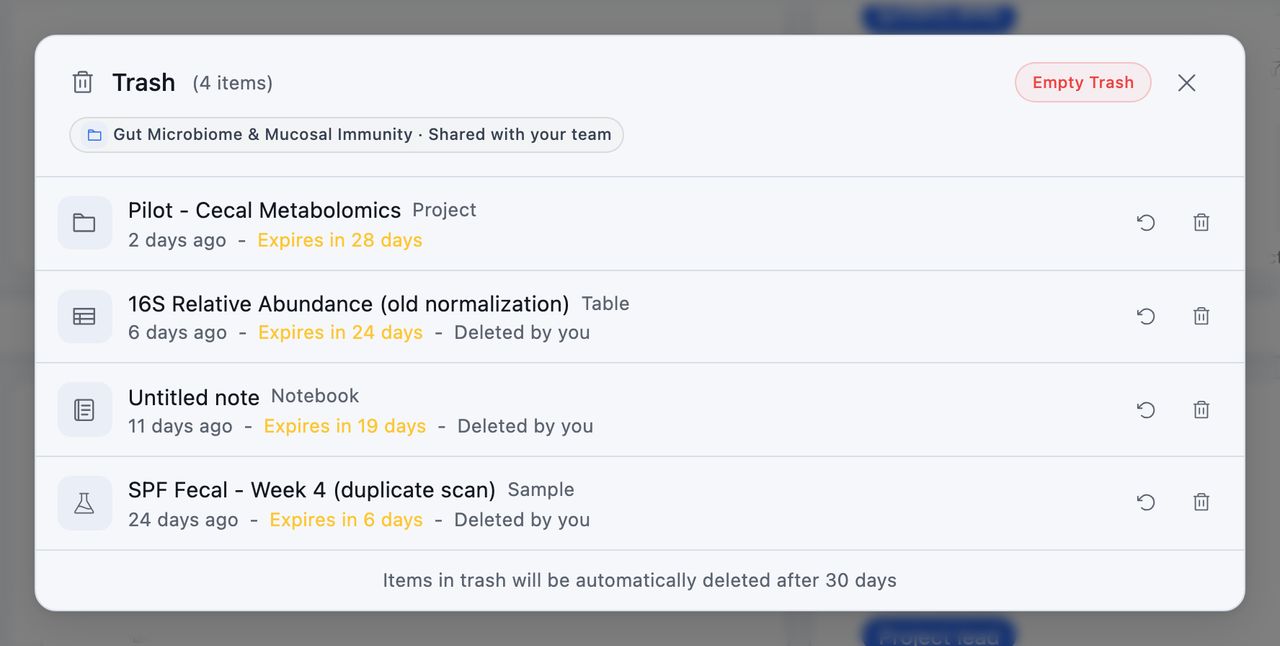
Everything sits in one list with the newest deletion at the top, deleted projects included, whatever workspace it came from. Each row says what it was, when it went, and how long is left. Items also show who deleted them.
On any row you can restore the item or delete it permanently. Empty Trash, in the header, clears everything at once and asks you to confirm first.
What the Confirmation Tells You
Before an item goes, the dialog box names the work elsewhere in the project that reads it, under Linked resources that will be affected. Trash an image analysis and it names the figures whose panels are drawn from it, whether a panel charts its numbers or shows the image with its detections drawn on. You can open those first and decide. Confirming still goes ahead, and the linked work keeps everything except the content it was reading.
Figures need one more step from you. While a panel points at something in Trash, your edits to that figure stay unsaved, and the message names the panel. Restore the item from Trash, or delete the panel, and the figure saves again.
What Lands in Trash, and What Goes Immediately?
Anything with its own page in the app goes to Trash when you delete it:
- Samples and sample groups
- Notes and protocol runs
- Images, multi-image files, image collections, and image analysis
- FCS files, FCS datasets, cytometry analysis, and gating templates
- Plate templates
- Sequences, tables, and figures
- Tasks, orders, stock and its lots
- Freezers, instruments, and the organizations and people in Contacts
- A whole project, with the same 30 days to bring it back
The pieces inside an item are deleted the moment you confirm:
- A comment
- A row or a column in a table
- A gate or a plot in a cytometry analysis
- A panel in a figure
- An attachment on an order
- The writing itself. A block on a note, a task, or a protocol is part of that page, so it goes with your edit
- A scheduled day of a multi-day protocol, when you delete that day by itself
- A note, protocol, or data-table template saved with Save as template
None of these reach Trash, and restoring the item they belonged to does not bring them back. Gating templates and plate templates are the exceptions among templates, and each gets a Trash row you can restore it from.
Trashed items still use your storage. Nothing is freed until the item leaves the trash, either because you emptied it or because the 30 days ran out. If you're deleting to make room, empty the trash afterwards.
Who Can Restore What?
Anyone who can edit the project can restore anything shared in its Trash, no matter who deleted it. An item you deleted yourself you can restore too, including private ones only you could see, as long as you still have edit access.
Private work goes to its owner's Trash and nobody else's, pieces inside it included, so a lot deleted from a private reagent belongs to the reagent's owner.
Only the person who deleted a row, the project lead, and the team's admins can delete it for good. A view-only member sees the reason in place of the buttons.
Freezers, instruments, and the organizations and people in Contacts belong to the team, so restoring or permanently deleting one needs membership of the team that owns it.
Restoring
Restore puts the item back where it was, with its comments, sign-offs, links to other work, and history.
Some items travel together, so restoring the one you deleted brings back the rest:
- A protocol's task brings back every day scheduled under it
- A reagent brings back its lots
- An image analysis or a cytometry analysis brings back its results table
- A figure brings back the pictures attached to it
If someone has already created a new results table in the same slot, the old one stays in the trash.
Because these travel with their parent, they don't get a row of their own in the trash. A picture you deleted by itself does, and it says what it was attached to, since the name it was saved under is rarely one you chose.
Permanent Deletion
Delete Forever on a row, Empty Trash for the lot, and letting the 30 days run out all do the same thing.
What goes:
- The item itself and everything inside it. A data table's rows, an image collection's images, a group's membership, an order's attachments and comments, a protocol run's steps
- Its stored files
- Its links to other work, its comments, and anyone's stars, follows, and notifications about it
| Kept | Why |
|---|---|
| Sign-offs on the item, including the copy of what was approved | A sign-off records a person's decision, and that record outlives the item |
| Version history of a note or protocol | So a later reader can see what a page said at the time |
| The activity trail, who did what and when | Including the deletion itself, and who did it |
| A material once its stock has moved, once a controlled-substance sign-off is on file, or once it carries a controlled substance class | The stock ledger records what the lab held and used, and the sign-off records who authorized it. The material is what both refer to, so it stays with them. A scheduled material is the lab's record of a regulated substance in its own right, so it stays whether or not any stock ever moved |
For a material in that last row, Delete Forever stops and shows what is holding it. The material stays in the trash, including after the 30 days run out.
Deleting a cytometer also destroys the dye signatures measured on it. That covers every project that used the machine. Conspecta warns you on the row before you confirm.
Storage
Emptying the trash deletes the stored files behind an item. The storage figure in Settings → Storage updates for images, microscopy data, and cytometry files, which are the bulk of what a project holds. See Cache and storage for the full breakdown.
Deleting a Project
A deleted project goes to the trash like anything else, appears in the same list, and can be restored for 30 days.
A project you have not put anything in yet is the exception. It is removed outright, since there is nothing in it to recover.
The demo project is the other exception. Remove the demo takes away the project, its team, and anything you added to it, the moment you confirm. None of it reaches Trash, so there is nothing to restore. See The demo project.
Once it's permanently deleted, everything inside it goes with it: samples, notes, images, sequences, figures, tables, inventory, orders, and files. Freezers, instruments, and the organizations and people in Contacts are the exception, because they belong to the team and stay behind for the lab's other work.
The activity trail survives the project. It records who did what and when, and it's no longer readable from inside the app once the project is gone.
Deleting Your Account
Account deletion has its own 30-day grace period and its own set of rules, including what happens to teams you own and to work you leave in colleagues' projects. See Delete your account.
Records we're required to keep, such as billing history and controlled-substance logs, are kept without you in them. Your name and email are replaced with an anonymous placeholder everywhere they appear, so the record survives and you aren't identifiable in it.