Share and Export
Exports are free and never count toward compute usage. This page covers the whole-project backup, the per-workspace exports, and how sharing works.
Exporting a Project
Settings → Export is the main route. Pick a project, then choose under What to export:
| Choice | What it does |
|---|---|
| Pick what you need | Lists every workspace as a row you tick, each showing what it holds and the file it writes |
| The whole project | Comes as two downloads, Project data and Images. Export everything starts both once you confirm. It is covered further down |
Only the project owner can run The whole project, so on a project you don't own you see the checklist alone, with a line saying why.
Ticking a row opens the choices it has:
| On | The row offers |
|---|---|
| Every workbook | Format, Excel or CSV. CSV holds the same numbers as plain text, one file per sheet and zipped when there is more than one |
| Genetics | GenBank files or FASTA files, the same way |
| Notes | PDF files, Word files, Markdown files or Markdown with images, the same files a single page's own Export writes. Markdown with images gives each page a folder holding its Markdown file and its pictures |
| Flow Analysis and Gating Templates | Gating-ML as well, a zip holding one .gating-ml.xml per strategy with the spreadsheet inside it as a manifest |
| Samples, Inventory, Orders, Contacts, Facility, Genetics, Image Analysis, and Panels | Columns as well, the same field the workspace's own Export dialog box uses, where every column starts included and Choose opens the list if you want fewer |
| Samples | Include for its notes, lineage, image manifest, and connections, each arriving as an extra sheet |
Columns narrows the sheet the workspace is named for, and the sheets beside it come whole:
- On Facility that is the register and its storage sheet.
- On Genetics it is the manifest inside the archive, and the sequence files themselves come whole whatever you tick.
Each workspace you tick runs as its own job, and you get an email with a link for each one, so the footer counts the files and the button says the same number, reading Email me 3 files for three. The list under the button shows the progress of each row, from Queued through Exporting... to Done, with the reason beside anything skipped or failed.
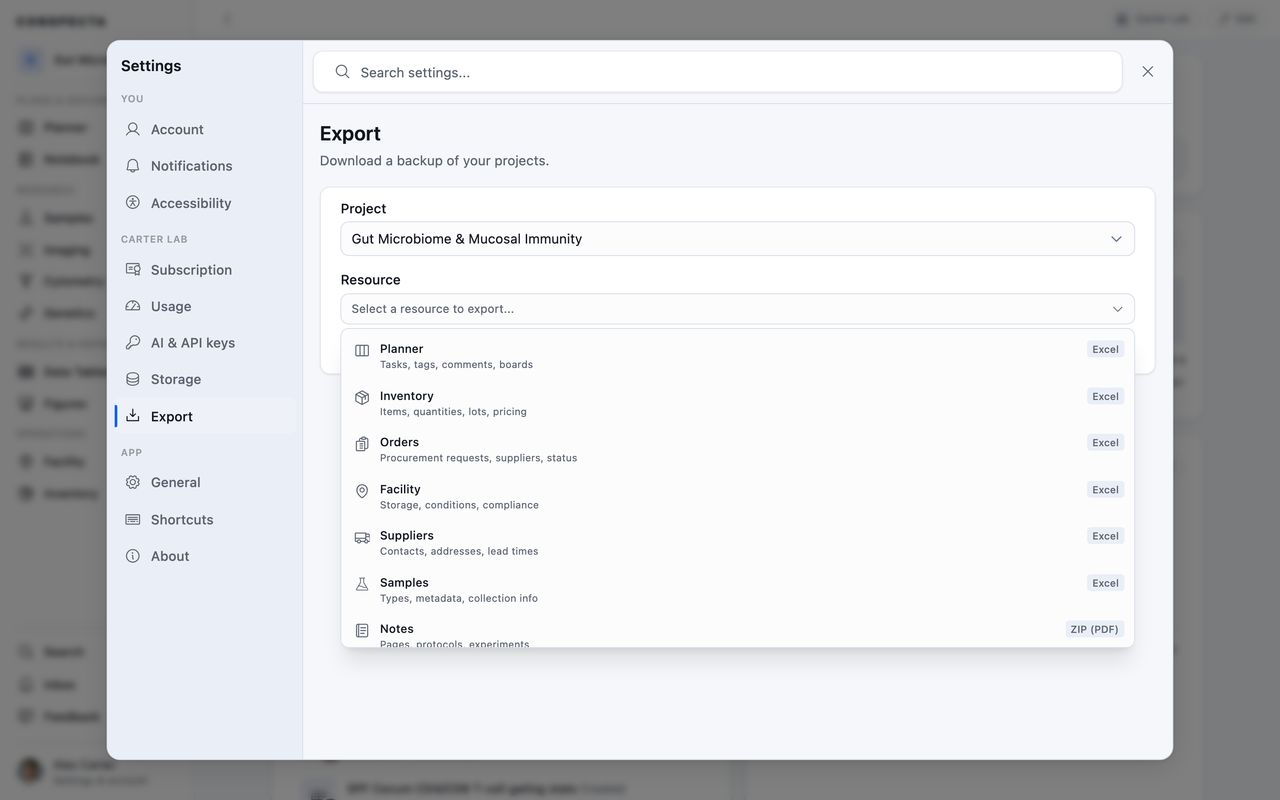
| What | Format | Contains |
|---|---|---|
| Planner | Excel | Tasks with their board, parent task, and what they wait on, plus tags, comments with their author, and boards |
| Notes | ZIP of PDF, Word, or Markdown files, or of Markdown with images | Pages, protocols, experiments, filed into the folders you put them in, and every published version of each page as its own file beside it. Each one is the document the page's own Export writes, with its figures, tables and formatting. A figure you cropped shows a placeholder there in place of the picture. Markdown keeps the words, headings, lists and tables, and names each picture in a line of its own. Markdown with images puts each picture in an images folder beside the page and shows it in place. In the full export a comments workbook sits beside the pages, which come as PDFs there |
| Samples | Excel | Types and metadata, what each sample came from, who collected it and how, where it is stored down to the box position, and the folder it sits in. Sample sets with every member, their role, and who added them. Every plate's wells, each with its sample, role, control, replicate and concentration |
| Inventory | Excel | Items, quantities, the folder each one sits in, and the antibody fields (fluorochrome, clone, host species, reactivity). Where each item is stored and what it cost, on their own sheet. Lots and transactions |
| Orders | Excel | Requests, suppliers, status |
| Contacts | Excel | Organizations, addresses, lead times |
| Facility | Excel | Rooms, freezers, and instruments with make, model, and serial. Storage conditions and compliance, booking rules and bookings, downtime, service history, and announcements |
| Genetics | ZIP of GenBank files | Sequences, annotations, metadata, and the folder each sequence sits in, plus every published version of a sequence as its own GenBank record |
| Data Tables | Excel | Rows and columns from every table, plus a summary sheet giving each table's description, where its numbers came from, and its statistics. Flow cytometry panels have their own row below |
| Image Collections | TAR.GZ | Microscopy images and pinned pictures at full resolution, each filed under the record it is attached to and named as it was uploaded, with a manifest describing every file |
| Image Analysis | Excel | Analysis workflows, runs, and artifacts |
| Flow Cytometry | ZIP | Raw FCS files, filed into a folder per analysis |
| Flow Analysis | Excel or Gating-ML | Gates, plots, and compensation, per analysis |
| Gating Templates | Excel or Gating-ML | Saved strategies with their version and sign-off, plus what was measured with each |
| Panels | Excel | Every panel with the cytometer it was designed on, one row per marker with its clone and titer, and the detector bands behind each instrument |
| Figures | Excel, SVG, PNG, TIFF, or PDF | Layouts, panels, and annotations as a spreadsheet, or the figures themselves at a printed width, with the spreadsheet inside as a manifest. A figure gets its export file the first time someone opens it, so one nobody has opened yet comes with the spreadsheet but no picture. The export lists those figures, and opening one adds its picture to the next export. A figure built on work a colleague keeps private comes with the spreadsheet alone however often you open it, until they share the panel's source |
| Protocol Runs | Excel | Run history, step completion, captured values |
| The whole project | Every workspace, full-resolution images, and nine files that only this export produces: sign-offs, the activity trail, version history, resource links, your starred items, your saved templates, your plate templates, what is in the trash, and an index of your image collections |
Every Excel export also carries a Comments sheet holding the conversation about its records, each comment with its author and time, and for a comment left on a photo, the name of the picture it is about.
Most of these are limited to the project's owner, including The whole project. Notebook, Flow Cytometry, Samples, Inventory, and Orders exports are open to any project member who can edit, and hold only the rows that member can already see. Facility and Contacts stay with the owner, because those lists belong to the whole lab. A workspace you can't export is grayed out in the list, with the reason standing where its file type would be, so you can see what is there and who to ask.
The whole project is also the only way to get the dye signatures your lab has measured, as one workbook covering every instrument, dye, and lot. Nothing else can recreate those numbers, because each one comes from a stained control tube read on that machine.
The gating itself comes out in the form other programs read, by either route:
- The whole project writes a Gating-ML 2.0
.xmlfile beside every flow analysis and gating template JSON record, inflow-analyses/andgating-templates/, so the strategy travels with the FCS files. - Ticking Flow Analysis or Gating Templates and choosing Gating-ML writes the same documents on their own, one per strategy, with that workspace's own spreadsheet in the zip, so the fields a gating file has no place for come along too, such as the version and sign-off on a template and the data file and sample behind an analysis.
Each file is the one Export as Gating-ML writes from the workspace, which FlowJo, Cytobank, and the R CytoML stack read. A gate the standard can't state is left out and named, with the reason, in a comment at the top of the file.
What Only the Full Export Carries
Nine files come with The whole project and nowhere else. Each one records something about the project as a whole.
| File | What it holds |
|---|---|
| sign-offs.xlsx | Every review decision in the project, oldest first: what was signed off, who signed it, when, and what they said. The signer's name is the one recorded at the moment of signing, so a colleague who has renamed since still appears as they signed |
| activity.xlsx | The who-did-what record across every workspace, oldest first, with each entry naming the person, the action, the record it touched, and what changed |
| version-history.xlsx | Every published version of every record: its number, who published it and why, whether it is current, whether it was withdrawn and for what stated reason, and the hashes that let the chain of versions be verified outside Conspecta |
| resource-links.xlsx | The provenance trail. Each row names one end, what it did, and the other end, so a protocol run reads as Consumed the specimen it used and Produced the result it made. It also says whether a person stated the link or Conspecta detected it from the content, and flags any that has since gone stale |
| starred.xlsx | Your own starred items, with what each one is and when you starred it. Other members' stars are left out |
| templates.xlsx | Your saved templates, the forms you start new pages from |
| plate-templates.xlsx | Every plate layout the project reuses, with its format and who made it, and a second sheet laying out each well: its group, label, concentration and volume |
| trash.xlsx | What was in the trash when the export ran, newest discard first, with what each item was, its name, who discarded it and when. A discarded item stays restorable for thirty days, and this file lists it without its content |
| image-collections.xlsx | The index to your microscopy, in four sheets |
A withdrawn version stays in the archive with its content, marked withdrawn wherever it appears, and the PDF or GenBank file it exports as carries the mark in its name.
Three of them carry more than a row per thing.
sign-offs.xlsx has a column headed Content Version At Signing, holding whatever the app recorded as the content's identity at the moment of signing. For a notebook page that is a hash of the page. For a sample, a sequence, a figure, a table, or an analysis it is the time that record was last edited. The export carries that value unchanged, so you can tell whether a record has been edited since it was signed.
templates.xlsx gives each template's name, whether it is personal or your team's, what it creates (a note, a protocol, or a data table), its description, the title it pre-fills, its tags, and how many times it has been used. A templates/ folder holds one JSON file per template with the body itself.
image-collections.xlsx runs to four sheets:
- Each collection with the record it is attached to, how many series and images it holds and the folder it sits in inside the image archive
- Each series with its description, dimensions, bit depth, channels, z slices and timepoints
- Every image with its channel, z position, timepoint and the path it sits at inside the image archive
- The same for pictures pinned to a sample, a note or an image analysis, with their description, their scale in microns and any condition, replicate and timepoint labels
The archive copies your original files byte for byte, so the descriptions you wrote are in this spreadsheet.
The pixels themselves come from Image Collections, where every file sits in a folder named for its record:
samples/Cecum IHC/cecum-ihc.pngfor a picturesamples/Cecum IHC/Confocal Day 3.czi/Position 1/z000_c00_t000.pngfor one plane of a stack
A manifest.json beside them describes each file, so that archive can be read without this spreadsheet.
What Comes to You, and What Stays With Its Owner
An export carries what you can see in the app, which is your own work plus whatever is shared with the project.
| What | What lands in your export |
|---|---|
| Notebook pages, data tables, flow and image analysis, figures | Your own plus the ones shared with the project. Work a colleague kept private stays out until they share it |
| Sample sets | Your own plus the shared ones, each listing the members you can see |
| Sign-offs and provenance links | A sign-off on a colleague's private record stays out, and a link travels only when you can see both ends |
| Comments | The conversation about a record travels with the record, so a comment on a colleague's private sample, or on a photo pinned to it, stays with them |
| Images | The ones on records you can see, in the archive and in the index alike. A picture pinned to a colleague's private sample stays with them |
| Templates | Your own plus your team's, the same pair the template picker offers you. Team templates travel when you are a member of the team that owns the project, so a collaborator invited to a single project gets only their own templates |
| Folders | A folder somebody keeps private leaves the records inside it at the top level of your export, so the record still reaches you and the folder name stays private |
| Names of a colleague's private records | A shared order or flow analysis still travels, and the private record it points at keeps its name. An order for a colleague's private material shows the item name recorded when the order was placed, and a flow analysis run on a colleague's private specimen carries the sample id with the Sample column left blank |
| Gating templates | Every template in the project, since a gating template belongs to the lab. What a template was used on is personal work, so the Used By sheet lists your own plus the shared ones |
| The Flow Cytometry ZIP | Every FCS file, since a file belongs to the project. The ZIP builds a folder for each analysis you can see, and a file used only by someone else's private analysis lands in Unfiled |
If you own more than one project, Export All Projects queues the lot in one go.
While It Runs
In Settings → Export the checklist tracks each file as it goes.
For The whole project, Latest export under the button shows Project data and Images moving from Queued through Exporting... to Ready, and each gets a Download button when it finishes. It is still there when you come back to Settings, for as long as the files are kept.
From a workspace's own Export the dialog box closes and a message stays on screen while the file builds, then tells you when it has arrived.
Full-project, image, and flow cytometry exports are limited to one per project per day. A project builds one export at a time, so if you start a second while the first is going you'll be asked to wait for it.
If it takes long enough that you'd rather get on with something else, you can close the page. Conspecta emails you a link when it's ready, and that link downloads the file directly.
Export files are deleted after seven days. The download page notes this and says when a link has expired. If you missed the window, run the export again.
Exporting From a Workspace
Most workspaces have their own export for the thing you're looking at:
- Notebook: a page as PDF, Word, or Markdown, several pages at once as a zip of those, and the page list itself as CSV or Excel with the columns you choose
- Planner: a task as PDF, Word, or Markdown
- Samples: the folder you're in, its subfolders, or the whole workspace as CSV or Excel with the columns you choose, QIIME2 metadata in a project with microbiome samples, and a plate as Excel, and the group list itself as CSV or Excel with the columns you choose
- Inventory: the folder you're in, its subfolders, or the whole workspace as CSV or Excel with the columns you choose
- Orders: the view you're looking at or all orders as CSV or Excel with the columns you choose
- Contacts: the folder you're in, its subfolders, or the whole workspace as CSV or Excel with the columns you choose, and from the People tab everyone on the list or the people you ticked, the same way
- Facility: the locations on screen or the whole facility as CSV or Excel with the columns you choose, instrument usage as a billing summary or a session-by-session list, and your own bookings as an
.icscalendar file - Genetics: sequences as FASTA, and a sequence map as an editable SVG or an annotated picture
- Cytometry: a gated population as an FCS file, statistics as a spreadsheet, plots or the whole gating tree as PNG or SVG, a panel as a workbook, a worksheet CSV, a JSON record, or a one-page picture at a printed width, the files you tick inside a dataset as the originals they were uploaded as, and from the Analysis tab a folder's worth at once: the population statistics as Excel or CSV, the gating strategies and the templates behind them as Gating-ML or FlowJo
.wsp, and the analysis or dataset list itself as CSV or Excel with the columns you choose - Imaging: the images you tick inside a collection, as the original files in one ZIP, and the image analysis list itself as CSV or Excel with the columns you choose
- Data Tables: one table's rows as Excel, which keeps formulas and formatting, or CSV, which is values only, several tables at once as a zip of those, and the table list itself as CSV or Excel with the columns you choose
- Panels: one panel as a workbook, a worksheet CSV, a JSON record, or a one-page picture, and the panel list itself as CSV or Excel with the columns you choose
- Figures: the figure, one of its panels, or a single chart as PNG, editable SVG, TIFF, or vector PDF, all at a printed width in millimeters and up to 600 DPI, and a whole workspace in the same four
Search has one too. Select several results in Cmd/Ctrl + K and export the selection as PDF, Excel, or CSV.
Samples, Inventory, Orders, Contacts, and Facility
On Samples, Inventory, Orders, Contacts, and Facility, Export opens one dialog box. Anyone who can open the workspace can use it, view-only members included.
| Setting | What it does |
|---|---|
| Scope | Says how much: the folder you have open, that folder and everything inside it, or the whole workspace. Tick rows first and the selection joins the list, and the dialog box opens on it |
| Columns | Starts with every column included. Choose opens the list, where each column is a switch grouped under a heading, with Select all and Clear above them |
| Format | CSV, a plain table anything reads, or Excel, a workbook that keeps dates and numbers typed |
| Include, on Samples | Adds a sample's notes, lineage, image manifest, and connections as extra sheets |
Every scope keeps the search, filters, and sort you have on screen, so filtering to one freezer gives you that freezer.
Each row carries its folder in a Folder column, and an Excel file adds an Export Info sheet naming the project, scope, filters, and when it was written.
A small file downloads at once. A bigger one is emailed as a link, and the dialog box says so before you press, with the button reading Email me a link. Where that emailed export is the project owner's to run, the dialog box says who to ask.
The emailed file keeps the columns you chose and the format you picked.
Cytometry
Cytometry's Analysis and FCS Datasets tabs open the same dialog box from Export, and from Download on the bar that appears once you tick rows. Their Scope offers the view you're looking at and the rows you ticked instead of the folder set, plus Every analysis once the project holds more than the level on screen.
The Analysis tab asks what you want first, and opens on the numbers:
- The population statistics write a row per population per FCS file, carrying its count, its frequencies, and each parameter's statistics, as Excel or CSV. These are the numbers the workspace saves as you gate, so an analysis you have yet to gate has none and the dialog box says how many of the ones in scope do.
- The gating strategy writes the gates, the plots they were drawn on, and the compensation behind them, as a Gating-ML 2.0
.xmlor a FlowJo 10.wsp, the same documents a saved template's own menu writes. Gates the format can't state are left out and named afterwards on screen, each with the reason. - The gating templates write the saved strategies each analysis in scope was built from, in the same two formats. Picking it adds Every template to Scope, which reaches the strategies the project has saved whether or not an analysis has used one yet.
- A list of them writes the register: each analysis's status, its file and gate counts, its owner, and the dates.
One analysis or template arrives as a single file and several as a zip. The FCS Datasets tab writes its list alone: a dataset's file count, total size, cytometers, the number of analysis records that use it, its owner, and the dates.
Data Tables, Panels, Imaging, and Sample Groups
Data Tables and Panels work the same way, and Imaging's Analysis tab and Samples' Groups tab open it the same two ways.
| Where | Offers | Writes | In the list |
|---|---|---|---|
| Data Tables | The folder you have open, that folder and everything inside it, the whole workspace, or the rows you ticked | The tables themselves, as Excel or CSV files, or the list. It asks which first | A table carries its description, where its numbers came from, its row and column counts and its status |
| Panels | The view you're looking at, every panel, or the rows you ticked | The list alone | A panel carries the cytometer it was designed on, how many markers it holds, its version and who made it |
| Imaging | Every image analysis in the project, or the rows you ticked, with a ticked folder standing for what is inside it | The list itself | An image analysis carries its type, status, image and run counts, last run and headline result |
| Groups | The view you're looking at, every group, or the rows you ticked | The list itself | A group carries its type, how many samples it holds, its tags, and who made it |
To get a panel's markers, open it and export from there.
Notebook
Notebook opens the same dialog box from Export in the header and from Download on the bar that appears once you tick rows. Like Figures it asks what you want, either the pages themselves, which is where it opens, or the list:
- The pages come as PDF, Word or Markdown, the same three a page's own Export writes, one file for a single page and a zip for several.
- The list is the register instead: each page's title, folder, whether it is a note or a protocol, who created and last edited it, the dates, and its version.
Either way the scope is the folder you have open, that folder and everything in it, the whole workspace, or the pages you ticked, and the tab you are on decides whether you get notes or protocols.
Small and Large Exports
A small export downloads at once, and where the list hasn't finished loading the button reads Load the rest and export. A larger one, or one with attached data, is emailed as a link, and the button reads Email me a link with the dialog box saying why.
On Samples, Inventory, Orders, and the People and Log tabs of Contacts any member who can edit may run that emailed export. On Contacts' Organizations and on Facility it is the project owner's, and a member who needs it sees an explanation and can narrow the scope or ask the owner.
Sharing
Sharing in Conspecta works through membership. There are no public URLs and no anonymous access, so a forwarded address opens nothing for someone outside the project.
Three layers decide who sees what:
- Team membership decides who can be on a project at all
- Project membership and role decide what someone can do inside it, from full control down to view only
- Each item's own visibility decides whether your teammates see it yet: private while you're still working it out, shared when it belongs to the project
That third layer is per item, so you can keep one analysis private while the rest of your samples are shared, and flip it whenever you like. All of it is covered in Manage your team.
Sharing Outside Your Team
To bring in a collaborator from another lab, add them to your team and then to the project they should see, giving them View only if they're reviewing rather than contributing. A view-only member can read, search, and export everything shared with them, and can sign off on an item when you ask them to review it, but can't change anything.
For a one-off, export the specific thing, such as a figure, a protocol PDF, or a data table, and send the file.