Work with Suppliers
Your suppliers are the organizations in Contacts whose type is Supplier, the vendors you buy from. Orders is the lab's record of what was requested, what's on the way, and what arrived.
Contacts sits under Operations in the sidebar, and Orders sits under Inventory. The people at each organization and the log of calls and emails are covered in Keep Contacts and a Log.
You place orders through your supplier portals, your institutional system, or your purchasing office, and Conspecta keeps the lab's record of them. It holds no account credentials, sends nothing to a vendor, and can't see your basket.
Each order follows four steps:
- Record the request in Conspecta, so the lab can see what's been asked for and by whom
- Follow the link out to the supplier's own site and place the order there
- Come back and record the details: the purchase order or invoice number, what it cost, and the receipt as an attachment
- Receive it into stock when the box lands, which updates the item's quantity and lot in the same step
Months later, you can trace a reagent on the shelf back to its order, its price, its receipt, and the person who asked for it.
Contacts belongs to the team, so everyone sees the same suppliers from every project and you enter Sigma-Aldrich once for the whole lab. Orders stay with the project that placed them.
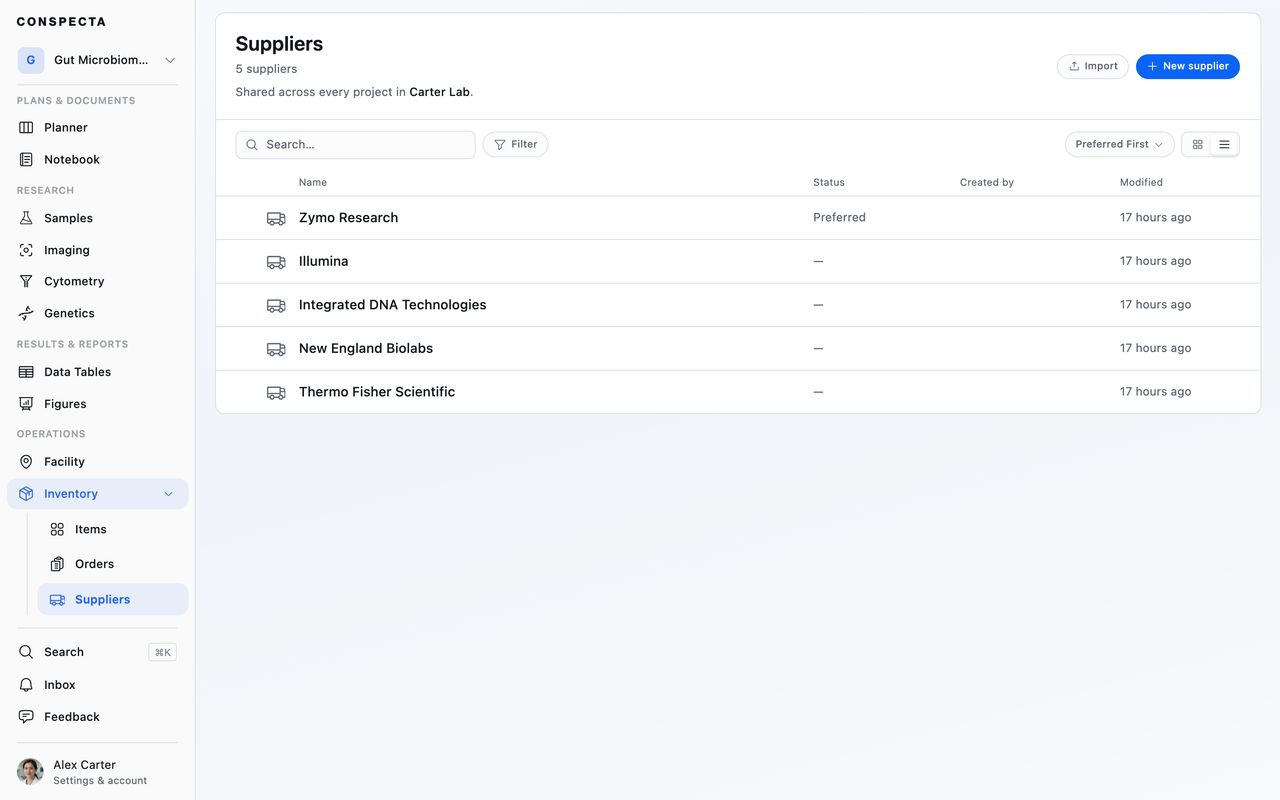
Adding a Supplier
In Contacts, New organization with the type Supplier opens a searchable list of common vendors, with their websites filled in. Pick one and it's added. Vendors already on your list are hidden from the picker so you can't add Thermo Fisher twice.
If yours isn't there, Create a custom supplier gives you a blank profile. Either way, the rest is filled in afterwards on the supplier's own page: its people and main contact, website, address, notes, lead time, and a logo. The list and the profile work as described in Keep Contacts and a Log.
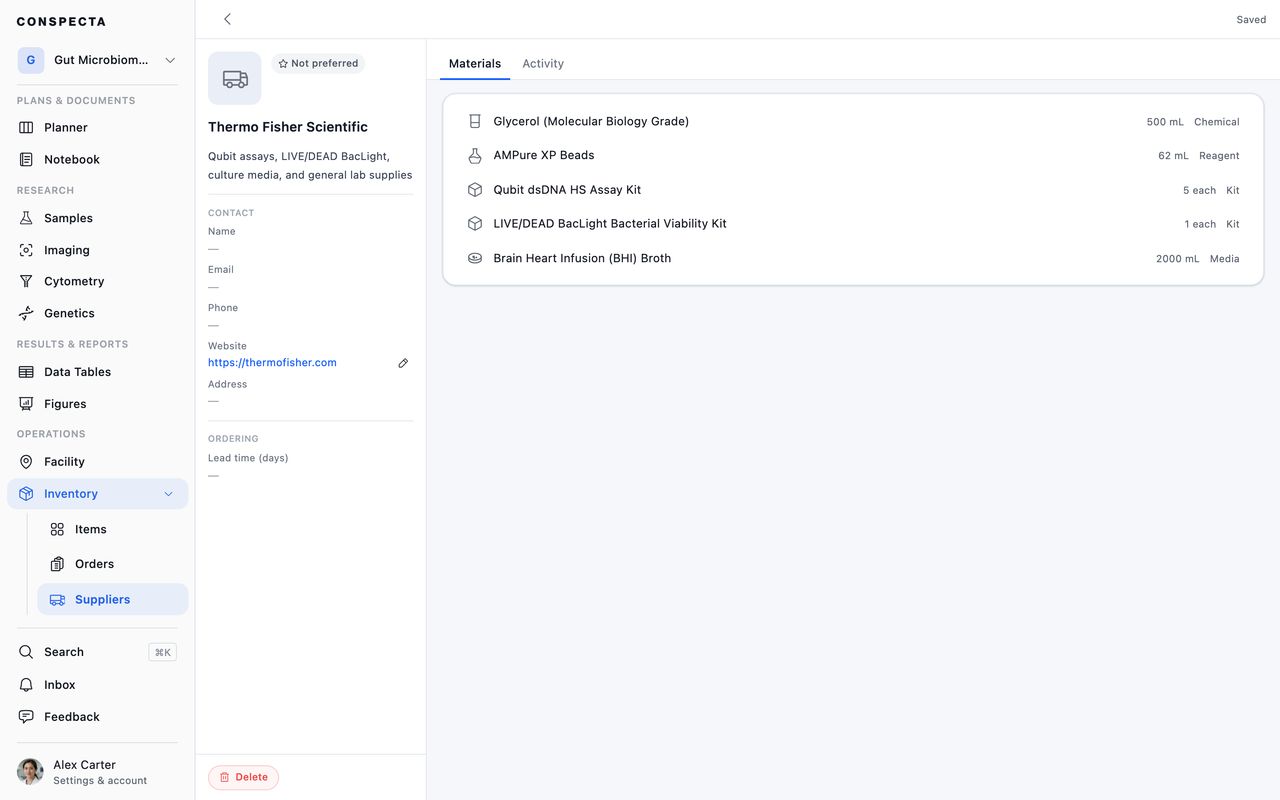
A supplier's Materials tab lists the items in Inventory that name them. Add materials opens a dialog box over your items with this supplier's materials already ticked. Tick more to assign them, and untick one to take it off the list. An item that names a different vendor shows that name beside it, so you can see when ticking it moves it from another supplier. The same link can still be set from the item's own page.
Ordering
New request records an order, and its dialog box reminds you that the purchase itself happens in your supplier portal.
There are two ways to fill it in:
- From inventory picks items you already track. Tick several at once across several suppliers, set a quantity on each, and one submit files them all, grouped by vendor. A Low / out of stock only toggle narrows the list to what needs reordering.
- Something new is for anything not in your inventory yet.
You're recorded as the requester automatically.
Everyone on the project can see every order, since approving one and receiving the delivery are usually somebody else's job. That covers orders for a private item too, which keep the item's name, so the dialog box says so while the selection is still yours to change.
Tracking an Order
An order moves along a row of steps: Requested, then Processing, then Complete. Incomplete sits beside them, for a partial delivery or a backorder. Click any step to move an order forwards or backwards.
Editing an Order
Opening an order shows it in a side panel, and the arrow keys step through orders. Inside, everything edits in place: notes, quantity, unit, priority, catalog number, unit price and currency, total, invoice, purchase order and reference numbers, and links to the product page and receipt. Leave the total alone and it's the unit price times the quantity. Type one and it's kept until you clear it.
| When | The panel shows |
|---|---|
| You and a colleague both changed the same field | Both values, with Keep mine and Use theirs |
| The server won't accept a change, such as a status move it doesn't allow | What's stored, with a message that says why |
| Any other save doesn't go through | Not saved at the top, with Retry |
Notes, Links and Receipts
Notes sits at the top of the panel, under the status row. It holds what New request collected, so the sentence the requester wrote about the purchase is the first thing you read when you open the order, and you can rewrite it as the order moves. Click it to type. Enter saves, Shift+Enter starts a new line.
Product URL is the link back out to the supplier's page for that item. Save it once on the item and every future order for it starts there.
Receipts can be attached as files as well as linked. Drag the PDF invoice or a photo of the packing slip onto the order, up to 25 MB. That attachment is usually what a grant audit or a finance query wants.
Following and Sign-offs
Every order carries a comment thread and an activity log, and a bell to follow it, so you're notified when an order you're waiting on changes. You can approve an order from that thread, or ask a colleague for their sign-off, for a purchase that needs a second name on it.
Receiving
Marking an order with a linked inventory item Complete opens Receive into inventory, which asks how much arrived, which batch it went into, and any notes, then adds that quantity to stock and records the transaction against the order. The Batch field lists the item's existing batches, and New batch takes a number from the packing slip and an expiration, so the batch is created as the stock lands.
The same dialog box asks what should happen to the order afterwards: Complete if everything arrived, or Incomplete if it was a partial delivery and the order should stay open. An order with no linked item is marked Complete with no dialog box.
A Received section on the order then links to the stock transactions it created, for the items you can see. A private item keeps its movements to its owner here as it does everywhere else, so an order that landed a colleague's private item reads shorter for you than it does for them.
Working the Orders List
Tabs across the top split orders by status with a count on each, so Requested shows how big the backlog is. Above the table, a totals row adds up what's on order. Each currency is totaled separately and shown side by side, with no conversion, because the exchange rate is your finance office's to set.
Search matches part of an item name, catalog number, unit, or notes, and reaches every order in the project, including ones past Load more. View on the toolbar holds sorting and filtering: filter by supplier, requester, priority, dates, or Following to see only the orders you're tracking, and each choice shows as a removable label under the toolbar. Select rows to mark several processing, complete, or incomplete at once, export them, or unfollow them.
An order keeps the item's name as it was when you ordered it, so renaming a reagent later doesn't rewrite last year's purchasing history.
Exporting
Both lists have Export in the workspace header, which opens a dialog that asks three things:
| It asks | Under | The choices |
|---|---|---|
| How much | Scope | On Contacts, the view you have on screen, under the current filters, or all organizations. On Orders, the view you have on screen, under the current tab and filters, or all orders |
| Which columns | Columns | A grouped checklist |
| Which file | Format | CSV, or Excel with an Export Info sheet |
On Contacts, the column names match what Import reads.
The same dialog opens on part of a list from three places:
| From | It opens on |
|---|---|
| Download or Export in the bulk bar, with rows selected | Only those rows |
| Download on one vendor's or order's ⋯ | That one |
Small exports download at once, and a large one is emailed as a link, with the button reading Email me a link. Save as preset… keeps a set of choices under a name for next time.
The whole-workspace Excel workbooks for both live in Settings → Export.