Viewing Images
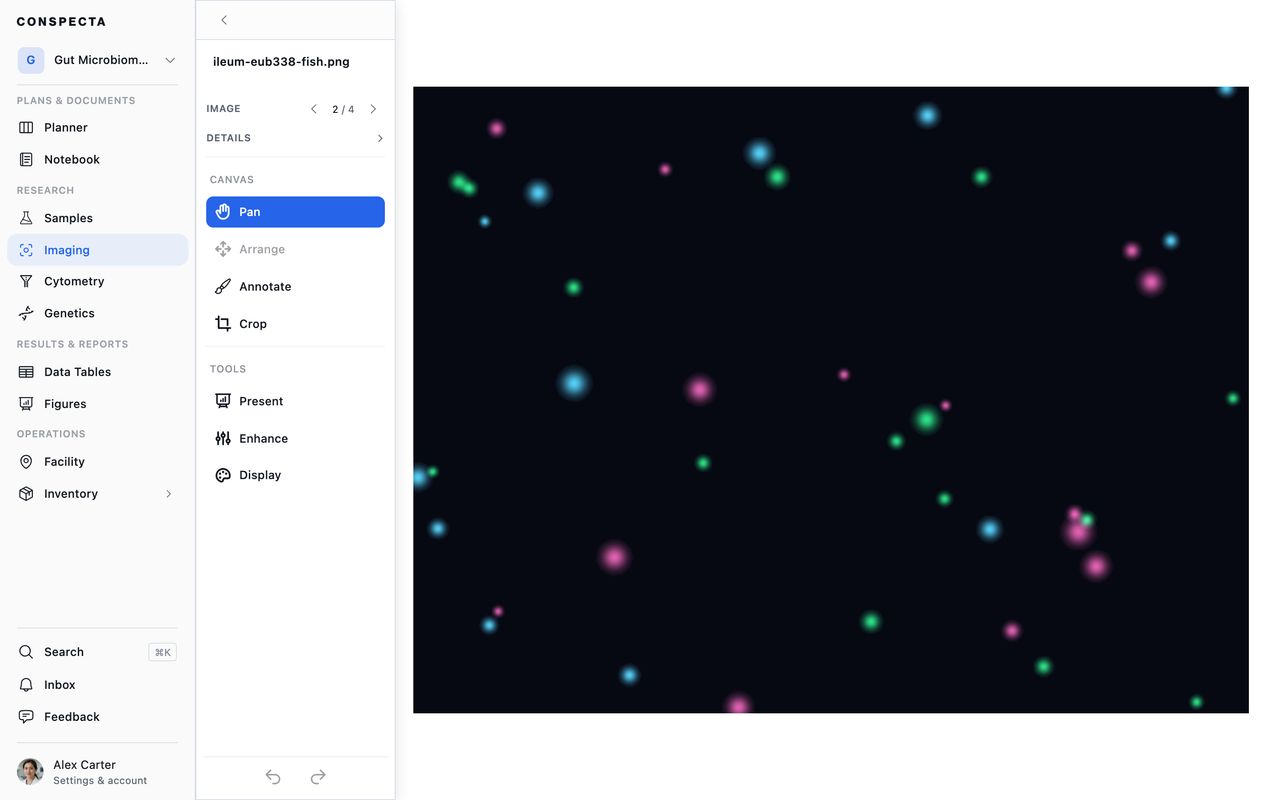
The image viewer is where you look at one image closely: zoom to individual pixels, step through a z-stack, merge or split fluorescence channels, and set how it renders. Click any image in an Imaging collection to open it, and Analyze Images covers how those collections get filled.
Everything here changes how the image looks on your screen and nothing about the file, so you can push a dim channel as far as you like and still be looking at your original data.
Moving Around
Scroll to zoom and drag to pan. + zooms in, - zooms out, and 0 fits the image to the window.
The left and right arrow keys step through the collection, and the up and down arrows step through a z-stack's slices. The sidebar shows where you are in the collection and lets you jump to any position.
The image's name sits above the viewer and you can click it to rename the image. The rename is recorded, so it shows up later in the collection's history with both names.
Under the name is a description, one line for what the picture shows. Click it, type, and click away to save. It holds up to 3,000 characters. A series inside a multi-image file takes its own description, so each acquisition in a LIF or CZI can say something different. Clear the text and click away to remove it.
Details in the sidebar gives the image's dimensions in pixels and, once the image has a scale, in micrometers too, along with its slice, channel, and frame counts, original filename, file size, format, and when it was taken.
Enhance
The Enhance panel adjusts how the image is displayed.
Presets are the quickest route to a usable picture:
| Preset | For |
|---|---|
| See Weak Signals | Bringing up faint fluorescence |
| Publication Ready | A clean, honest-looking rendering |
| High Contrast | Making boundaries obvious, useful before counting |
| Auto-Optimize | Letting Conspecta pick from the image itself |
B&W and Invert sit alongside them as toggles, and a Color LUT applies a lookup table: Fire, Ice, Viridis, Magma, Plasma, Inferno, or Green Fire Blue. Each has a line on what it's good for, and Viridis is the one to reach for in a paper, since it's colorblind-safe and reproduces properly in grayscale.
Adjustments below that gives you the individual sliders: brightness, contrast, highlights, shadows, saturation, warmth, and tint, all running from −100 to 100, gamma from 0.2 to 5.0 with 1.0 as neutral, and blackpoint, clarity, sharpness, denoise, and deconvolution from 0 upward. Each carries a line describing what it does.
At the bottom, hold View Original to see the untouched image for as long as you hold it, and Reset All to drop everything at once.
Your settings are saved against the image and come back the next time you open it. Each image keeps its own, so moving along a collection shows every image the way you last left it. The stored file is untouched, and everyone on the project sees the same rendering.
Fluorescence Channels
An image with more than one channel gets channel controls in the sidebar. Toggle a channel's visibility, change its color, and open a channel row for three adjustments specific to it:
- Gain for that channel's brightness alone
- Contrast, an adaptive local enhancement that pulls detail out of flat regions
- Flatten, which evens out uneven background illumination
Merge shows every visible channel composited together. Split lays them out side by side, so you can check that a signal is in the channel you expect.
Channel colors, gains, and visibility are saved per image alongside the Enhance settings.
Changes to the Enhance settings, the crop, and the channels all go into the image's history with the name of the person who made them, as marks do. Each entry names exactly which settings moved, from what to what. With Whole collection chosen, each entry names its image, and clicking the name opens that image.
Z-Stacks
A z-stack gets a slice stepper, and a Projection control with three ways to flatten it: Maximum Intensity for the brightest value through the stack, Average, or Sum. Leave it on Individual Slices to move through the stack one plane at a time.
Choosing a projection locks the slice stepper.
A mark belongs to the slice you draw it on and shows only there, and its history entry names the slice. A projection shows every slice's marks at once, and a mark drawn on a projection shows on every slice. On a timelapse, a mark belongs to its frame in the same way.
3D View renders the stack as a volume you can rotate by dragging and zoom by scrolling. Its controls are Transparency, Layer Spacing to stretch or compress the z axis, and Auto-Rotate for a hands-free turn, plus a background color and per-channel selection.
Timelapses
An image with more than one timepoint gets a transport in the sidebar: play and pause, previous and next, and the current frame in a box you can type into, against the total. Playback speed runs from 0.25× to 8×, and it loops back to the first frame at the end.
Timepoints come out of the acquisition file, and .lif is the format Conspecta reads them from. Upload the .lif your microscope wrote and the frames come with it, each one ready to enhance, split into channels, step through in z, and measure. A time series saved as a stack of TIFF pages arrives as one flat image.
Video and Animations
A collection holds video alongside images. Drop in an .mp4 or .webm, or an animated .gif or .webp, up to 250 MB a file.
.mov and .avi are refused. They are containers whose codecs a browser often cannot decode, so re-encode to MP4 or WebM first.
Use a clip to keep a recording with the work it came from, and to watch, download, and show it to someone. The imaging tools (channels, z-slices, measurements, and analysis) work on images, so an image analysis started from a collection leaves its clips out. Upload a timelapse you want to analyze as the .lif your microscope wrote.
In the grid a clip shows a still frame from the recording, with a play badge, its running time and its resolution (such as 1080p) in the corner. A clip uploaded before resolutions were recorded shows its resolution on its own page but not on its card. Click it and the clip opens on its own page.
Playing a Clip
The player fills the top of the page with ordinary playback controls: play and pause, a scrubber, volume, and fullscreen. Space plays and pauses the clip, and the left and right arrow keys skip back and forward five seconds. Esc leaves fullscreen, and the back button returns to where you opened the clip.
Choosing the Thumbnail
The still frame on a clip's card is chosen for you as the clip uploads. Two choices in the … menu beside the clip's name replace it:
- To use a different moment, scrub to it and choose Set thumbnail from this frame. The card in the grid, the tile in the filmstrip, and the frame the player opens on all change to match.
- To use a picture instead, such as a title card or a figure, choose Upload thumbnail image and pick an image file.
There is one still per clip, and the last one picked is what everyone sees. Download thumbnail saves that still to your computer as an image.
An animated .gif or .webp plays without a scrubber, so it keeps the frame it was given.
Naming and Describing a Clip
The clip's name sits in the header, and clicking it renames the file. The … beside it holds Download, which fetches the file you uploaded, unchanged, and shows its size on the row.
A line under the player says what the file is: its resolution (such as 720p or 1080p), length, size, and format. Who uploaded it and when are in the activity beside the player. An animated .gif or .webp shows no resolution.
The clip's description sits under that line, three lines long with Show more for the rest. Choose Add a description, or the pencil beside one, to write it, then Save. A time written in it, like 1:42 or 1:02:03, becomes a link that jumps the player to that moment and plays from there, so a list such as 0:42 Build the steps works as chapters. Viewers read the description but can't change it.
A filmstrip of the whole collection runs beneath that, clips and pictures alike. Click a picture in it and it opens in the image viewer with the enhance and channel tools. Stepping the other way, onto a clip while you are in the image viewer, brings you back to this page.
Uploading a New Version
To swap in a new take of the same recording, choose Upload a new version in the … menu and pick an .mp4 or .webm. The clip keeps its name, description, comments and history, and the history records that the file was replaced.
The line under the player, the thumbnail and the player change to the new file, and the previous file is deleted. A sign-off given on the old file then reads as possibly stale, so the clip can be reviewed again.
A project under a retention hold keeps its files as they are, so the option is refused there.
Adding Captions
To add captions, choose Add captions (.vtt) in the … menu and pick a WebVTT (.vtt) file of up to 1 MB. The player then shows its CC control, which turns the captions on and off. Replace captions (.vtt) swaps in another file and Remove captions takes them off, after asking first. Each change is recorded in the clip's history. Captions move with the clip to another project and are deleted with it.
Reviewing a Clip
The clip's own history, comments and sign-off fill the column on the right. Approve and Request changes in the Review menu under the comment box decide on this clip alone, and its mark shows on its card in the grid. On a project that belongs to no team the column shows the history on its own, since there is nobody to comment to.
Presenting
The Present panel has what you need to show an image to someone else:
- Slideshow puts the collection's pictures full screen, one at a time
- 3D View for a z-stack
- Screenshot Region captures part of the view
- Download saves the image as you've set it up, enhancements and all
In the slideshow, Space plays and pauses, the arrow keys step, and Esc exits. Set an interval between 2 and 30 seconds for a hands-off loop, or leave it off and drive it yourself. A z-stack slide offers View 3D in the corner.
Extra Panels
Display turns on floating panels over the image:
- Histogram for the intensity distribution, so you can tell a saturated channel from a bright one
- Minimap for where you are when zoomed in
- Zoom for the current magnification
On a phone, Display offers the histogram on its own, since the image fills the screen and a pinch sets the magnification.