Getting Started with Conspecta
Conspecta is a browser-based platform for life science research. Image analysis, flow cytometry, molecular biology, sample tracking, and publication-ready figures all live in one connected workspace. This page takes you from a new account to a project you can work in.
What You Need
Conspecta runs in your browser. There's nothing to install, and an internet connection is required.
Any current version of Chrome, Edge, Firefox, or Safari works, on macOS, Windows, Linux, or ChromeOS.
Image-heavy work is the main driver of memory usage. As a rule of thumb, plan for at least twice as much RAM as the size of the files you typically open, so a 4 GB LIF file is comfortable on a machine with 8 GB or more. Analysis that runs in the browser goes faster with a dedicated graphics card, but a GPU is not required.
On a narrow screen, such as a phone, Conspecta rearranges into a home screen with scanning and bench tools built for standing at the bench. See Conspecta at the bench.
Creating Your Account
- Go to
conspecta.bioand click Sign up - Enter your email, choose a password, then tick the box to accept the terms
- Check your inbox for a 6-digit verification code and type it in
- You'll see Email confirmed, and you're in
The code screen carries Resend code and Use a different email, so you can sort out a code that was filtered or an address with a typo from there. Sign-up rejects disposable and throwaway email domains, so use the address you'll keep. If you arrived from an invitation link, you return to the invitation once you've signed up and verified your email. Two-factor authentication is set up later, from Settings → Account.
Your First Screen
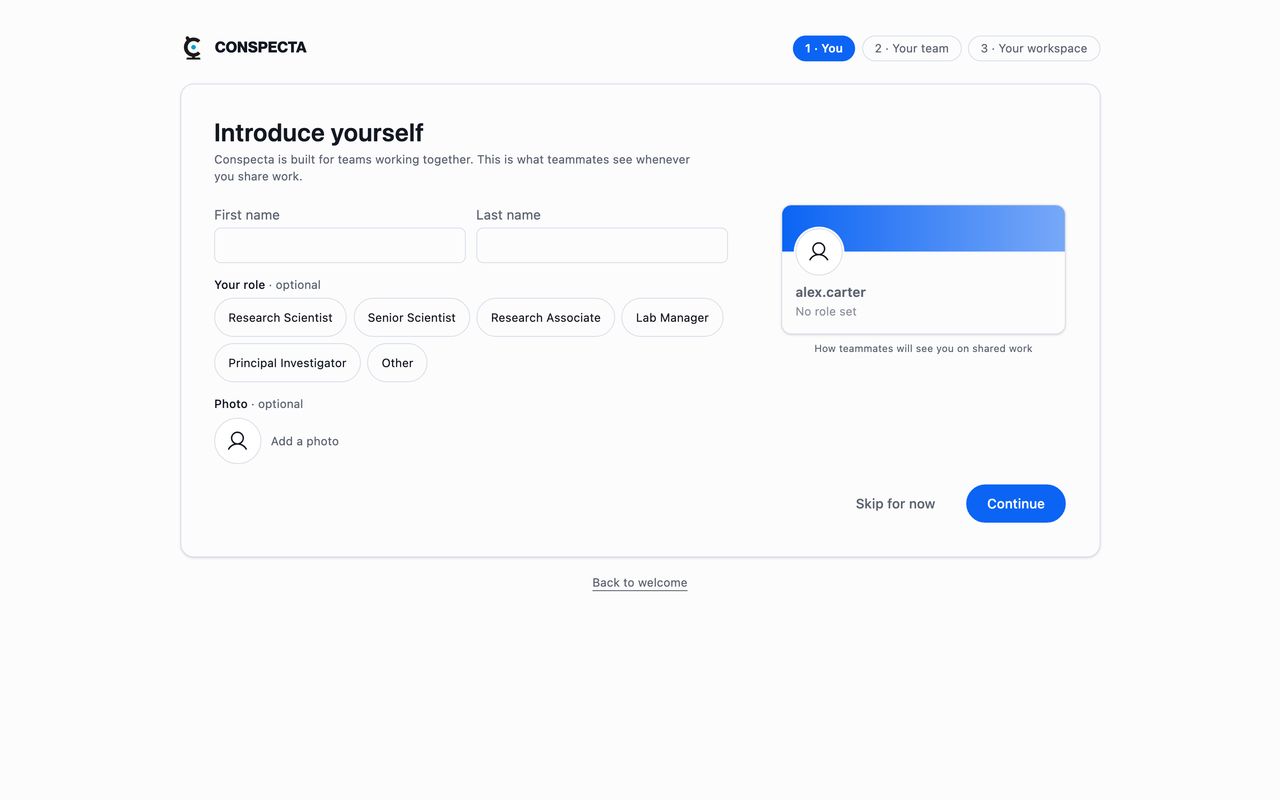
A new account opens on Introduce yourself, the first of three steps marked across the top of the page: About you, Your team, and Your project.
It asks for your name, an optional role, and an optional photo, and shows a live preview of the profile card your collaborators will see. Your name and photo appear on comments and mentions, in your team's member list, and on every sign-off you give. The role comes with suggestions such as Principal Investigator, Senior Scientist, and Lab Manager, and Other lets you type your own.
None of it is required. Skip for now goes to the next step, and you can set your name and photo later on your own profile, which opens from View profile in the account menu at the foot of the sidebar.
Choosing How to Start
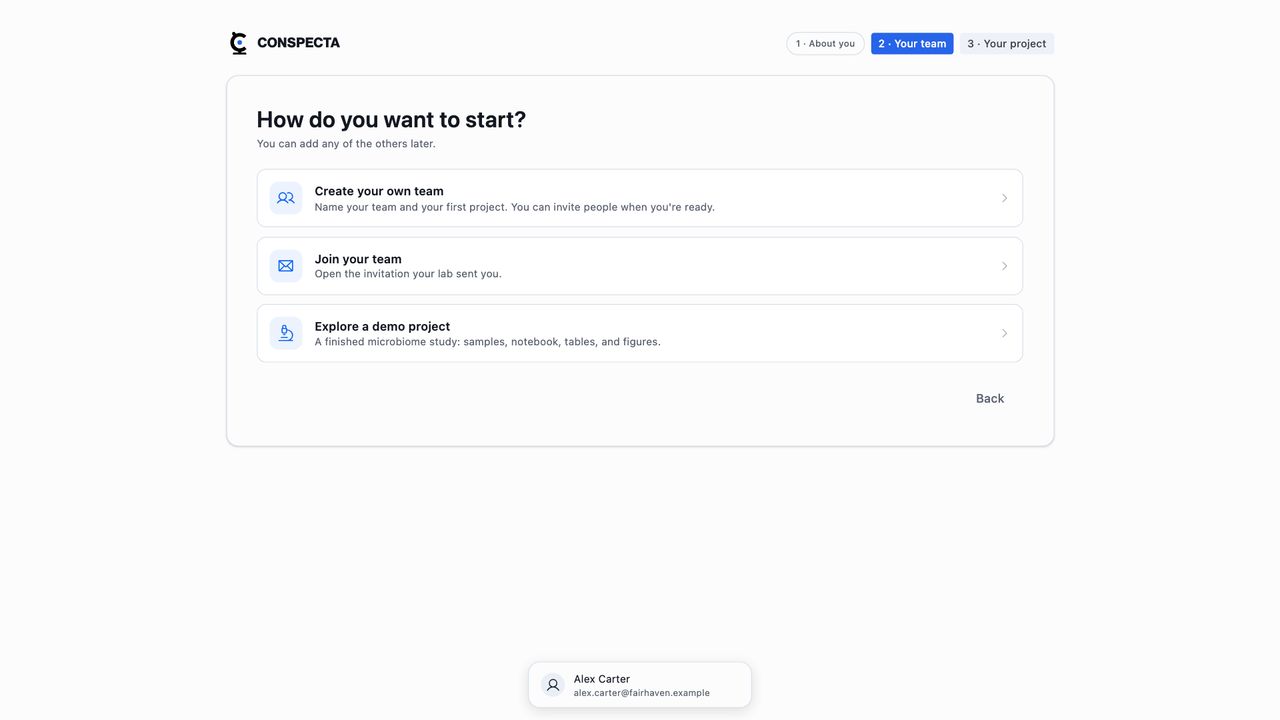
The second step asks How do you want to start? and offers three ways forward.
Join your team shows the invitations waiting for you, each naming who sent it and which team it is for. Accept takes you into that team's project, or to the team itself when the invitation carried no projects. If someone has already invited you, this choice moves to the top of the list and says how many are waiting.
Create your own team sets you up from scratch. This is the right choice when nobody has invited you, including when you're the first person in your lab to use Conspecta.
Explore a demo project builds you a finished mouse gut microbiome study to look around in. See The demo project below.
Setting Up Your Team
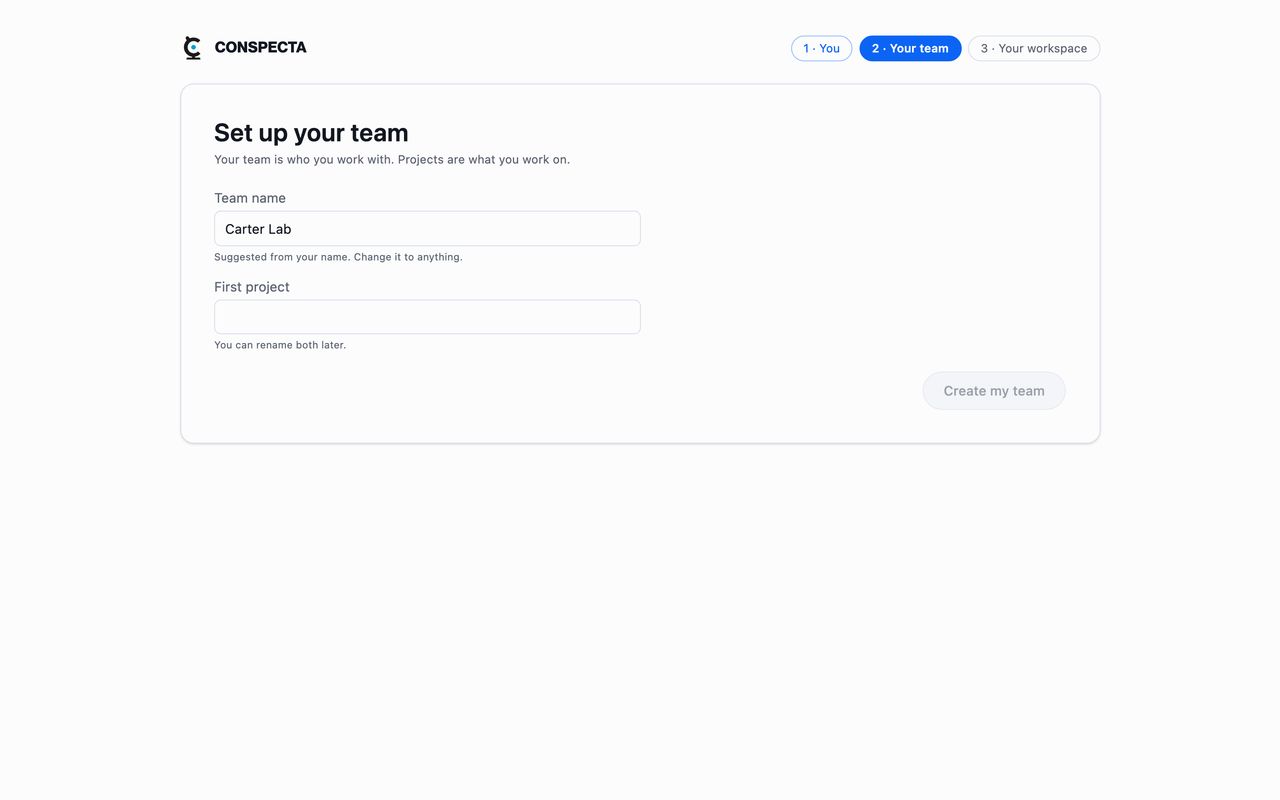
Set up your team is the one step you have to complete, because it creates both your team and your first project. Team name arrives prefilled as your last name followed by "Lab", and First project is yours to name. You can rename both later. Click Create my team.
The last step confirms your team is ready and names the workspaces waiting inside your first project.
Tip: Every project belongs to a team, so a solo scientist is a team with one member. Add people later and the work already in the project stays as it is.
The Demo Project
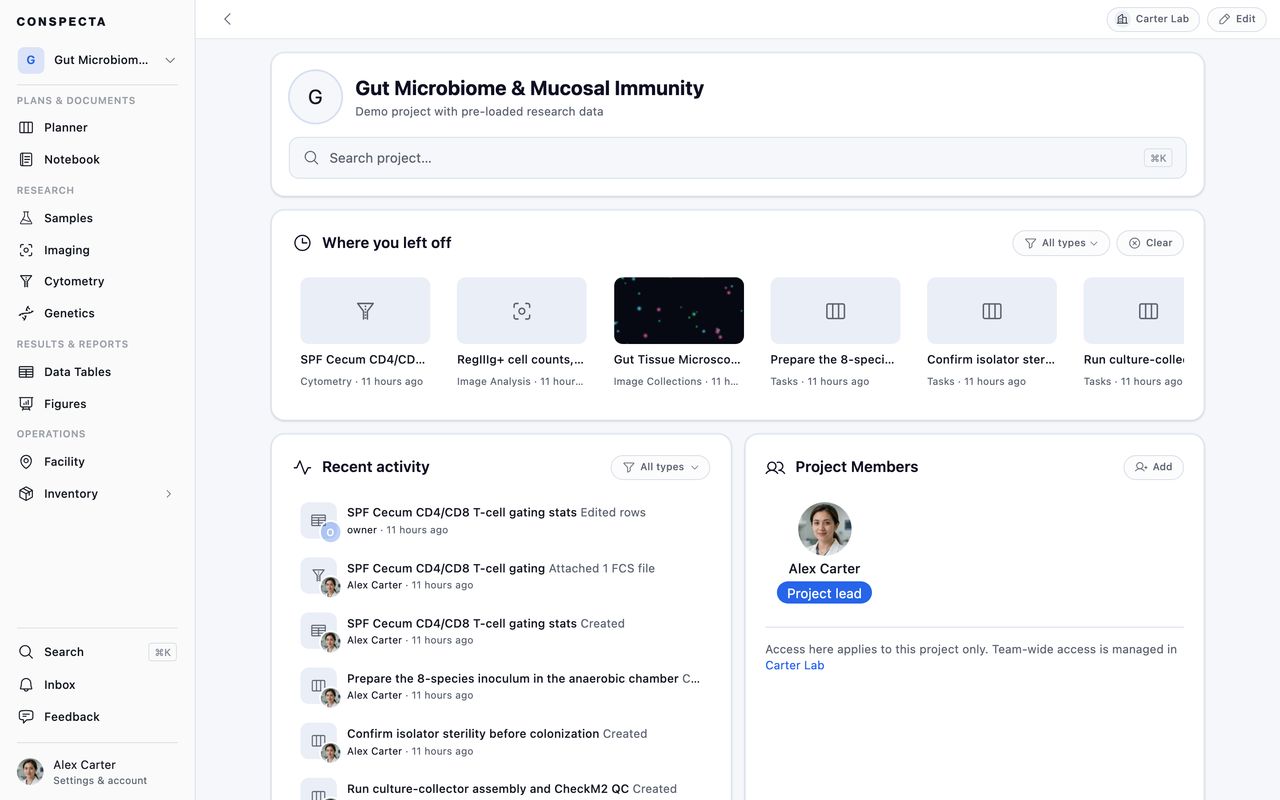
The demo is a project built for you and filled with a study someone has already run. It has samples in mapped freezers, a written-up notebook, protocol runs, sequences, a planner board, gut tissue microscopy with the counting run performed over it, thirty cytometry tubes with the gating strategy already drawn over them, and the tables and figures the work produced. You can edit, add, and delete in it freely.
Alerts from the demo stay inside it. Reagents below their reorder point carry a low-stock label in Inventory and booked sessions sit on the instrument calendar, while your email, your phone, and the count on your inbox carry only your own work.
Building the Demo
Picking it takes you to the last setup step while the project is built, which takes a few seconds. The project is called Gut Microbiome & Mucosal Immunity (demo) and lives in a team called Carter Lab (demo), so you can always tell it apart from your own work in the project picker and in search.
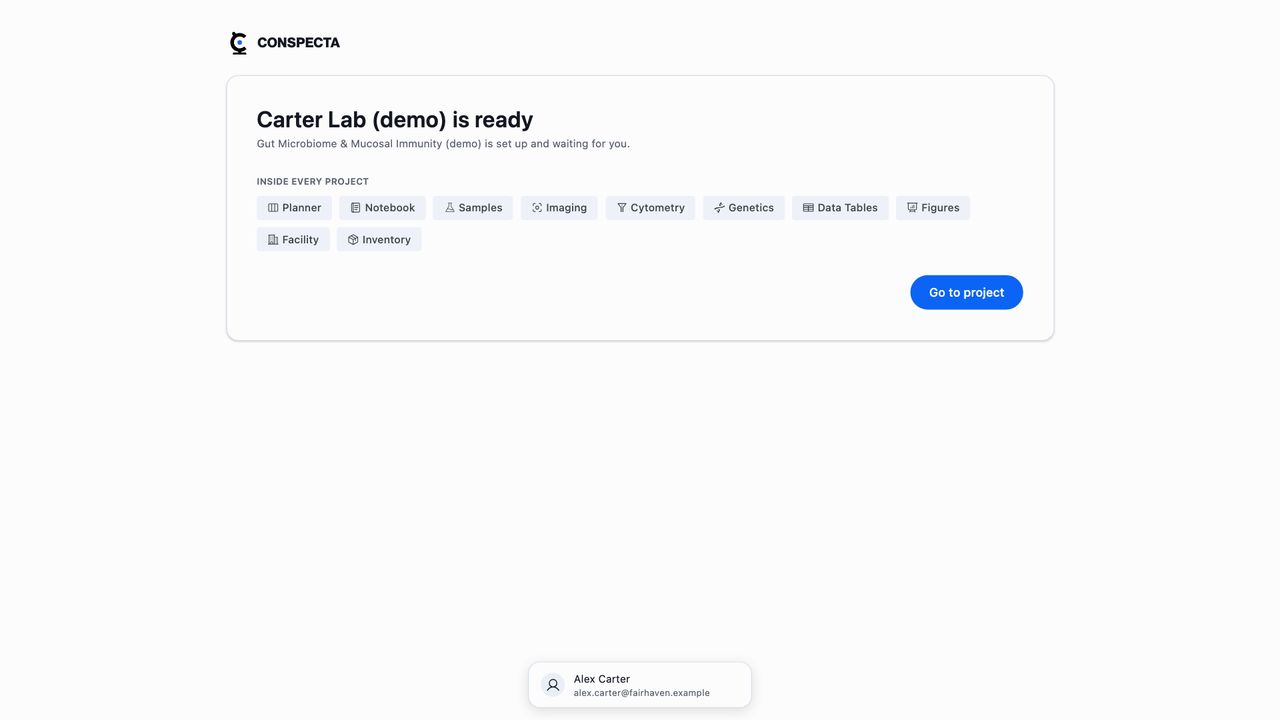
Go to project finishes setup. On a computer it opens the project itself. On a phone it opens the home screen with that project on the row at the top, where the workspace grid opens every part of it in one tap.
Storage and Members
The demo project and its team sit outside your plan, so taking the demo leaves your own team allowance and your storage untouched. The demo carries 1 GB of storage of its own, which is room for anything you add while exploring it. You can have one demo at a time, and you can build another after removing the first.
The demo has one member, you. Invitations go to a team you create, and the demo team's page links you there. Removing the demo deletes everything in it, so a colleague's work would go with it.
Finding and Removing the Demo
On a computer the project picker at the top of the left sidebar marks the demo. While the demo is open, the picker carries a Demo tag under the project name. Open the picker and the demo's team is tagged the same way, with Remove the demo under it.
New team at the foot of the picker sets up your own team when you have finished looking around. You can keep the demo alongside it, or remove it.
On a phone the demo is marked the same way on the project row at the top of the home screen, which carries a Demo tag while the demo is open. The chevron beside it opens the picker, where the demo's team is marked, Remove the demo sits under it, and Create your own team sits at the foot until you have a team of your own. Removal is in the project's own Edit dialog box on both.
Removing the demo cannot be undone. You confirm once, and the demo project, its team, and anything you added while exploring are gone for good. None of it reaches Trash, so there is nothing to restore. Your own projects are untouched. A demo project stays in the team it was built in, so it can't be moved to another team.
Teams and Projects
A team is your research group, lab, or institution. It owns what a lab shares no matter who is working on what: the freezers and instruments in Facility, the suppliers and other organizations in Contacts, the templates everyone reuses, and the subscription.
A project lives inside a team and holds the work, and each one is independent, with its own samples, notebook, analysis, and figures. A project is a focused line of work, such as an aim from a grant, a study, or a program.
Being on the team makes you eligible for a project, and being added to that project is what lets you see it. You can belong to as many teams as you're invited to, and you switch between their projects from the picker at the top of the sidebar. Roles and access are covered in Manage your team.
What's Inside a Project
Every project has the same workspaces, grouped in the sidebar the way a project tends to run:
| Group | Workspaces |
|---|---|
| Plans & Documents | Planner for tasks and scheduling, Notebook for notes and protocols |
| Experiments | Samples, Imaging, Cytometry, Genetics |
| Results | Data Tables, Figures |
| Operations | Facility for storage and instruments, Inventory for items and orders, Contacts for suppliers and the people you deal with |
Facility and Contacts belong to the team, so the same freezer and the same supplier list appear in every project the lab runs. Everything else is scoped to the project you're in.
Hide the workspaces you don't use under Settings → General and they leave the sidebar until you turn them back on.
Getting Your Data In
Most workspaces take existing files without any setup:
- Samples imports a CSV or TSV, and recognizes header names exported from other tools
- Notebook imports Word, PDF, and Markdown documents
- Imaging takes TIFF, PNG, JPEG, BMP, GIF, WebP, and SVG images, MP4 and WebM video, and LIF (Leica Image File) files
- Cytometry takes FCS files, versions 3.0, 3.1, and 3.2, and reads a gating strategy from a FlowJo 10
.wspworkspace or a Gating-ML 2.0 file - Genetics takes FASTA, GenBank, SnapGene, and Sanger
.ab1files, or fetches a record from an accession number - Data Tables imports CSV, TSV, and Excel, keeping the spreadsheet's formulas
- Inventory, Orders, and Contacts import a CSV or TSV, matching column headers as loosely as Samples does
- Facility takes a CSV or TSV of your rooms, freezers, and boxes, which arrive as a flat list you arrange into a hierarchy afterwards
In every case you can drag files onto the empty workspace to import them. File formats and importing has the full list of extensions each workspace reads, what it writes back out, and the formats it turns away.
Research Use Only: Conspecta is built for research, exploration, and education. It is not certified for clinical diagnostics, patient care, or other regulated medical use. Don't upload protected health information (PHI) or other patient-identifiable data.
Your First Steps
Start with the workspace closest to your day-to-day work, and set up the rest as you reach it. A useful order for a new project:
- Register what you have. Import your samples, or add the reagents you're low on.
- Write down what you're doing. Put your protocol in the Notebook, and you can run it step by step later.
- Bring your data in. Upload a plate of images or a set of FCS files and run one analysis end to end.
- Invite your collaborators, assign a couple of tasks in the Planner, and ask for a sign-off for the protocol.
Tip: Press Cmd/Ctrl + K anywhere to search across
every project you can reach, and Ctrl plus a number to jump to a
workspace by its position in the sidebar.