Review, Version, and Share Notes
Once a note or protocol is written, you share it with the project, ask colleagues to sign it off, publish versions so what was approved stays readable, and export it for a paper, a report, or an audit. Writing the page itself is covered in Write Notes and Protocols.
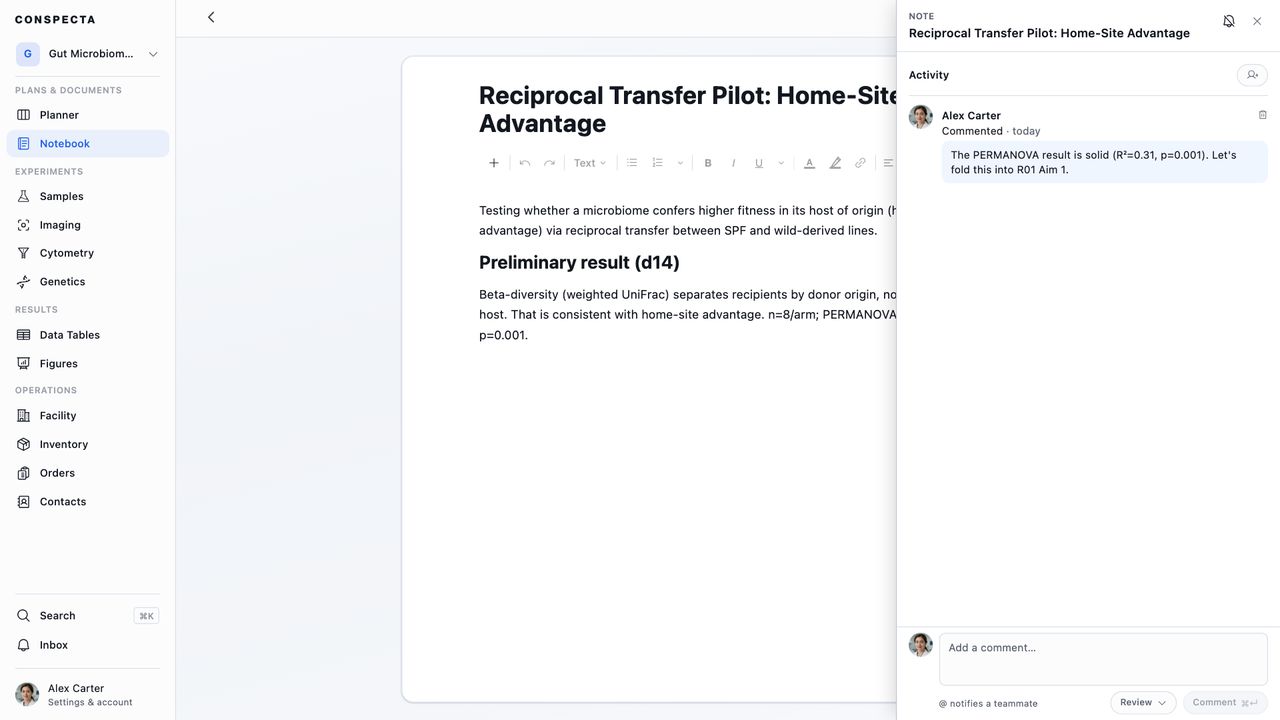
Sharing and Working Together
Every page is shared with the project or private to you, switched from the page menu with Share with project and Make private. Only the page's creator sees that switch.
- Shared pages are live. Everyone on the project can type at once, with each other's cursors showing.
- Private pages are yours alone. They're still included in your exports.
Share a page before several people start working in it, because sharing starts a fresh editing session.
When a save doesn't go through, the page reads Not saved with Retry. A page made without a connection reads Not saved until you're back online, and the browser asks before you close the tab.
If you and a teammate both changed a page's title, status, or folder, a box offers Keep mine or Use theirs for each, then Apply.
Mentions
Type @ in the page or a comment:
- A teammate gets an inbox notification with the surrounding text. People are offered once the page is shared with others.
- A record (a page, run, sample, sequence, task, order, data table, panel, supplier, collection, or flow dataset) goes in as a blue link. Hover most kinds to see the record's card. It turns gray and struck through if the record is deleted.
Reviews and Sign-offs
The Activity panel is where a page gets discussed and signed off. Comments and sign-offs work on a private draft too, and a comment or note holds 2,000 characters.
Asking for a Review
Request review, the person-plus button beside the Activity heading, notifies the people you tick. It appears once the page is shared with a project that has other people in it. Once anyone has been asked or has signed off, a Reviewers line under the heading shows where each person stands, and the × beside a name takes the ask back. A request stays open until someone approves or rejects the page, or you cancel it.
Recording a Decision
Open Review beside the Comment button and pick a decision, or use the buttons under a review request addressed to you. Nothing posts until you send it.
| Decision | What happens |
|---|---|
| Approve | Signs the page off, optionally with a note |
| Request changes | Hands the page back. It leaves the reviewer's list until you edit it, then returns |
| Reject | Closes the review for everyone asked. The page reads Rejected until that reviewer withdraws or decides again |
When reviewers disagree, the page shows the most serious standing decision, Rejected, then Changes requested, then Approved, counting each person's latest. You can withdraw your own decision, and the project owner can withdraw anyone's with Withdraw for and their name.
On a note, Comment in a block's grip menu attaches a thread to that block, with @ to tag a teammate. Protocols take comments at page level.
Editing a Signed Page
The first edit to a signed-off page asks Publish the signed version first? when the approved text isn't a published version yet. Publish saves it as the next version, so what was signed stays readable. Edit without publishing carries on.
Editing a signed-off page flags the sign-off for another look. A change to the content flags it and a rename leaves it standing. Nothing is deleted, and the record of who approved what is kept.
Spotting a Reviewed Page
Every page carries a review status, in the list, the protocol picker, search results, and at the top of the open page.
| Status | Means |
|---|---|
| Review requested | Someone has been asked to review it, and the status names them |
| Changes requested | A reviewer sent it back |
| Rejected | A reviewer turned it down |
| Approved, Approved v1.2.0 | Signed off, on the published version named when there is one |
| Approved · edited since | Signed off, then changed |
| Approved · a table or plate it cites changed | Signed off, then a data table, chart, or plate on the page was edited or deleted |
The status shows as a colored mark: green for approved, amber for a review still owed, changes requested, or an edit since, and red for rejected. Hover it to read it in words, or click it at the top of a page to open Activity. At the top of a page, a mark that turned amber after a sign-off says why beside it: Edited since approval, or A cited table changed. A signed-off page also reads Signed off by and the reviewer's name under its title.
Version History
The bar at the top of the page shows its version, Draft until the first one is published. Click it, or pick Version history from the page menu, to open the history.
Publish new version at the foot of the panel takes a snapshot. Choose major, minor, or patch, and add release notes if the change needs explaining. The first version is v1.0.0.
A version saves the data tables and panels the page shows and the wells of each plate it links, so it shows the numbers it was published with. Linked tasks, orders, runs, and samples show as they are now, marked Live: shows this task as of today's date. A table over 4 MB, or past 16 MB for all of a page's tables, isn't saved and the version says so.
| Action | What it does |
|---|---|
| Open | Reads the version as published |
| Compare with previous | Shows what changed since the version before |
| Compare with draft | On the newest version, shows what changed since |
| Restore | Puts the version back over the working draft |
| Withdraw | Takes a version out of circulation, with a required reason |
A comparison opens on Changes, the page itself with added text in green and removed text struck through in red. Long stretches nobody changed fold into a line such as Show 4 unchanged blocks, which opens them, and each item in What changed at the top jumps to its change. Side by side shows the two versions next to each other.
The comparison covers the data tables and plates the page shows, too. A corrected reading appears in What changed with both values, and under its table a list gives each changed value with its row and column, the old one struck through. Each side shows its tables with the numbers that version was published with. A version published before tables were saved with it, or whose table was too large to save, can't show what changed in that table, and the comparison says so.
A withdrawn version stays in the history, struck through with its reason, and can still be read. Runs started from it carry on. It stops being offered for new runs, restores, and task pins.
Tip: Publish a version whenever a protocol changes in a way that would change a result. Every run shows the version it followed, so months later you can prove which recipe produced which numbers.
Exporting
Export in the page menu writes one page as PDF, Word, Markdown, or Markdown with images, a zip with every picture, chart, and sequence map in place. Page info in the same menu counts words and blocks and lists contributors.
To export several pages, use Export in the header, Download on the bar that appears when you tick rows, or Download on a folder's ⋯. The dialog offers:
- The pages as PDF, Word, or Markdown, one file for one page and a zip for several
- A list of them as CSV or Excel, a row per page with its title, folder, kind, authors, dates, and version
Scope picks the open folder, that folder and everything in it, the whole workspace, or the pages you ticked.
What an export carries:
- Linked records at the size they have on the page, each with a link back to Conspecta, and a line reading Linked records as of the export date
- Linked data tables with their column formatting, up to 50 rows
- Protocol steps with materials, timers, capture fields, result tables, instruments, branches, and safety notes
- Answer fields as label and answer, or fill-in boxes in Word
- Charts drawn in PDF and Word, cropped images, callouts, and side-by-side layouts
- A closing Sign-offs section listing each standing decision and when it was made, in UTC
If one page in a zip can't be written, a short text file named after it takes its place and the rest still arrives. The whole-workspace archive is under Settings → Export → Notes, filed by folder, with charts named rather than drawn.