Manage Your Team
Conspecta controls access at two levels, Teams for membership in your research group and Projects for access to specific work, so you can share with the right collaborators and keep in-progress data private when you need to.
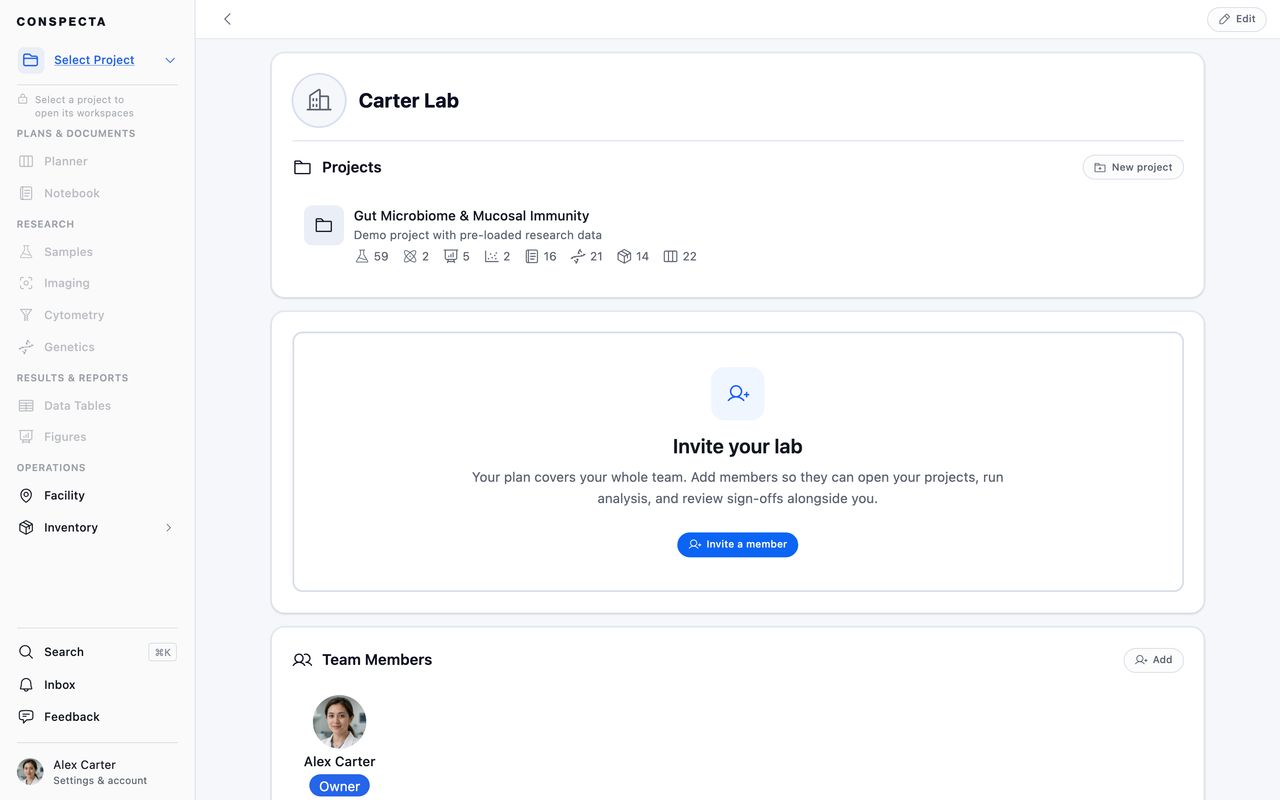
Teams and Projects
Teams
A team is your research group or institution. Team membership decides who can see and join projects inside the team.
Team roles, in order of authority:
| Role | What they can do |
|---|---|
| Owner | Everything an Admin can, plus change anyone's role, promote Admins, buy seats, and transfer or delete the team |
| Admin | Open every project in the team and manage who's on it, invite and remove members, create projects, and edit team settings |
| Member | Nothing at the team level. A Member works in the projects they've been added to. |
Owners and Admins are the team's leadership, and they reach every project in the team. Being on the team makes a Member eligible for a project, and they join one when they are added to it.
There's no team-level read-only role. Read-only access is granted per project. See Project roles below.
The team also owns what every project in it shares: the freezers and instruments in Facility, the organizations and people in Contacts, the templates it shares, and the Data dictionary of fields its protocols record. Anyone in one of the team's projects can read the data dictionary, and members of the team change it.
Projects
Projects live inside teams and hold the workspace data: samples, notes, figures, analysis, sequences, and inventory. A project is a focused line of work, such as an aim from a grant, a research program, a study, or anything else you'd otherwise track in its own folder. Project membership decides who can do what with the data.
A project starts with one person and grows by invitation:
- The person who creates a project is its Project lead and has full control of it, including deleting it. Only the Owner and Admins can create one.
- A Member gets in only when the lead adds them to that project, with a role that decides what they can do there. They see nothing of the projects they aren't on.
- Team membership always comes first. You can only add someone who is already an active member of the team. If you type the email of someone who isn't, Conspecta turns it into a team invitation that carries the project roles with it, and they land on the project when they accept. Only the team's Owner and Admins can send that invitation, so a lead who is a plain team member will need one of them to do it.
- The Owner and Admins reach every project in the team without being added, and hold the Project lead's powers on all of them.
Project roles, chosen when someone is added and changeable any time from Project Members:
| Role | What they can do |
|---|---|
| Project lead | Everything an Editor can, plus manage who's on the project, move it to another team, and delete it |
| Editor | Create, edit, and delete the project's work, and rename the project itself |
| View only | Read and export everything shared with them, but nothing can be changed, deleted, or moved |
Editors can delete any shared work, including work someone else created. Everything deleted goes to Trash for 30 days and can be restored from there, so give the role to people you trust with the data. Editors can also rename the project and set its status, including archiving it.
The one thing an Editor can't delete is anything a teammate has marked private. A private item is visible only to its creator, so it stays theirs alone to change, share, or delete.
What only the Project lead can do:
- Add someone to the project, change their role, or remove them
- Move the project to another team, or delete the project
- Permanently remove something a different person deleted, and empty the project's Trash
- Export the whole project at once
Tip: Any Editor can restore a shared item from Trash, no matter who deleted it, so an accidental delete never waits on the lead. Only the person who deleted an item, or the lead, can delete it for good.
View only is for people who need to read the work with no risk of changing it, such as a collaborating PI reviewing results before sign-off, an auditor collecting evidence, or a stakeholder following along. A view-only member:
- sees the same app everyone else does, with a View only badge beside the project name, and is offered only the actions they can take
- can read, search, and export everything shared with them, and star items for themselves
- can comment on and sign off a specific item when someone requests their review of it. The request grants that, and only for that item
- never sees teammates' private items
- uses a seat on the team
To change someone between Editor and View only, click the members button at the top of the project page to open Project Members, then pick the role from the role menu on their row. The change applies to that project only.
The lead can change hands. In Project Members, open the role menu on any member's row and choose Project lead. The new lead must already be on the team, and the outgoing lead stays on the project as an editor, so they keep working on the data but can no longer manage who has access, move the project, or delete it.
To leave a project you lead, hand it over first, or archive or delete the project. Editors and viewers can leave whenever they like.
An Owner or Admin doesn't have to pick a successor. Open the menu under whoever leads the project and choose Take project lead to take it yourself, for example when the lead has left the group and nobody else is ready to run their work. Either way you'll be asked for your password first. The project's storage stays with the team that owns it, so handing over the lead leaves storage where it is, and no storage limit can block the handover.
If someone who leads projects is removed from the team altogether, their projects pass to the team's Owner.
Tip: Keep the Admin role for the people who run the group. An Admin can open every project in the team, so it's the role to be sparing with.
Moving a Project to Another Team
A project can change teams. Open the project, choose Edit, then Move to another team. Reach for this when a study transfers to a collaborating group, when a spin-out takes its work with it, or when a project was started in the wrong team.
The project keeps its name, its ID, and every sample, note, figure, and file inside it. Links between items survive, and so does its history. What changes is who the project belongs to, and therefore who can reach it.
Freezers, instruments, and suppliers stay with the old team. They belong to the team, so they don't travel with a project:
- Samples and stock keep their records but lose their storage spots. Place them again in the new team's Facility.
- Supplier links drop off materials and orders. Orders keep the item name they were placed with.
- Dye signatures measured on the old team's cytometers stay on those machines. They're kept, so moving the project back puts them within reach again, but until then the new team can't read them.
You can only move a project into a team you own or administer, so nobody can move work into your team without your approval.
The project's files move with it. Its storage is charged to the new team, so the move is refused if those files would put the destination team over its storage quota. Free up space on that team or upgrade its plan, then move the project.
Access follows the project immediately. The old team's Owner and Admins lose it the moment the move completes, and the new team's Owner and Admins gain it.
People come along only if they're already on the destination team. Plan for this before you move:
- The Project lead must already be a member of the destination team. If they aren't, the move is blocked with a message. Add them to the destination team first, or hand the project to someone who's already on it, then move it.
- Any member of the project who isn't on the destination team is removed from the project by the move. They keep their account and their other work, and lose access to this project.
The dialog box names everyone who will lose access before you confirm. If someone on the list should keep working on the project, add them to the destination team first and then move it, and they stay on the project.
Moving a project back doesn't restore the people it removed. If you move a project and then move it back, you'll need to add them to the project again.
Keeping Work Private or Shared
Team membership and a project's privacy decide who can open it. Inside a project, each item you create also carries its own visibility, so you can keep early work to yourself even among people who share the project. Every item is either:
- Shared so everyone on the project sees it, within their role. This is the default.
- Private so only you, the owner, can see it. Reach for private while something is rough, exploratory, or not yet ready for others to build on.
Visibility is set per item. You can keep one sample private while the rest are shared, and switch anything you created between private and shared whenever you like. Changing an item's visibility is something only its creator can do, so nobody can hide your work from the project, and nobody can share a draft you're not ready to show. Most workspace items support this, including samples, lab notes, sequences, image and flow cytometry analysis, data tables, and figures.
A private item is hidden from everyone but you everywhere it would otherwise appear: lists, search, an item's connections, and even the trash.
Your own private items are marked wherever they're listed. An item carries a Private label in list rows and on cards, and a private folder shows a small lock on its folder icon. These marks appear once someone else is on the team.
Selecting items offers the visibility change that fits what you picked. A selection that is already private is offered Share, one that is already shared is offered Make private, and a selection holding some of each is offered both. A folder counts as the items inside it, since those are what the change reaches.
Tip: Private hides one item from everyone but its creator. To keep a whole line of work from specific people, put it in a project they aren't a member of and use project roles.
Moving Work Between Projects
When work belongs with a different study, you can move it from one project to another. Tick the items you want and choose Move from the bar that appears. The dialog box lists every project you can edit, grouped under the team that owns each one, and wherever the items sit now is marked current.
Samples, sample groups, notes and protocols, sequences, image analysis, flow cytometry, figures, stock items, orders, and data tables all move this way, one at a time or several together.
A single image file inside a collection travels too, which is the one case where the dialog box asks for a destination collection, since a file lands in a collection. Analyze images covers that one.
Expand a destination project to pick the folder the work lands in, and expand a folder to go deeper, as far down as that project's folders go. Choose the project itself to leave the items at its top level. Orders and sample groups arrive at the top level either way, since neither is kept in folders.
Tasks move one at a time instead, from the three dot menu at the top of an open task, where Move sits beside Export, Duplicate task and Delete task. That dialog box lists projects only, since tasks live on a board. Plan your experiments covers what travels with one.
A data table you have open carries Move to… in its three dot menu, which sends that one table across and returns you to the list. An image analysis carries the same entry while open, in the menu beside the status control at the top of the screen.
A move carries the item's related data along with it. The destination project gets its own copy of:
| When you move… | It brings along |
|---|---|
| an image collection or image analysis | its pictures and multi-series microscopy, any pictures it reads from other records, its data tables, and an analysis's run history |
| a flow cytometry analysis | its FCS data files and preview |
| a figure | the images shown in its panels |
| a sample | its attached images |
| a sample group | every sample in it, and each of those samples' images |
| a reagent or other stock item | its picture |
| a note or protocol | its pictures, and the multi-series microscopy on it |
| an order | its attachments |
| a data table | its rows, and the pictures on them |
| a single image file | its own bytes and its preview |
| a task carrying a protocol run | the days scheduled under it |
A few things to keep in mind:
- A picture travels with the record. Move a sample, a stock item, a note, or an image collection and its pictures arrive in the destination project, and the original project's copy goes to that project's trash. Restore it there within 30 days if the move was a mistake.
- A picture borrowed from another record lands in both projects. An image analysis reading a photo that belongs to a sample arrives with a copy of it, and the sample keeps its own, because that sample stayed. A figure keeps its panel images the same way, and FCS data files, data tables, and an order's attachments stay where they were too. The destination gets an independent copy, and editing one later leaves the other alone.
- An image analysis's results table stays where it is. Move the analysis and the table its results were saved to stays in the original project, listed with the other data tables there as a plain table. The analysis starts a new results table in its new project the next time it saves results. Move the results table on its own and it arrives as a plain table, and the analysis it came from saves its next results to a new one.
- The copy counts toward the destination team's storage. Files are charged to the team that owns the project they sit in, so moving work into another team's project moves the storage bill with it. If that would put the destination team over its quota, nothing moves and you'll get a message saying so. Free up space in that team or upgrade its plan, then try again. This applies between two projects of the same team too, because the destination gets its own copy of the files and the team's storage grows by that copy's size. For pictures that growth is temporary, because the original project's copy sits in its trash and the space comes back when the trash empties. See Cache and storage for how storage is tracked.
- The original owner stays the owner. Moving work to another project doesn't make you its owner. Whoever created each item keeps ownership, so credit and history travel with the work.
- You can't move a teammate's private item. Because a private item is visible only to its owner, it won't move with a bulk selection, and a folder that still contains someone else's private item is declined with a message. Ask them to share it first, or move only the items you own. See Keeping work private or shared.
- Pictures travel only with items you pick directly. Move a folder of samples or notes and the items inside it travel, but their pictures stay in the original project. Image collections are the exception, because every collection in a moved folder brings its own pictures and microscopy.
- A note or an image collection brings its multi-series microscopy. Move one holding a
.lifand the whole file arrives with it, every series intact, under the destination project. The original project's copy is removed as it goes, and the destination's is the only one from then on. A stack has no trash entry, so be sure before you move it. A.liftoo large for one move stays in the original project and the note travels without it. A collection holding one does not move at all, so it never arrives incomplete. Multi-series microscopy on a sample, a stock item, or a figure stays in the original project for now. - A sample group takes its samples with it. Moving a group moves its members, and every rule above about moving a sample applies to each of them. The dialog box counts two things before you confirm. A sample can be in several groups, so a group staying in this project loses that member when it leaves inside another. A group holding a teammate's private sample doesn't move at all.
- Very large moves may be declined with a message explaining the limit. If that happens, move fewer items at once. This is a current size limit, not something you did wrong.
Inviting Members
Inviting to a Team
Only the team Owner and Admins can invite.
- Open the team's profile (click your team name in the project picker)
- Click Add member
- Enter the invitee's email
- Optionally give them a job title (Postdoc, Lab Manager, PhD Student). Pick one of the suggestions or type your own, and it appears next to their name in the member list
- Pick the projects they should be added to up front, so they land with somewhere to work
- Pick their project access, either Editor or View only, which applies to every project you selected
- They receive an invitation in their Inbox (and by email if their settings allow it)
New invitees join as Members. To make someone an Admin, the team Owner changes their role from the member list after they've accepted.
Job titles belong to the team, so the same person can be a Postdoc in one team and a Lab Manager in another. The Owner and Admins set them, at invite time or later with Edit job title in the actions menu at the end of the member's row. Members don't edit their own, though the Owner can set their own title. You can also change the title on a pending invitation, which sends a fresh invitation and retires the earlier link.
Invitations are time-limited. If one expires before it's accepted, send a fresh one.
Adding to a Project
An existing team member can be added to a project at any time, by the project's lead or by the team's Owner or Admins:
- Open the project
- Click Add, beside the members button at the top of the page
- Add the member, choosing Editor or View only
Adding an existing team member gives them project access immediately.
User Profiles
Every user has a profile with:
- A profile picture and cover image
- A name and organization
- A bio and publications/URLs they want to share with collaborators
- The teams they belong to
You can open the profile of anyone you share a team with. Your own profile lists every team you're in under Teams. On someone else's, the card reads Shared teams and lists the teams the two of you both belong to, with their role and job title in each.
Team Profiles
Each team has a public profile with:
- A description of the group's research
- The member list with current roles and job titles
- The projects in the team
- Optional publications/URLs linking to the group's website or papers
Removing Members
Team owners and admins can remove members from the team. Removing a member revokes access to every project in that team.
Careful: Removing a member from a team strips their access to every project inside it. Content they contributed is preserved, and only the account loses its access.
Transferring Team Ownership
Every team has exactly one Owner. The Owner is the only person who can change the plan, transfer the team, or delete it. When the right person needs to take over, the current Owner transfers ownership to another active team member.
To transfer ownership:
- Open the team's profile
- Find the member you want to make Owner under Members
- Open the role menu on their row and choose Owner
- Confirm your identity by re-entering your password (and your authenticator code if you have two-factor turned on)
- The previous Owner is automatically demoted to Admin so they keep day-to-day access without the billing responsibility
Both people get an email once the transfer goes through: a confirmation to the new Owner and a heads-up to the previous Owner. If you ever get that heads-up for a transfer you didn't make, contact the new owner or reach out to support right away.
Billing details don't transfer automatically. The billing customer record on the team keeps the previous Owner's email and payment method until the new Owner updates them. Right after the transfer, the new Owner should open Manage subscription from the team's Subscription section and update the billing email and card. Until that happens, invoices and renewal charges continue to go to the previous Owner.
If the previous Owner needs to leave the team entirely, they can do that from their member menu after the transfer, and their access drops to whatever role you've assigned them, or none if they remove themselves.
An account that owns a team can't be deleted. If you try to delete your Conspecta account while you still own a team, the request is rejected with a list of the teams that need to be transferred first. Move ownership of every team you hold, then delete the account.
Deleting a Team
Only the Owner can delete a team, from Edit team on the team's profile. Before you confirm, the dialog box counts what goes with it and asks you to type the team name.
Deleting a team destroys the lab's shared records for good:
- Every location in Facility, including freezers, rooms, and instruments
- Everything attached to those locations: bookings, booking rules, downtime, announcements, and the whole service log, so the instrument schedule and maintenance history go with them
- Every dye signature measured on the lab's cytometers, in every project that used them, and nothing else can recreate those numbers
- Every organization and person in Contacts, with the log about them
- Every field in the team's Data dictionary
- Every template the team shares, both notebook and data table, along with the images pasted into them and the team's logo and cover
- Anything of theirs already in the trash, before its 30 days are up
- Every membership and pending invitation
Projects are the exception. They aren't deleted with the team, so the team can't be deleted while it still has any. Delete each project or move it to another team first, then come back.
Other members lose the lab's freezers and vendors too. If anyone else is on the team, you'll be asked to tick a box confirming you know how many people are affected. Their samples stay in their projects, but the freezers and vendors those samples point at are gone, and nothing brings them back. Tell your lab before you delete.