Run a Protocol
A protocol you wrote in the Notebook is a recipe. A run is one execution of it, recording the day you did it, the samples it ran on, the lot numbers you used, and whatever happened along the way.
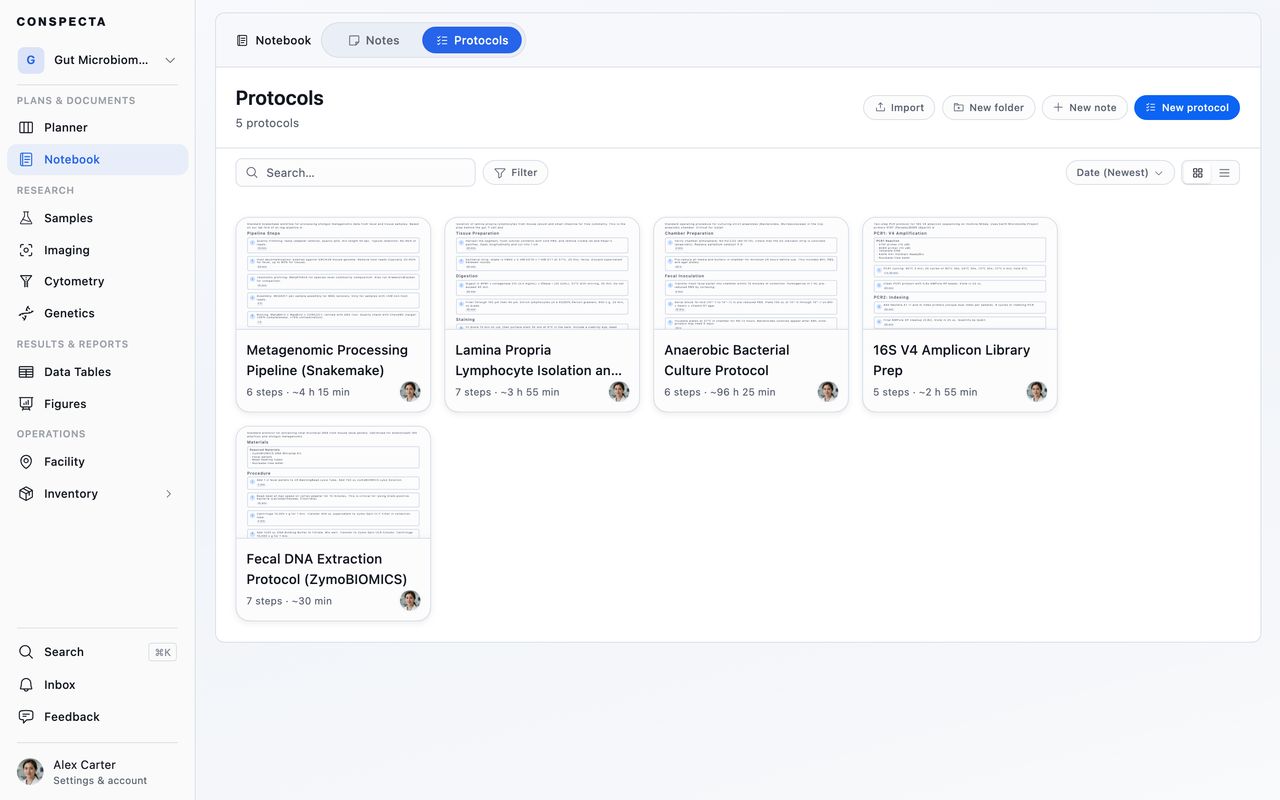
Starting a Run
Start run sits at the top of any protocol page, and on a protocol's card when it is linked on a note, where it runs the version the card names. Started there, the run is recorded as done for that note, and the note's name sits above the run's title as the way back to it.
You can also start one from a sample or a sample group with Run protocol, which links those samples to the run as inputs, and the sample's name above the title takes you back to it. Start from the sample when you're recording what was done to it, and from the protocol page when you're setting out to run the procedure.
While a run is in progress, the protocol page names it beside the version, as Run #3 running or Run #3 paused, with the avatar and name of whoever started it, and clicking it opens that run. With more than one going, it reads 2 runs in progress and lists each run with who started it and when, so two people don't end up working the same run.
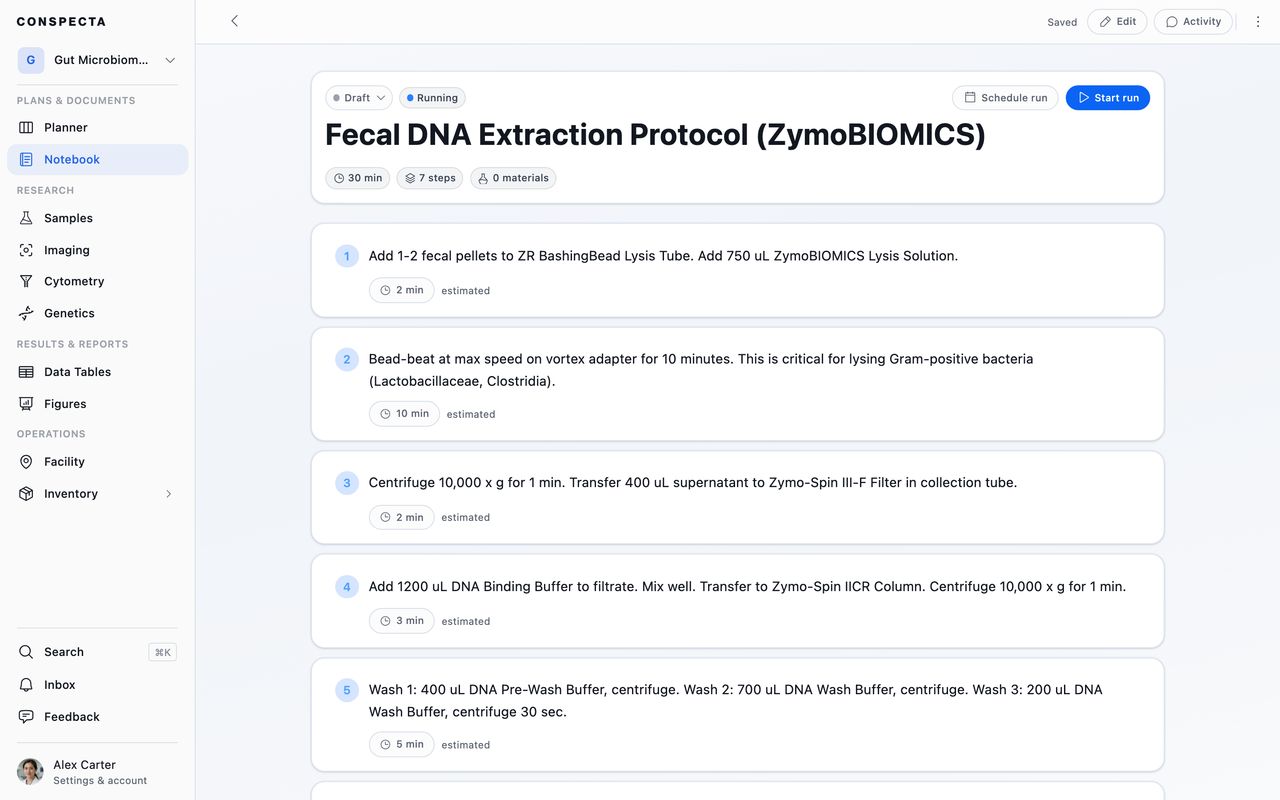
If you already have a run of this protocol open, or abandoned one in the last two weeks, Conspecta asks before starting a fresh one. You can Resume where you left off, reopen an abandoned run, look at the full history, or start new anyway.
Conspecta also asks when the protocol has changed since its last published version, which is what happens when someone edits the page and hasn't saved a version yet. Run v1.2.0 uses the steps as published. Run it anyway freezes the page as it reads right now. This comes up only on protocols that have a published version, so a run of one you're still drafting starts without the question.
Working Through It
A run replaces the editor with a stripped-down view built for a bench, with one step at a time, big targets, and the recipe locked against accidental edits.
The run works from a frozen copy of the protocol. Edits someone makes to the protocol page while you're running it leave your steps as they were.
A run linked on a note can be moved on from there too: its card shows the next step with Mark done, and a box or a list of choices for that step's first measurement. A step that branches is chosen here, in the run.
The header names that copy's version beside the run number, so months later you can tell which version produced which numbers. Older runs show it too.
The Run Header
The header carries how many steps you've checked, its run number and version, and when you started. Once the run stops it reads Paused or Completed, and a finished run shows how long it took. If a save doesn't go through, the header reads Not saved with Retry.
Pause run holds any timers that were counting when you step away. Resuming restarts only the ones it paused.
A run done for a note carries For and the note's name in the row under the title, which opens the note, unless the name above the title already leads there. Phones leave that row out.
The Run Card
Above the steps sits a card with the context for this particular run.
The version of the protocol this run froze is in the same v1.2.0 form the protocol page uses. It reads v1.2.0 + edits when the run picked up changes nobody had saved as a version, and unversioned draft on a protocol that has never been published. On a phone it sits in this card, under Version, rather than in the header.
Samples used shows the samples this run is performed on as one card: a single sample by name, or several as a count with the type and location they share. The arrow at the card's end lists every one of them in place, and clicking a sample opens it.
Samples get onto the card in two ways:
- Choose samples opens a picker for the run's samples. Once some are chosen the card itself carries Edit samples, which opens the picker with them already ticked. Tick more to add them, untick one to take it off the run, then Save.
- A sample you put in one of the run's tables with Add samples, Fill from a plate or Pull samples from is listed here too.
Batch is a multiplier for parallel replicates. Set it to 3 and every reagent volume scales with it, with the original shown struck through next to the scaled figure so you can still see what the recipe said.
Materials rolls up everything the protocol calls for, from its steps and from a Required Materials list on the page, so you can check you have it before you start. Only the materials attached to a step are drawn from Inventory as you check steps off.
Steps
Tick a step to mark it done. It collapses to a Done badge and a count of what you captured, and a chevron reopens it.
An open step can hold more than instructions:
- A timer you start, pause, and reset from the step itself. It keeps counting while you work anywhere else in Conspecta, stays at the bottom of the screen with a tap that takes you back to that step, and chimes wherever you are when it's up. When it reaches zero, the finish is recorded on the run, so months later the record shows the incubation ran its length and when it ended, alongside the moment you ticked the step
- An instrument link that jumps to that instrument's booking calendar
- An image analysis button that launches the author's saved settings and records the result against this run
- Materials with live stock, showing what's on the shelf and which lot to use, defaulting to the one expiring first while letting you pick a different one
- Choose path, on a branching step, where picking a case reveals only the steps that belong to it
Checking a step off draws its materials out of Inventory. The stock numbers on the step update as you go.
A step whose material is a controlled substance stops there and names it. Those move only with a second person's approval, so withdraw the amount from the item's stock, and check the step off once the approval comes through.
A link in the steps to a note, another protocol or a run opens it. What the protocol says after its last step, from its first heading on, such as a reference result or what to run next, sits in a card of its own after the steps.
A protocol that includes another as a section runs its steps in line, numbered straight through. Each of them says which section and version it comes from, such as "From Analytical HPLC v1.3.0", and checks off, captures, and draws stock like any other step. A section on a version that has been withdrawn stops the run from starting until the protocol is updated to a current version.
Capture
Each step's capture box collects the fields the protocol's author asked for, plus two that are always there: Notes, for what you observed, and Deviation, for anything you did differently. Values save when you move off the field.
A field with a list of choices is a dropdown, and picking one saves it. A value recorded before the author changed the list stays selected.
A field marked with an asterisk is required: the run can't be finished until it holds a value.
A field can also carry an expected range or its list of choices. A value outside it is outlined in amber, with a line beneath that reads like Outside 10 to 500 or Not one of the choices. It saves as you typed it, and the checklist at the end of the run counts it.
A multi-day protocol shows day headings so you know where the natural stopping points are.
Result Tables
A step with a result table shows it above the capture box, ready to fill in. Starting the run made it a data table of its own, named for the protocol and the run, such as "Oligo synthesis, run 4: Plate reads", with the preset rows already in it. It is private when the protocol is private.
| When the run is | The table |
|---|---|
| Open | Takes typing like any linked table |
| Finished | Is read-only here, and stays in Data Tables |
| Abandoned or deleted | Goes with the run, if nobody has typed into it |
All results on the protocol puts it beside the same table from every other run.
Adding Rows
A result table's rows can each stand for a sample. The Add rows menu above the table holds every way to add them.
| Choice | What it adds |
|---|---|
| Add samples | A row for each sample you pick |
| New sample | A sample the run produced, and its row |
| Pull samples from | Samples brought forward from the run's Samples used, from another of the run's tables, or, for a run started from a note, from a table an earlier stage of that note made, such as Extracted DNA · DNA extraction, run 3 |
| Fill from a plate | On a table with a Well column, the wells and samples from one of the project's plates |
| Pool into new sample | One sample combined from two or more of the table's samples, such as fractions, on a row of its own |
| Add rows from a file | A file's rows at the bottom of the table, the same as in Data Tables |
Pulling from another of the run's tables is how the samples a step made carry into the next step's table.
Fill from a plate leaves a cell you've already typed in as it is, and fills the rest in three ways:
- A row that already names a well gets that well's sample.
- A sample already in the table gets its well.
- Every other occupied well becomes a new row.
Pool into new sample asks you to pick the samples and name the pool. The first one you pick is recorded as its parent in the lineage tree, and the others show in its Connections as samples it was derived from. The run is recorded as what produced it.
Once the plate is read, Fill readings from a file beside the menu puts the reader's export onto the table's wells, each reading on the row for its well. Data Tables describes it.
Each of these writes the sample's name into the table's Sample column, which is what a chart of the table labels its bars with, and puts a link icon at the left of the row that names the sample when you hover it. A table with no Sample column shows the name at the left of the row instead.
At the Bench
Open it on a phone and you get the same steps, the same timers and the same capture boxes, so you can write things down at the bench.
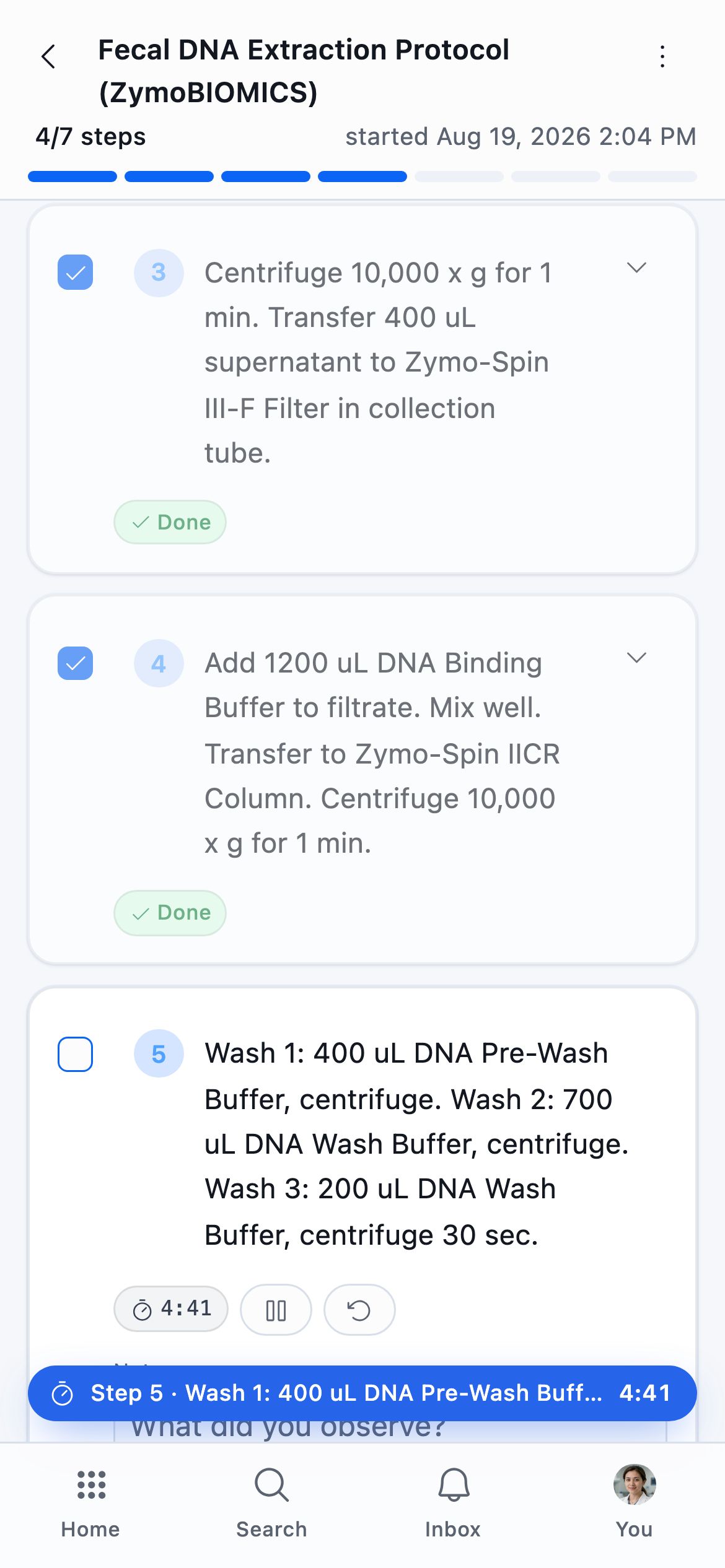
A step timer keeps running wherever you go in the app. Once one is counting, a bar sits at the bottom of every screen you move to, naming the timer finishing soonest and counting the rest. Tapping it takes you back to that step of that run, and the timer chimes wherever you are when it is up.
Every countdown you have going is also listed under Active timers in Timers, whether you dialed it there or started it on a step. A run's step timer carries the name of the protocol underneath it, and that name is a link back into the run.
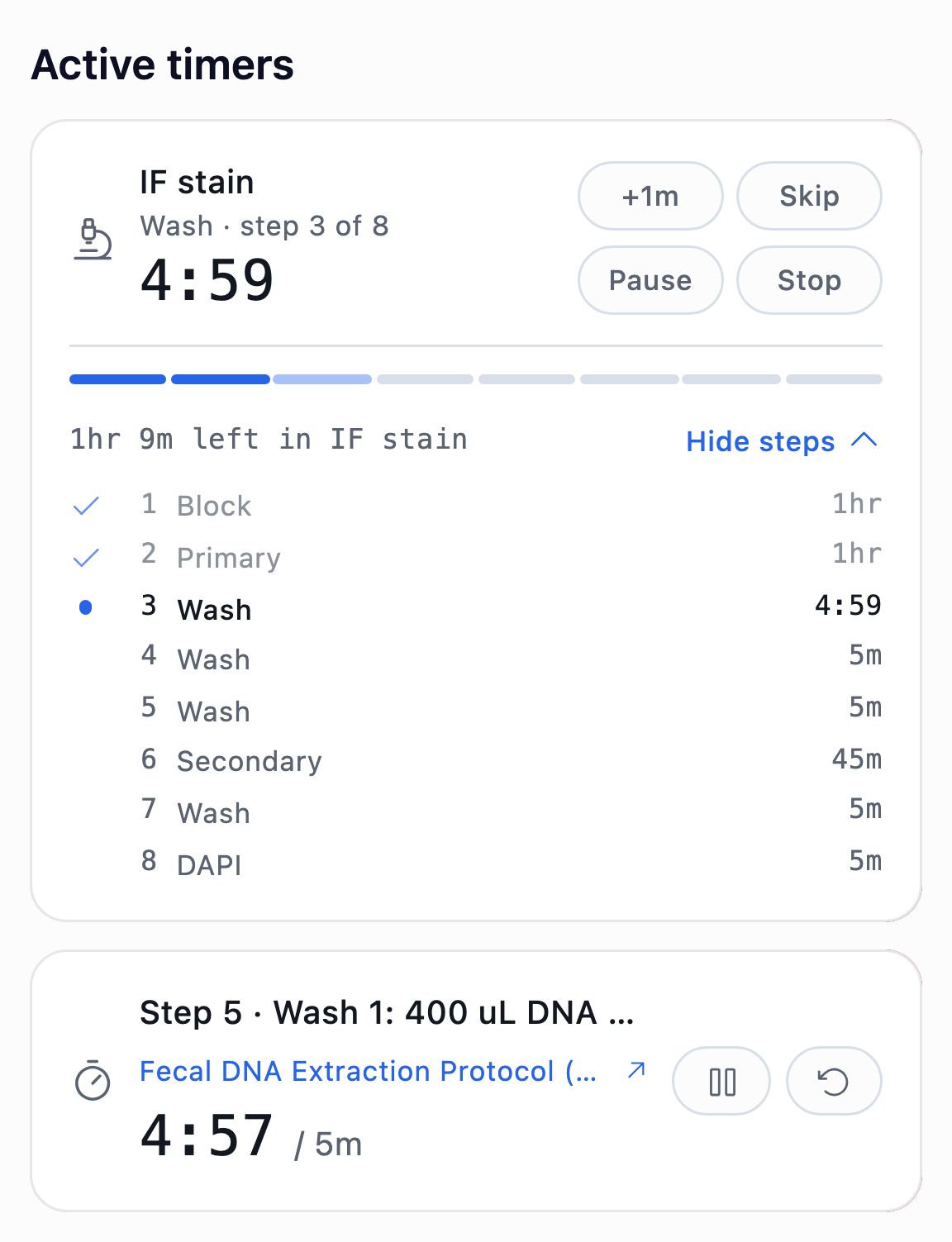
Timers is also where a sequence runs, which is a preset holding several steps, such as a stain that blocks, stains, washes three times and counterstains. The card names the run, then the step it is on, fills in a tick for each step behind it, and shows how much of the whole run is left. Conspecta at the Bench covers building one.
What the Run Produced
Below the last step, a section records the run's outputs.
Consumed lists the materials that were drawn down, filled in automatically as you checked steps.
Produced is where you record what came out, shown as the same kind of card. New sample creates one and links it to the run, and Choose samples (Edit samples once some are recorded) ticks ones you already registered, or unticks one recorded by mistake. Either way the sample's Connections tab shows this run upstream of it.
Image analysis collects any analysis launched from a step.
Finishing
At the end of the list a checklist shows where the run stands:
- How many steps are checked
- Whether capture fields are filled
- Which required fields are still empty
- How many result tables are filled
- How many values fall outside their range or list
- How many outputs are recorded
- Whether deviations are logged
Each sample the run made, each image analysis it started and each result table it filled counts as one output, and the Run finished summary counts them the same way. Anything unfinished links straight to the step in question.
The result tables row reads like 2 of 3 result tables filled. A table counts as filled once you enter a measured value. Preset rows and sample names alone leave it counted as empty.
A value outside its range or list adds a row that reads like 3 values outside their range or list, or 1 value outside its range when there is one, with the fields they are in beneath it, such as "1 in Pooled DNA conc., 2 in Elution volume". Go to step 4 opens the first of them. They stay in the record as you typed them, and you can still finish the run.
An empty required field adds a row that reads like 1 required field empty, naming each one and its step beneath it, such as "Lot number in step 3". While any is empty, Finish run opens the steps holding them and puts the cursor in the first, instead of finishing. To end the run early with them blank, choose Abandon run from the run's menu.
Once they're filled, Finish run asks you to confirm and shows how many steps are still unchecked. Finishing locks the run and files it in the protocol's run history. A finished run that no note was written for carries Write up in its header, which makes a note titled after the protocol and run number with the run already on it, and opens it.
On the note a run was done for, the protocol's card then reads like Run 4 is complete. with Add its tables to the note. That puts the run's result tables on the note. The offer stays until every one of the run's tables is on the page.
A finished run can be reopened if you realize you missed something, and a paused one picks up where it stopped.
Asking for a Review of the Run
Once the run is finished, you're asked whether someone should check the record: Request a review, picking who should look, or No review needed. Leave everyone unpicked and the request goes to the whole project. Review is suggested when the run logged deviations or produced samples, but nothing is blocked either way, and you can decide later from the run's Activity panel.
If you're the only person on the project there's nobody to name, so requesting a review leaves the run waiting on you to check it yourself later, and a teammate who joins can pick it up.
The run header carries a small mark for where the review stands, amber while someone still owes an answer or changes were asked for, green once the run is approved, and red if it was rejected. Hover it to read it in words, or click it to open Activity, where the decision gets made.
Running an Experiment in Stages
An experiment often spans several protocols run on different days, such as DNA extraction on Monday, library prep on Wednesday and sequencing the week after. Link each protocol on one note with Link a protocol, in the order you run them, and each card is one stage of the experiment.
Where Each Stage Stands
Under its name, each card says where its stage stands:
| The card reads | When |
|---|---|
| Not started | No run of the protocol has been done for the note |
| Scheduled Wed, Oct 7, 2 days | You placed its days with Schedule and the run hasn't started |
| Running Run 1, started today | Its newest run done for the note is at the bench (Paused once paused) |
| Completed Run 3, v1.1.0, completed Sep 28 · made 12 samples · 3 runs | Its newest run is finished, with the samples it recorded under Produced and a count when there are several runs |
Click the run's name to open it.
Schedule on a card opens the scheduler described below, with the days of the version the card runs. The Planner task names that version, and Start run on the card takes the scheduled days over.
The Version a Card Runs
A card linked once the protocol is published runs that version and names it beside its steps. A card linked before the protocol had a version runs the protocol as it reads now, and offers Use v1.0.0 once there is one.
When a newer version is published, the card names it, who published it and when, and offers three choices:
| Choice | What it does |
|---|---|
| See changes | Shows the author's release note and each step that changed |
| Compare side by side | Opens both versions next to each other |
| Use v1.2.0 | Moves the card to it |
Until you press Use v1.2.0, the card keeps running its version, and runs already started keep the version they ran.
If the version a card runs is withdrawn, the card says so, holds Start run, and offers Use with the version that stands.
Save as template keeps each card's version, so every note started from the template runs the same stages and begins at Not started.
Carrying Samples Into the Next Stage
Once the stage above has a finished run that made samples, the card below shows Inputs, set to the newest one, such as 12 samples from DNA extraction, Run 3. Start run starts the run with them under Samples used. Open Inputs to pick an earlier run's samples, or No samples to start without them.
Inside a run started from the note, a result table's Pull samples from lists Samples used in this run and the tables earlier stages of the note made.
Scheduling a Multi-Day Protocol
A protocol with day breaks can be laid onto the calendar before you start. Use Schedule run on the protocol page, or Schedule days in the run's menu once it's underway. On a note, Schedule on a protocol's card plans one stage of the experiment, as Running an Experiment in Stages describes.
The dialog box has the protocol's days on the left, each showing its step count, rough duration, and any instrument it needs, and a live calendar on the right. Pick a day, then click a time to place it:
- Clicking an hour slot sizes the block from the recipe's estimate.
- Dragging lets you set the length yourself.
- Clicking a date in Month view schedules the day without committing to a time.
Placed blocks can be dragged and resized afterwards.
Switch the calendar between My calendar and Team calendar to see what else is booked before you commit.
Instrument bookings come along. If a day uses an instrument, that instrument's existing bookings and downtime are drawn in the grid, hours it can't be booked are refused as start times, and placing a day at a time offers to book the instrument for you. Skip the offer and the day stays scheduled without a booking.
A day with several steps that hasn't been placed yet offers Split into sessions, so a long day can become a morning and an afternoon on different dates.
Moving a scheduled day doesn't move its instrument booking. If you drag a placed day to a different time, a message shows that the booking still covers the old window so you can fix it. Removing a placement asks whether to cancel the booking too.
Each scheduled day becomes a task under the run, so it appears on the Planner calendar and in the table and stays off the board. Removing a placement asks first, because it deletes that day's task outright, along with any notes or assignee it carries. To keep those, drag the day to its new time.
History and Activity
A run has its own activity panel, holding comments, review requests and decisions, and a complete audit trail: who started it, every step checked and unchecked, every step timer that ran out and how long it ran, every captured value before and after it was edited, every status change, and every change to the batch multiplier.
Run history in the protocol page's menu lists every run of that protocol, so you can compare the day it worked with the day it didn't.
All results, in the same menu and at the top of Run history, shows every run's results in one table. Each result table the protocol defines has a tab, holding the rows of every run's copy one after another, and Captured values has a row per run with its capture fields.
Each row starts with the run, the day it started, who started it, the protocol version it followed and its status, and a result table's rows also name their sample. A column renamed in a later version of the protocol stays one column, holding every run's values.
- Include abandoned runs adds the runs that were abandoned, which are left out until you tick it.
- A row excluded in its run's table shows its reason, and the chart leaves it out.
- Runs lists every run in the table. Untick one to take its rows out of the table, the chart and the download.
- A row's menu has Exclude row for a single bad point. The row stays in the table, dimmed, and Include row returns it. A download keeps the row and names it in an Excluded column. A row excluded in its run's own table can only be changed on that run.
- What you hide or leave out lasts until you close All results, and a strip above the table names it. Open as data table carries it across as exclusions, which that table keeps.
- Chart, under the table, plots it, and Download saves it as CSV or Excel.
- Open as data table makes a data table linked to what you're looking at and opens it with the chart showing. It pulls from run tables shared with the project, and Refresh there adds the rows of runs finished since. Its back button returns to All results.
- A run's table that someone made private shows only to them.
By field, at the top of All results, lists every value the project recorded for one field from your team's Data dictionary, whichever protocol took it. Pick the field, and each value shows with its run and protocol, the name the step or table column gave it, and the data table it sits in.
- A value outside the range or choices it was recorded under is marked, such as Outside 10 to 500.
- Load more adds the next set, and a long table column lists its first 500 values.