Inbox and Notifications
The Inbox collects what needs you: invitations, mentions, task deadlines, finished image analysis runs, low stock, and account alerts. Open it from the sidebar, or press Cmd/Ctrl + Shift + O. A badge on the sidebar entry counts what's unread.
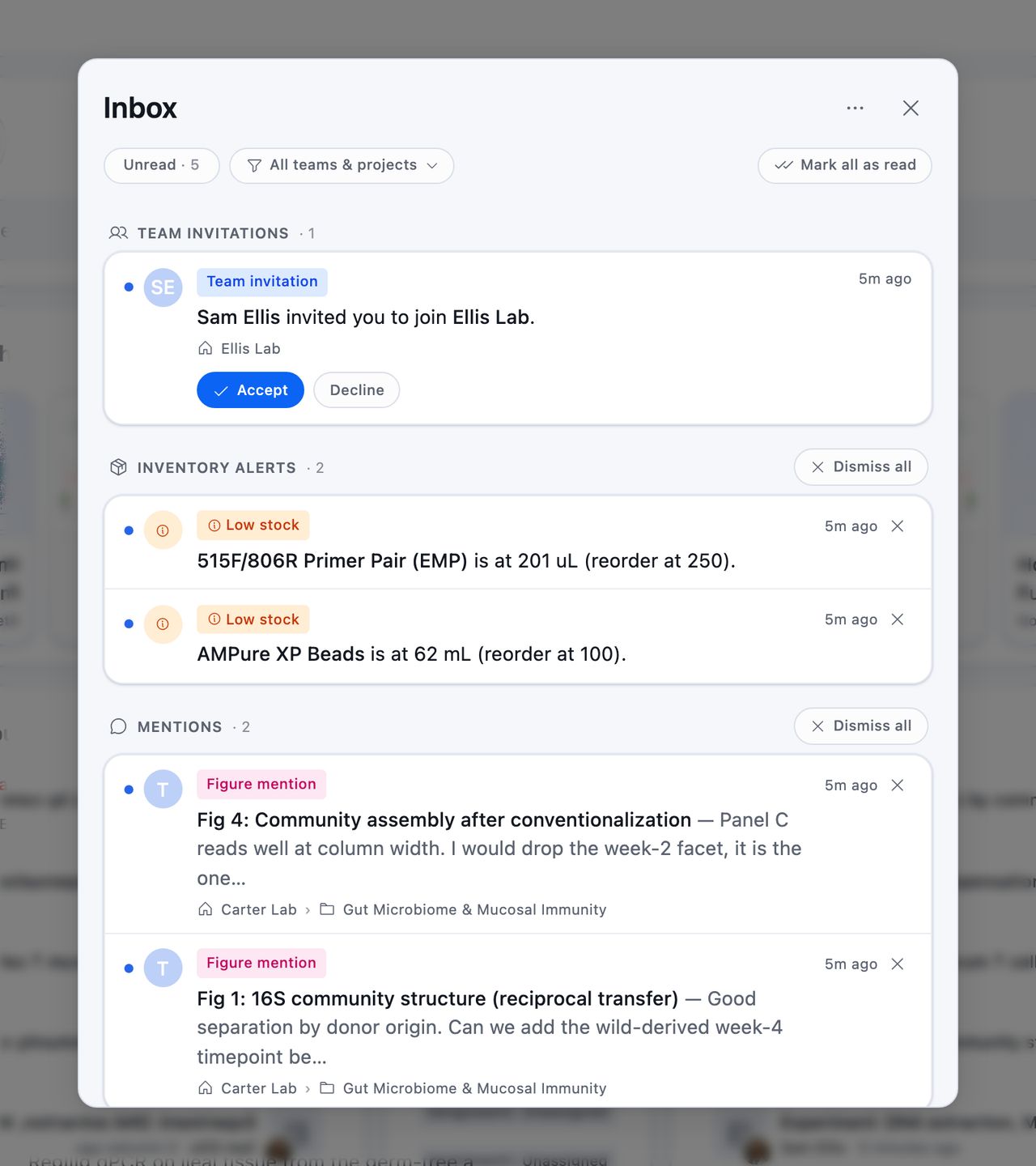
What's In It
The inbox is grouped by kind, and a group appears only when it holds something:
| Group | What lands there |
|---|---|
| Team Invitations | Someone invited you to their team, with Accept and Decline on the row |
| Project Additions | You were added to a project inside a team you're already on |
| Tasks | A task assigned to you, a repeating or hidden task of yours arriving on the board, a deadline approaching or missed, a scheduled start coming up |
| Image Analysis Runs | An image analysis you ran over a set of images on Conspecta's servers finished, including one your AI assistant started for you. The row says how many images it analyzed or that the run failed, opens the image analysis when you click it, and stays for a week |
| Usage Alerts | Your team's compute usage is running low |
| Plan Status | A subscription ended or a payment failed, with a link to export your data |
| Inventory Alerts | An item you've stocked before hit its reorder point or ran out |
| Reviews | Someone asked you to review a record, or a reviewer you asked approved it, requested changes, rejected it, or withdrew their decision. Clicking the row opens the record |
| Mentions | Someone @ mentioned you, in a note, in a task's description, in a comment on any record with an activity thread, or in the note attached to a sign-off |
The toggle at the top switches between Unread and All, and the filter button beside it narrows the list to one team or project.
Reading, Clearing, and Dismissing
Marking something read takes it out of the Unread view and leaves it in All, so an invitation you've seen but haven't decided on stays in the list. Dismiss removes it for good.
Mark all as read clears the badge. Dismiss all, in the ⋯ menu, empties the list and keeps your invitations, since a dismissed invitation has to be sent again.
Reviews and Sign-offs
Asking someone to review a notebook page, a figure, a protocol run, a data table, or a task notifies them, and the request appears in that item's Activity panel. Open the panel to see what's waiting on you and to approve or ask for changes.
When someone you asked approves, requests changes, or rejects, you get a row under Reviews in your Inbox saying who decided, what they decided, and on which record, with their note beneath. A withdrawn decision sends one too, so you know the record is back to waiting.
Choosing What Reaches You
Settings → Notifications is a grid with a row per category and a column per channel. The ⋯ menu inside the inbox opens the same screen.
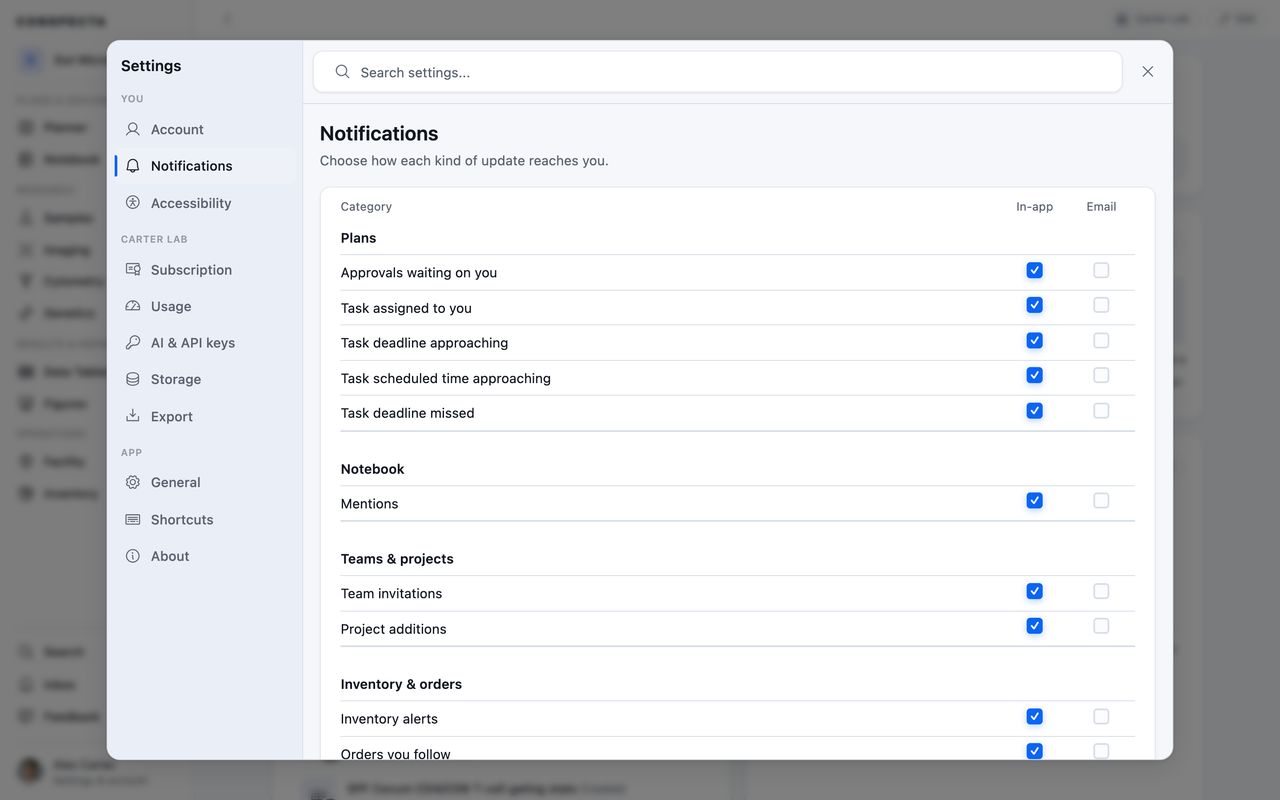
Categories are grouped the way the app is:
- Plans: review requests and their answers, task assigned (which also covers a repeating or hidden task arriving), deadline approaching, scheduled time approaching, deadline missed
- Comments: mentions
- Teams & projects: team invitations, project additions
- Inventory & orders: inventory alerts, orders you follow
- Facility: instrument scheduling, which covers a reminder before your session, a heads-up when downtime cancels a booking, notices posted on instruments you've booked, and overdue service alerts
- Billing: usage alerts and plan status
- Security: sign-ins and account changes
Channels are in-app, push, and email. All three are set under Settings → Notifications in any browser, and push lands on your phone, so the phone app follows the ticks you set at your desk. Open the Inbox on your phone and you'll be asked whether to allow notifications. Say yes and Conspecta can reach you on the lock screen even when the app is closed. To turn that permission back off, use your phone's own settings.
A push says what happened, so you can judge it without unlocking anything: who mentioned you and the first line of what they wrote, which instrument your session is on and what time it starts, which task came due.
That text passes through Apple's or Google's delivery service on its way to your phone, the same as for any app that notifies you, and it shows on a locked screen if your phone is set to preview notifications there.
Where that matters, such as on a shared bench phone or a screen your colleagues can see, turn a category's push tick off in Settings, or hide previews for Conspecta in your phone's own notification settings.
A mention email names who mentioned you and the record they did it on, quotes what they wrote, and has a button that opens that record.
By default a category arrives in-app and on push, with email off. Two rows differ. Push starts off for orders you follow, and plan status works the other way round, emailing you and staying out of the inbox.
Security notices are always emailed and can't be turned off, so a sign-in you didn't make reaches you.
Tip: Turning off a category's in-app toggle removes those notifications from the inbox along with the badge. If something you expected never arrived, check this grid before assuming it wasn't sent.
Following Things
Some notifications come from following a record. Open an order and use its bell to follow it, and you'll be notified when its status or details change. The Orders list can filter to the orders you follow, and unfollow several at once.
On Your Phone
On a narrow screen, Inbox is one of the four tabs along the bottom, with the same groups and the same actions. Allow notifications on the device so the push ticks reach you there.