Connect Your AI Assistant
Conspecta can be connected to an AI assistant like Claude, so you can ask questions about your lab in plain language. Ask what arrived last week, have it write up a notebook page from your results, or have it run an image analysis and save the numbers to your project.
Your AI assistant reads and writes your lab through your own account. It can never see more than you can see, and everything it does is recorded as your own work.
What You Need
Connecting an AI assistant needs a paid plan, and so does calling the API from your own scripts. If your team is on one, create a key and you can use both. On the free plan they can be switched on for your account individually, so contact us if you'd like to try it before upgrading.
You will also need an AI assistant that can hold a key. See Which AI Assistants Work below before you start.
Create a Key
A key is how your AI assistant proves it is you. Keys are personal, so create your own and keep it to yourself.
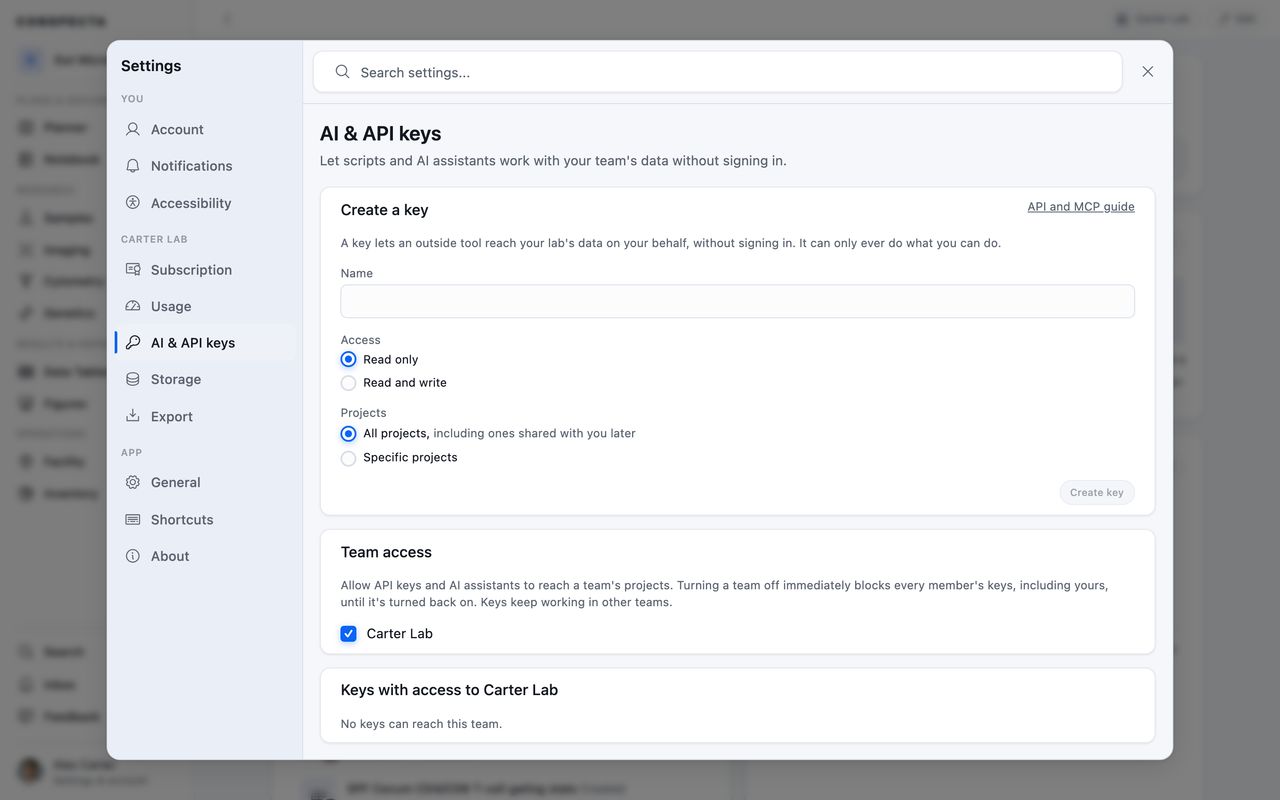
- Open Settings → AI & API keys.
- Give the key a name you will recognize later, like the name of the computer you are setting up.
- Choose Read only or Read and write. Read only lets your AI assistant answer questions. Read and write also lets it create and revise notes and image analysis templates, and create figures, tables, samples, and image analysis results.
- Optionally limit the key to specific projects. A key limited this way can never reach anything else, even if you can.
- Click Create key.
Your key is shown once. Copy it before you close the dialog box, because only a fingerprint of it is stored and it cannot be shown again. If you lose it, revoke it and create another.
Treat the key like a password. Anyone holding it can read your lab.
Keys Expire
Every key stops working one year after you create it, and none can be made to last longer. When one expires, create a new key and paste it into your AI assistant.
Conspecta emails you two weeks before a key expires and again the day before, and the key's row shows Expires soon for those two weeks. You also get an email whenever a key is created or revoked on your account.
Revoke a key at any time from Settings → AI & API keys. It stops working immediately, everywhere it was in use.
Turn off API access for a whole team
If you own or administer a team, Settings → AI & API keys shows a Team access card with a switch for each team you manage. Turning a team off immediately blocks every key from that team's projects, including keys held by outside collaborators.
Nothing is deleted or revoked. The keys keep working in other teams, and turning the switch back on restores everything. Members see a note on the same page explaining why their AI assistant stopped answering about that team's work.
See and revoke every key that can reach your team
The same page lists every key that can reach each team you own or administer, with whose it is, whether it can write, which projects it reaches, and when it was last used. The secret itself is never shown. A key can reach a team through a single project, so keys belonging to outside collaborators can appear here.
Revoke stops a key immediately, everywhere it was in use. Its owner gets an email naming your team, and can create a new key at any time.
Set Up Your AI Assistant
Setup instructions with your key already filled in appear right after you create it. They are repeated here for reference. Replace sk_live_YOUR_KEY with your own key.
Claude Desktop
Claude Desktop reads its connection settings from a configuration file, which takes about a minute to edit. Anthropic's guide to local MCP servers on Claude Desktop walks through the same file if you want their version.
Claude Science, Anthropic's desktop workbench for computational biology, connects the same way.
On Mac
The quickest way to open the file is Settings → Developer → Edit Config inside Claude, which creates it if you do not have one yet and opens the folder it lives in.
The file itself is here:
~/Library/Application\ Support/Claude/claude_desktop_config.json
The backslash escapes the space in Application Support, so that path can be pasted into a terminal as it is written.
Add:
{
  "mcpServers": {
    "conspecta": {
      "command": "npx",
      "args": [
        "-y", "mcp-remote",
        "https://api.conspecta.bio/api/v1/mcp",
        "--header", "Authorization: Bearer sk_live_YOUR_KEY"
      ]
    }
  }
}
Fully quit and reopen Claude, because it reads the file only at startup.
On Windows
Open %APPDATA%\Claude\claude_desktop_config.json and add:
{
  "mcpServers": {
    "conspecta": {
      "command": "npx",
      "args": [
        "-y", "mcp-remote",
        "https://api.conspecta.bio/api/v1/mcp",
        "--header", "Authorization:${AUTH}"
      ],
      "env": { "AUTH": "Bearer sk_live_YOUR_KEY" }
    }
  }
}
Fully quit and reopen Claude, because it reads the file only at startup.
Windows puts the key in a separate env setting, and there is no space after the colon in Authorization:${AUTH}. The single-line form used on Mac loses that space on Windows, so copy the Windows version above as written.
On Linux
Open ~/.config/Claude/claude_desktop_config.json and add the same block shown for Mac. Then fully quit and reopen Claude, because it reads the file only at startup.
Anthropic's Linux app is newer than the Mac and Windows ones and covers Ubuntu 22.04 and Debian 12 and later. If you'd rather not run it, Claude Code, Cursor, and VS Code connect the same way on Linux as anywhere else, and are covered below.
If You Tried the Add Custom Connector Screen
Claude Desktop's Add custom connector screen does not work with Conspecta yet. It asks for a web address, then fails with a message like "Couldn't register with Conspecta's sign-in service." Your key and account are fine, and an OAuth Client ID will not help. That screen needs a sign-in button we have not built yet, so use the configuration file above.
Copilot Studio
On your agent's Tools page, choose Add a tool → New tool → Model Context Protocol, then fill in:
Server URL       https://api.conspecta.bio/api/v1/mcp
Authentication   API key
Type             Header
Header name      Authorization
API key          Bearer sk_live_YOUR_KEY
The key value includes the word Bearer and a space before your key. Microsoft's guide to adding an existing MCP server covers the rest of the wizard.
Cursor
Add this to ~/.cursor/mcp.json, or see Cursor's own MCP documentation:
{
  "mcpServers": {
    "conspecta": {
      "url": "https://api.conspecta.bio/api/v1/mcp",
      "headers": { "Authorization": "Bearer sk_live_YOUR_KEY" }
    }
  }
}
Claude Code
Run this in a terminal:
claude mcp add --transport http --scope user conspecta \
  https://api.conspecta.bio/api/v1/mcp \
  --header "Authorization: Bearer sk_live_YOUR_KEY"
Check it worked with claude mcp list, which should show conspecta ✓ Connected. Remove it later with claude mcp remove conspecta. Anthropic documents the full command in Connect Claude Code to tools via MCP.
VS Code
Open the Command Palette, run MCP: Open User Configuration, and add:
{
  "servers": {
    "conspecta": {
      "type": "http",
      "url": "https://api.conspecta.bio/api/v1/mcp",
      "headers": { "Authorization": "Bearer sk_live_YOUR_KEY" }
    }
  }
}
Put this in your user configuration, where VS Code handles keys most reliably, and keep it out of files inside a project folder. VS Code's MCP configuration reference covers the other settings.
Which AI Assistants Work
Conspecta is a standard MCP server, so anything that can connect to a remote MCP server over streamable HTTP and let you set an API key or an Authorization header will work. The setup is always the same two things: the address https://api.conspecta.bio/api/v1/mcp, and your key sent as Authorization: Bearer sk_live_YOUR_KEY.
| Client | What works | How you give it the key |
|---|---|---|
| Claude Desktop and Claude Science | Confirmed working today | The configuration file |
| Copilot Studio | Confirmed working today | Its API key setting |
| Cursor, Claude Code, and VS Code | Confirmed working today | Their configuration files |
| Claude in a web browser and the Claude phone app | Cannot connect yet | Their setup form accepts a web address and has nowhere to put a key |
We plan to add a sign-in button that supports Claude in a browser and the Claude phone app.
If your AI assistant is not listed and you are not sure whether it fits, ask us and we will tell you.
What You Can Ask
Once connected, ask in plain language. Some things people ask on the first day:
- "What did I work on last week?"
- "Which samples in the melanoma project are running low?"
- "Summarize my notebook pages about the CRISPR knockouts."
- "What did we order from Thermo last month, and has it arrived?"
- "Measure what fraction of each of these images is covered by stain."
- "What percentage of cells are CD8+ across the twelve tubes in Tuesday's run?"
- "Write up a notebook page from the image analysis I ran yesterday."
- "Write up Tuesday's experiment, link the samples it used, and embed the counts table."
- "Tighten the Results paragraph on Tuesday's page, and change the viability to 88%."
- "Add a task to repeat the viability assay next week."
- "Do we already have this insert? Here is the sequence."
- "Show me bases 1200 to 1500 of pLenti-GFP, and tell me whether the insert is in frame."
- "Find the human TP53 reference sequence in GenBank and add it to this project."
- "What is this contaminating band? Here are the bases I read off the gel."
- "How do I set up a freezer with racks and boxes?"
Your AI assistant works in one project at a time, so tell it which project you mean if you have several. Your lab's storage locations and supplier list are shared across every project.
Your AI assistant can also read this guide. When you ask how something in Conspecta works, as in the last question above, it answers from these pages and gives you the link to the page it read, so you can check the rest.
What It Can and Cannot Do
A key can never do more than you can do. If you lose access to a project, every key you hold loses it too, from its next request.
A read-only key answers questions about everything below. Anything that changes your lab, starts a run, or sends a sequence to NCBI needs a read and write key.
| Area | What your AI assistant can do |
|---|---|
| Notebook | Write a page, add to the end of one, or rewrite only the passage you point it at. A page can show the samples an experiment used, a data table that stays live as it fills, a chart that redraws as a table changes or a flow cytometry analysis is re-gated, and a hazard in a colored callout. It links only records that exist in the project. |
| Protocols | Write a protocol from your description, with numbered steps, measurements typed with their units, reagents from your own stock, timers on the waits, and a branch where the work forks. Build one a few steps at a time. List protocols separately from notes, and turn a note into a protocol with its comments, sign-offs, and history. A protocol that has been run stays a protocol. |
| Running a protocol | Read out the next step, its timer, and what to record. The reading you give it lands in the run's own box for that measurement, beside every other run of the same protocol. At a branch, the run follows the way you say the work went. |
| Planner | Add a task, move it between columns, and place it at the top, the bottom, or above or below a card you name. Give it a day and a time to book the card on the calendar, or a due date to mark it due that day. Assign a card to you or a teammate by their address, and add reminders before its start, end or due date. Hide a card until a date, set it to repeat, and list what is on its way. A repeat set up the same way files cards already assigned and with their reminders. |
| Figures | Compose a figure from plots of flow cytometry, image analysis, and data tables, project photos, one series of a microscopy stack, or an image with its counted objects outlined. It lays them out lettered on any layout Figures offers, adds a text panel for a key or a methods note, and styles each panel as you ask, such as a log axis or a grayscale palette. Afterwards it changes one panel at a time, so "make panel C bigger" leaves the others where they are. |
| Sequences | Return any stretch of bases, mark and name a region while existing annotations stay put, and search NCBI and UniProt by gene, organism, or accession. Give it an accession and it files the published record in your library with the accession recorded on it. The record arrives with its bases and an empty map. Run a BLAST search to identify an unknown sequence. Positions count the way the viewer counts them, from base 1 with both ends included. |
| Cytometry | Start a cytometry analysis, apply a saved gating strategy to a set of files, count populations, and cluster one file on a server. |
| Imaging | Run an image analysis over as many as 50 images on a server, neural-network detectors included, with the numbers landing in the image analysis you name. Create an image analysis from a run's steps, save one as a template, publish its settings as the template's next version when you ask, and start a new image analysis from any kept version. Export a template as a pipeline file, or import one after showing you what it holds. Earlier versions stay in the template's history. It finds an image from the description you wrote on it. |
| Panels | Where panel design is turned on for your account, draft a staining panel for a cytometer onto the Panels tab with its spectral check ready, using the dye names and overlap scores the panel page shows. Suggest markers from the list the Marker field offers, prefer conjugates you already hold, correct a dye on a panel it drafted, and rename a panel. Record a fluorochrome on an inventory item so it counts as stock, or a catalog cytometer's published optical configuration so it can be scored. |
| Contacts | List the people the lab keeps and the organizations they belong to, or only the organizations of one type, Other included. Search, sort and filter the lab's people by tag, by where you stand with them (awaiting a reply, replied, contacted, or never contacted), by source, by who added them, by Do not contact, main contact, follow-up day or no organization, and see how many match. Record that a person belongs to several organizations, each with a role and the days they started and left, and which one is their primary one. Record that a department is part of a university, or that two organizations are affiliated, and list everyone in an organization and the ones within it. Find a person by an email address you give it, by part of their name, or by an identifier such as an ORCID iD. Load a list of people or organizations up to 100 at a time, matched by an identifier or, for a person, by email address, so a list loaded twice adds nobody twice. A load fills in blank fields and keeps what is already there unless you ask it to replace. Read the whole lab's log, or only one kind of contact, calls and emails that went one way, one member's entries, or a range of days. Add or edit a person, mark them Do not contact with a reason or take the mark off, log a call, email, meeting, or note with a person or an organization, record whether a call or an email was outgoing or incoming, and correct a log entry. Keep the lab's sources, such as a staff directory, cite one on each person, organization and link it writes so every value shows where it came from, and mark a source unreliable. Tag people and organizations by name, list the lab's tags, rename or recolor one, and list only the organizations that carry a tag. A tag it names that the lab doesn't have yet is added, and it tells you each tag it added so you can catch a misspelling. List the fields your lab keeps on people and organizations, set one by its label, and define, rename or archive a field when you ask. A field value holding an email address or a phone number is refused, and a field labeled for a way to reach someone, such as one called Email, is never sent to the assistant. Mark a value wrong when you say it is, so that no load or edit can set it again. A load skips that value and tells you which. Only a lab member can take a mark off, in the app. It stops any outreach to a person marked Do not contact and tells you why. It can save an email address or a phone number you give it. Email addresses, phone numbers and the pages a value was read from are never sent to the assistant, and it can't delete a person, a log entry, a source or a tag. |
| Lab records | Register and edit samples, stock, orders, suppliers, and storage locations, such as marking an order received, and book an instrument. Suppliers and locations belong to the whole lab, so a change reaches every project. |
| Reviews and comments | Read the comments on a record with who wrote each and when, the sign-off decision of record and whether the record has changed since, and a record's own history. Summarize a workspace's reviews, including who a review is still waiting on. Leave a comment, and ask people on the project by email to review a shared image analysis. |
Three kinds of request leave Conspecta for public reference databases. Nothing about you, your lab, or your project goes with any of them, and your own sequences stay where they are unless you ask for one to be sent.
- A search sends the words you searched for to NCBI or UniProt.
- Fetching a published record sends its accession number to the database that holds it.
- A BLAST search sends the sequence you give it to NCBI, and it cannot be taken back. Your assistant should ask you first. Give it only the stretch in question. It tells you how many bases it sent. The search takes a few minutes, and your assistant reports it as still running until it finishes.
No key, of any kind, can:
- delete a project or remove your team
- invite people or change billing
- create more keys
- approve a record, sign off on your work, or accept a run
Those stay in the browser, where you have to be signed in.
Reading and writing your records uses nothing. Work your AI assistant hands to Conspecta's servers draws on your team's compute usage at the same rate as when you run it yourself.
| What it runs | Usage |
|---|---|
| An image analysis | The same as running it from the workspace |
| An image analysis over a set of images | What each image's detection uses in the workspace, per image |
| Counting populations in a flow analysis | 1 per file |
| Clustering a file | 1, or 5 for DBSCAN and Graph clustering, whatever the file's size |
| Applying a gating strategy, or reading a finished run back | Free |
Compute usage has the numbers, and Settings → Usage lists each run your AI assistant started under your name.
Everything It Does Is Recorded As Yours
Your AI assistant acts through your own account. A notebook page it writes or a sample it updates appears under your name in activity and history, with a note that it came from your assistant, and your lab will read it as your work.
A figure it creates starts as Draft, and a notebook page it writes reads Draft until it has a published version. Draft is only a label, so review what it made before you rely on it.
A figure it creates is shared with the project. Ask for a private working copy to keep one to yourself, and ask for it to be shared later.
Where the Numbers Come From
Your AI assistant decides which image analysis or flow run fits and whether the results are worth keeping. The measurements come from the same validated code that runs when you click through the app, so it cannot invent a number, and the same run gives the same answer your colleagues get in the app.
Clustering and an image analysis over a set take minutes, so a pause in the chat means the run is still working. A team runs one image set at a time, and an image analysis that uses a neural-network detector runs only as a set.
Before you read its numbers, ask:
- How did the checks come out? A run comes back with the checks the workspace shows, such as which control images landed inside their ranges and how many of your ground truth marks it found. A blank well that counted 40, or a run that found 60 of your 120 cells, tells you what the rest of the numbers are worth.
- Which gates did it leave out of which file? A gating strategy lands correctly on files that order or name their channels differently. A file with no channel for a gate skips that gate and everything below it.
- Was the clustering subsampled? These algorithms subsample, so check before you quote a size as a population count. A clustering run reports how many populations it found and how many events landed in each, and saved onto the analysis, a re-run colors the plot.
Troubleshooting
Why can't my AI assistant reach Conspecta?
Usually the key is wrong, expired, or revoked. It can also mean your plan lapsed or access was turned off for your account. Create a fresh key, and check your plan under Settings → Subscription.
Why can it answer questions but not save anything?
The key was created read only. Create a new one with read and write access, then update your AI assistant's settings.
Why did my AI assistant stop making changes partway through?
An assistant that makes far more changes in an hour than a person would ask for stops and tells you what it changed and what is left, so you can check the work. Everything it saved stays saved, it can still read and answer questions, and it can carry on within the hour.
Why can't my AI assistant find something I know exists?
Check whether the key was limited to specific projects when you created it. Settings → AI & API keys lists which projects each key can reach.
If every project in a team is missing, that team may have turned off API access. The same page shows a note when one of your teams has.
Why did it work yesterday and stop today?
Keys last a year. The expiry date is listed next to each key, an expired key is marked as such in the list, and a key inside its last two weeks shows Expires soon. Check your inbox too, because the expiry warnings Conspecta sends name the key that is about to stop working.
If only one team's projects stopped answering, a team admin may have turned off API access for that team. Settings → AI & API keys shows a note when that is the case.