Review a Flow Cytometry Panel
Read a flow cytometry panel someone else designed and decide whether it will work: whether its dyes can be separated on the cytometer it will run on, what your lab holds in stock, and what has changed since it was signed off. This page is for a PI signing a panel off, a labmate about to run it, or the client lab a core facility designed it for. Building a panel is covered in Design a Flow Cytometry Panel.
Panel design is in closed beta. Ask us for access and we'll switch on the Panels tab for your account.
Read a Panel on Review
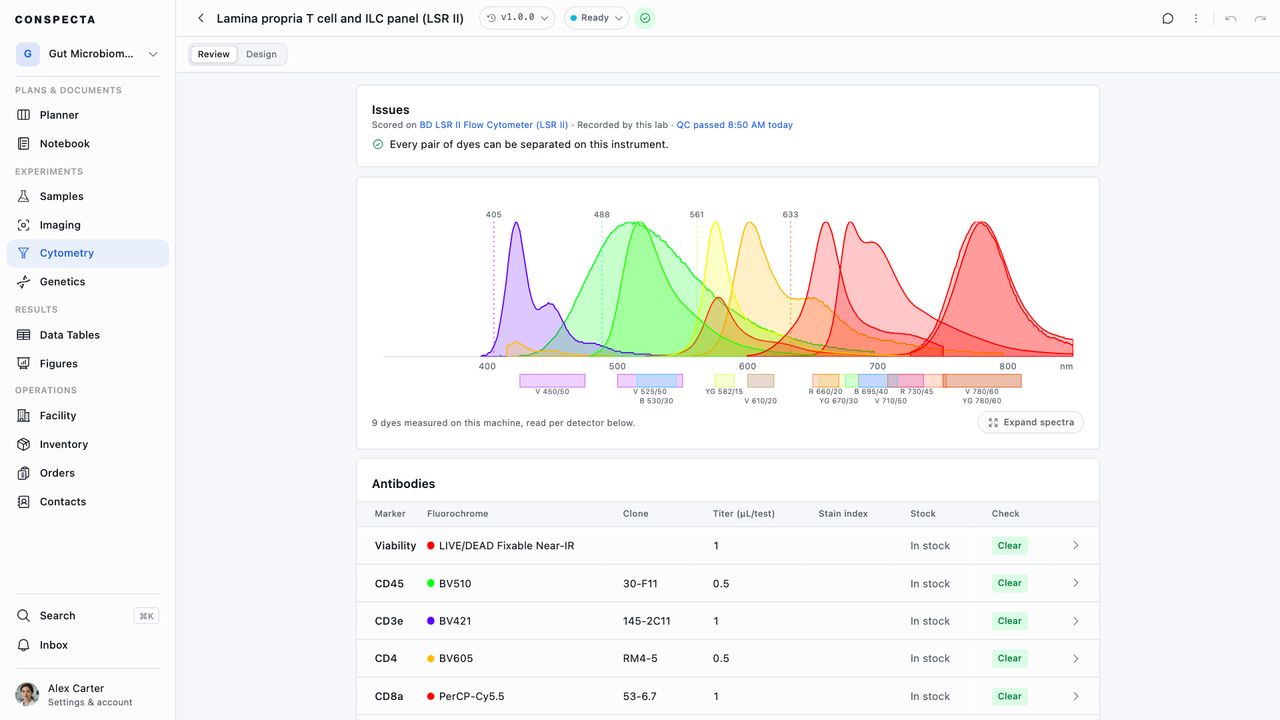
A panel opens on Review, the page to read when someone hands you a panel and you want to know whether it will work. From top to bottom it shows:
- Issues, which opens by naming the instrument the panel was scored on and whether the facility has confirmed that machine's optics. When it is one of your lab's cytometers, click its name to open the machine's page in Facility. Under that, every problem is written as a sentence.
- The spectra, with every dye's emission curve drawn over the instrument's laser lines.
- Antibodies, one row per marker with its fluorochrome, clone, titer, stain index, whether the project holds that dye in Inventory, and its check. A dye the project has none of reads Not in stock, with Order beside it, which opens a new request in Orders with the antibody already named. Closing the request brings you back to the panel. One whose stock has all expired reads Expired.
Issues covers two markers sharing one dye, a pair the cytometer can't separate, a pair that will spill into each other, and a dye the registry doesn't know. A pair's similarity runs from 0 to 1, where 1 means identical, and each pair says which of its dyes was measured on the instrument and which is a catalog curve.
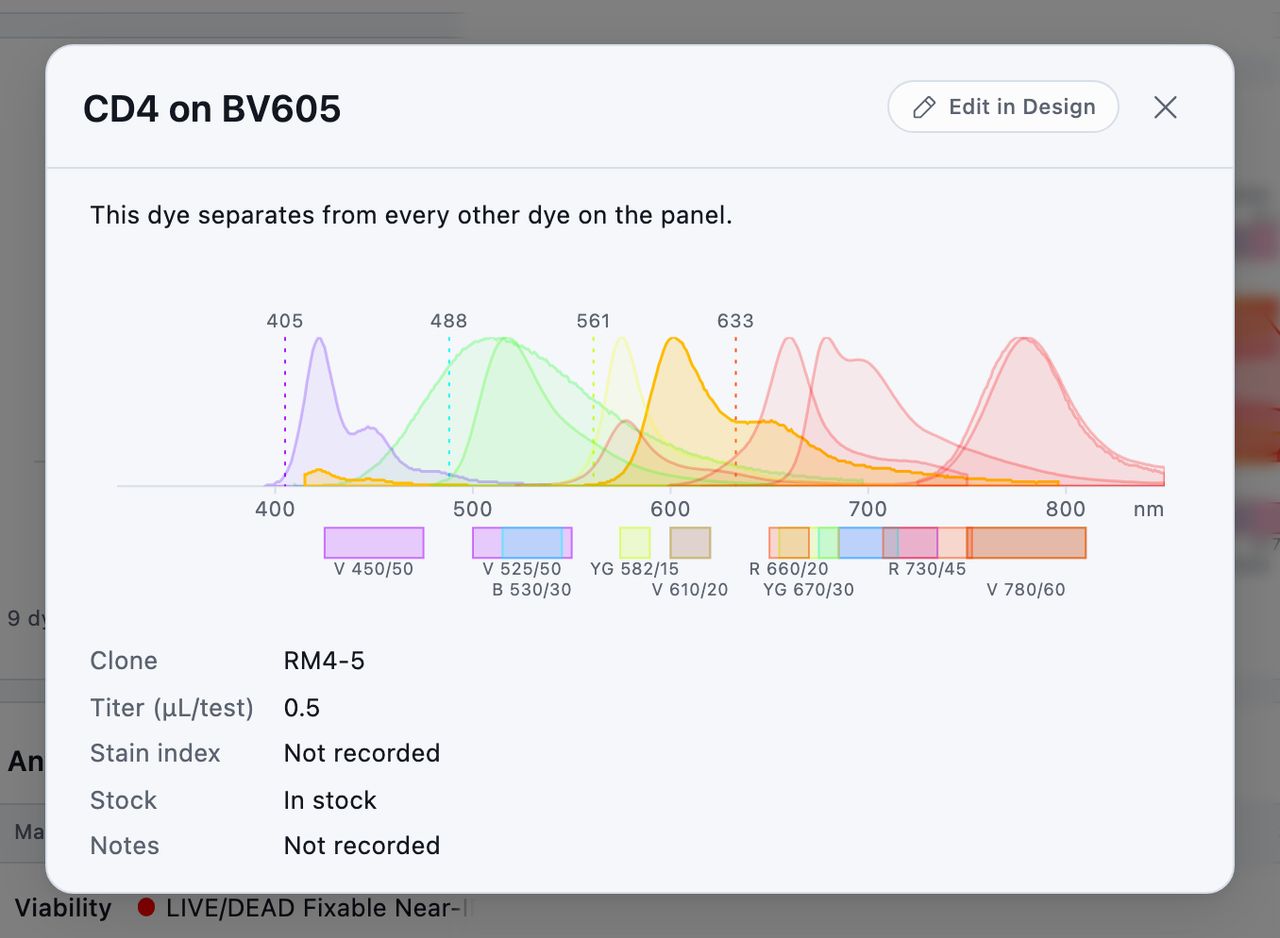
Click a row in the table, or an issue, and that antibody opens over the page: its issues, its dye on the spectra, its clone, titer, stain index, stock and notes, and how its stain index was measured. Nothing in it can be edited, so reading it never changes the panel. Edit in Design takes you to that marker in Design, covered in Design a Flow Cytometry Panel, when you want to change something.
The Review and Design switch sits at the left of the header band.
Check the Cytometer's Latest QC
When your lab logs QC runs on the cytometer a panel is scored on, Issues gives the latest result and when it ran after the machine's name, such as QC failed 8:05 AM today. A failed run or one with warnings reads in red or amber. Click it to open the machine's Maintenance tab in Facility, where the run's note and the detectors it flagged are listed.
A run that failed or passed with warnings can name the detectors it flagged. Each dye counts as reading on the detector where its signal is brightest. When one of this panel's dyes reads on a flagged detector:
- A QC issue leads Issues, naming the run, the flagged detectors and the markers that read there.
- Those antibodies carry a QC badge in the Check column.
When the flagged detectors carry none of this panel's dyes, the line reads on detectors this panel doesn't use and no issue is raised. A failed run that names no detector raises an issue for every marker on the panel. Once a passing run is logged, the issue and the badges clear.
What the Flags Mean
The check flags a few things ahead of any score.
| Flag | What it means |
|---|---|
| Two markers on one fluorochrome | One dye gives one signal, so those two markers can't be separated, however well the rest of the panel scores. Both rows and the band name them. |
| not in the dye registry | Conspecta could not match the name to a known dye, so a typo shows up here. |
| unscored | The dye could not be scored on this instrument, so treat that pairing as unchecked. |
A name the registry has no entry for is still scored when you have read a reference control for it on the cytometer the panel is bound to. It joins the similarity matrix and the spread grid, and its row notes that the score came from your own control, since that one tube is the only spectrum Conspecta has for the dye.
The check scores spectral overlap. Controls and validation stay at the bench, and the panel is where the designer records what they show.
See What Changed On It
Every panel keeps a record of its changes. Open Activity from the panel's toolbar to see:
- which cytometer it was bound to and which one it came off
- the marker a titration was recorded for, with the stain index and dilution that won
- the marker and dye a row edit moved
- the datasets recorded as run on it
Comments and sign-offs sit alongside the trail, so a reviewer reads the history next to the discussion about it. A sign-off marks the panel as it stood when it was signed. Edit the panel afterwards and the mark beside its status reads Edited since approval, so a reviewer can tell whether what they approved is still what is in front of them.
The trail is kept after the panel itself is gone. It stays readable once the panel goes to Trash, and nobody can edit it afterwards, so you can cite it.
Export the Panel
Export panel is in the ⋮ menu in the editor's top bar, on both the design view and the worksheet. Choose between the four files by who is going to read it.
| File | What it holds | Who it's for |
|---|---|---|
| Workbook (.xlsx) | Five sheets. The roster with each row's worst pairing, the cytometer and every detector band it was scored on, the similarity matrix, the spillover spread grid with each marker's total, and the signatures measured from your own controls. The spread sheet is there once you have read controls on that machine | Your own records, and the lab you designed the panel for |
| Worksheet (.csv) | The roster alone, with marker, fluorochrome, clone, titer, stain index, and notes | The bench, and anything that reads a plain table |
| Record (.json) | Everything above as one structured object | A script, a pipeline, or a methods section |
| Panel sheet (.png) | One page with the spectra, what the machine read for each dye, and the overlap grid, under the instrument they were scored on | A slide, a report, or an email |
The three files that carry the matrix also carry its caveats, written above the numbers, so anyone opening the matrix months later can see how far to trust it. They name:
- the instrument the scores were computed on, or, in the first line, that no instrument was bound
- whether your own reference controls or published curves were used
- which dyes rest on one of your controls alone, and which could not be scored
- the two thresholds that turn a number into a flag
- for a spread grid, that it is asymmetric and comes from one control per dye, and the dyes it has no reading for
The panel sheet is sized the way a figure is, with two settings:
- A Width that Fits one journal column (89 mm), Fits both journal columns (183 mm), Fills a presentation slide (254 mm), or takes a Custom width
- A Resolution of 150, 300, or 600 DPI
The dialog box shows the pixel dimensions those choices produce, so you know what the file will be before you write it.
Project members with view-only access can export a panel, the same as they can open one.
Export the Library
Those four files each write one panel. Export, under the ⋯ in the Panels tab header, writes the library, one row per panel with its name, the cytometer it is bound to, how many markers it holds, its sharing, its version, and who made it when.
- Scope covers the panels on screen, every panel in the project, or the ones you ticked. Ticking rows first puts Download on the bar along the bottom, which opens the same dialog box on that selection.
- Columns starts with every column included, and Choose opens the list.
- Format is CSV or Excel.
Hand the Panel to a Client Lab
A panel a core facility designs is usually run for another lab. Sharing works at the project level.
- Give the engagement its own project.
- Add the client's scientists to it with View only, the same way you bring in any outside collaborator.
- Where the engagement starts from a panel you already run, copy it into that project. The one your own runs point at stays where it is, and the copy is the client's from then on.
The client sees only that project's work, and the panel they open is always the current version, so every revision reaches them as soon as you save it.
For a client who works outside Conspecta, Export writes that record as a file. The workbook carries the roster, the cytometer it was designed for, and the checks, so a collaborator can run the panel or write it up.