Plan Your Experiments
The Planner is the project's to-do list, seen three ways. The Board is for deciding what's next, the Table for triaging a backlog, and the Calendar for fitting work into the days you have. All three show the same tasks, so a card you drag on the board moves on the calendar too.
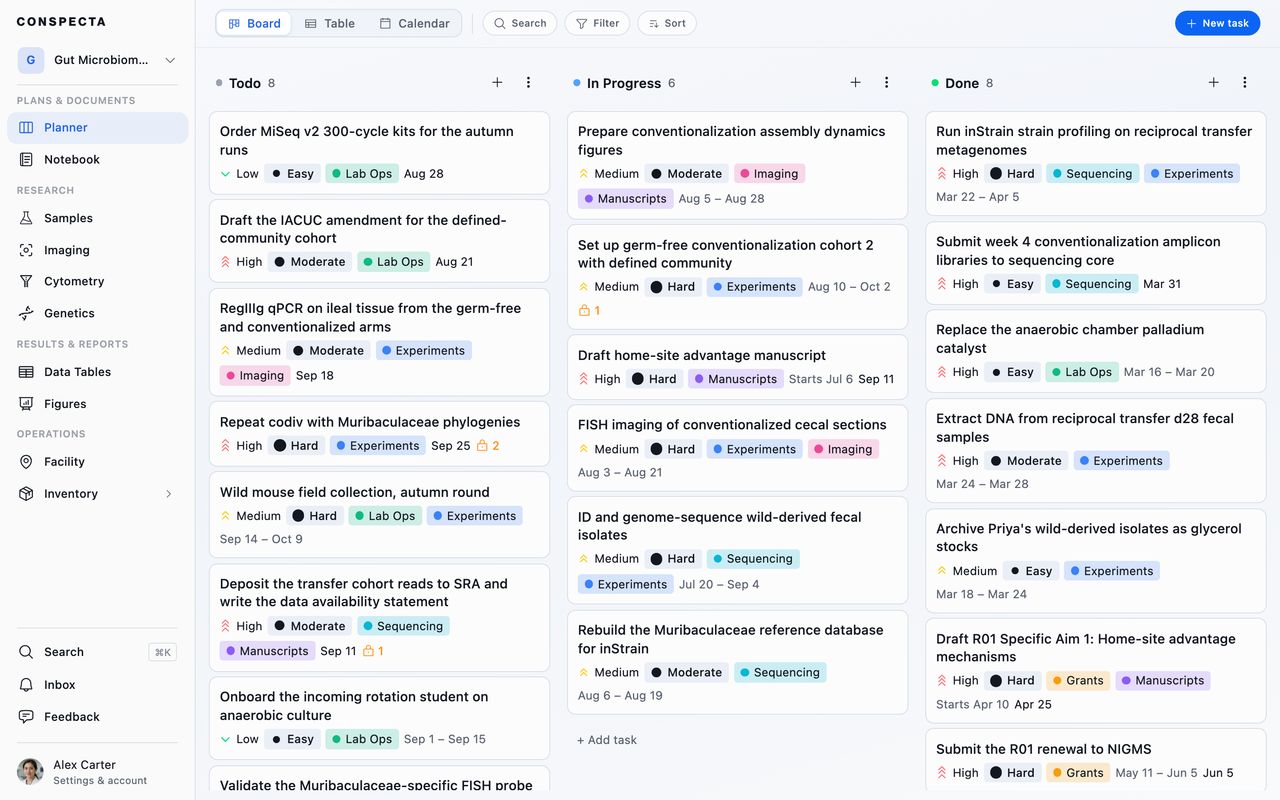
Board
Columns
The board's columns are yours to define. A new project starts with Todo, In Progress, and Done. Drag a column to move it, or click its heading to change it:
| Choice | What it does |
|---|---|
| Rename | Takes a name of up to 100 characters |
| The color swatch | Recolors the column |
| Add column before, Add column after | Inserts a column. A board holds up to 20 |
| Delete column | On a column that still holds tasks, asks whether to move them to another column you pick or delete them along with it |
You can't delete the last column, and Done has no Delete column in its menu, since it's the column that says a task is over. You can still rename it, recolor it, and drag it into a different order.
Cards
A card shows its priority, difficulty, tags, date range, deadline, and up to three assignees. Some cards show more:
- A card that repeats shows its rule, such as Every Monday.
- A deadline turns amber as it approaches and red once it's passed.
- A task waiting on another shows a Blocked badge naming what's holding it up.
- A description that contains a checklist shows how much of it is ticked.
Drag a card between columns to change its status, or within a column to reorder it. A connected AI assistant moves cards the same way. Everything you do is live for everyone in the project.
On a phone the board shows one column at a time, and swiping sideways moves between them.
What Counts as Finished
A task counts as finished once it sits in Done or in any column to the right of it, so a board that keeps an Archived column after Done counts work in both as finished. For a finished task:
- Its deadline stops turning amber or red.
- It leaves the Overdue and Due soon filters.
- Anything waiting on it loses its Blocked badge.
Renaming Done or dragging it somewhere else keeps all of that, and a board that has no Done uses its last column.
Long Columns
A long column starts with its first 50 cards. Scroll to the bottom and press Show more to bring in the next 50. Drop a card below the last one on screen and it goes to the end of the whole column, behind the cards still to load.
Turn on a filter and each column shows its matches, however long it is. The column's heading counts what is loaded:
| Heading reads | Means |
|---|---|
| 50 of 400 | 350 more cards are still to load |
| 12 of 40, with a filter on | 40 cards in that column match and 28 are still to load |
| A count on its own, during a search | The search shows only its hits |
Table
The table is the same tasks as sortable rows: title, status, priority, assignees, tags, difficulty, deadline, start date, created date, and who created it. Click a heading to sort by it.
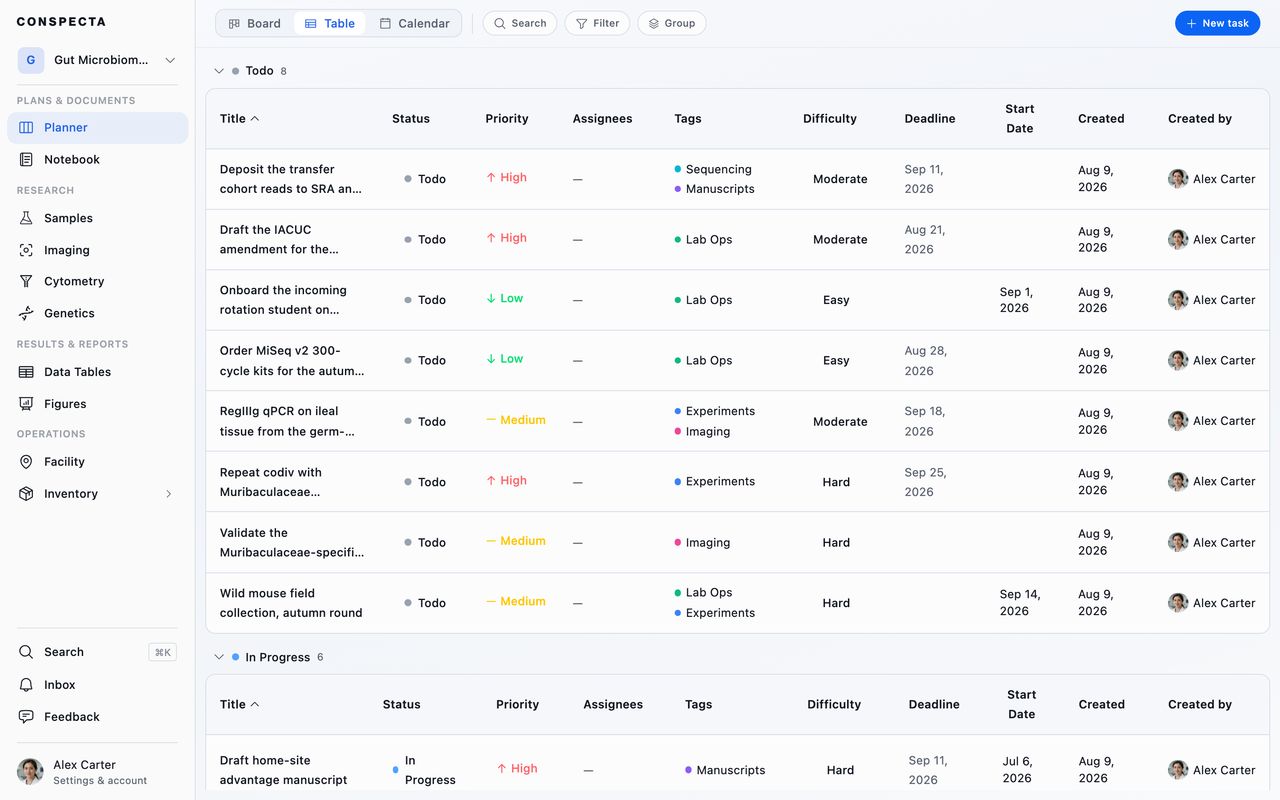
Group by is the table's own control, folding rows into collapsible groups by status, priority, assignee, tag, difficulty, deadline, or creator. Group by assignee to see how the work is spread across people.
Changing Many Tasks at Once
Tick the box at the left of a row to select it, or hold the row on a phone. Shift-click a second box to select every row between the two. In a grouped table, the box beside a group's name selects the whole group. While anything is selected, the toolbar becomes a bar with three actions:
| Action | What it does |
|---|---|
| Set status | Moves the selected tasks to the column you pick |
| Move | Sends them to another project you can edit, the same way Move does for one task |
| Delete | Sends them to Trash. The message that confirms it has Undo, which brings them all back |
Select all in the bar selects every row the table is showing. Changing the search, a filter, the project, or the view clears the selection, so an action only reaches tasks you can see. A task that repeats keeps its repeat when it is deleted this way, so its next card still arrives.
Calendar
The calendar has Month, Week, and Day views. On a phone, Week is dropped and it opens on Day.
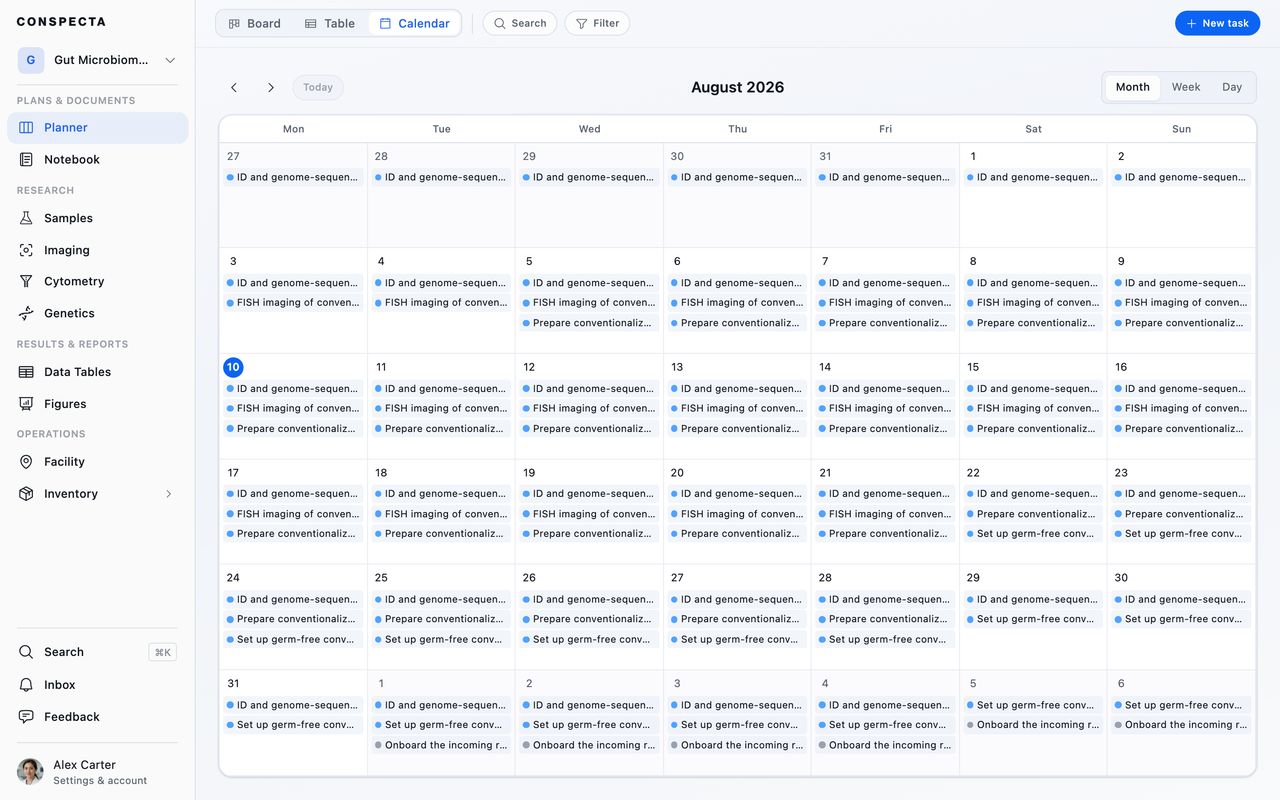
Where a task lands depends on what dates it has:
| The task has | Where it appears |
|---|---|
| A start time | As a block on the hour grid. The block runs to its End when End has a time later that day, and otherwise for its Estimate |
| Dates but no time | In the all-day band at the top |
| No dates | Only on the board and in the table |
Create a task by clicking or dragging on the hour grid, which sets its start, end, and estimate in one gesture, or by clicking a day in Month view for a task with a date but no time. Drag an existing block to reschedule it. The deadline stays where it is. Hold Alt/Option while dragging over an existing block to sweep out a new task instead of moving that one.
Dates you write inside a note or protocol in the Notebook appear here too, as outlined entries. They aren't tasks and can't be dragged, but clicking one opens the page at that spot with a Planner link to get back.
The next card of each repeating task is drawn on the day it arrives as a dashed outline. With Upcoming on in Filter, hidden tasks are outlined on the day they return.
Each day of a multi-day protocol run also lands here as a task, on the calendar and in the table. Run a Protocol covers laying those days out.
The calendar uses the working hours and 24-hour clock settings in your preferences.
Creating and Managing Tasks
There are four ways to make one, depending on where you are:
- New task in the toolbar, or the
Nkey, which lands in the first column, or on a phone the column you have swiped to - The + on a column heading, which drops a new card at the top
- + Add task at the bottom of a column
- A click or drag on the calendar
Only a title is needed, and everything else can be filled in later. Close a brand new task with its title blank and its description empty and it is dropped. Type a title, write a line in the body, or set any property, and it is kept.
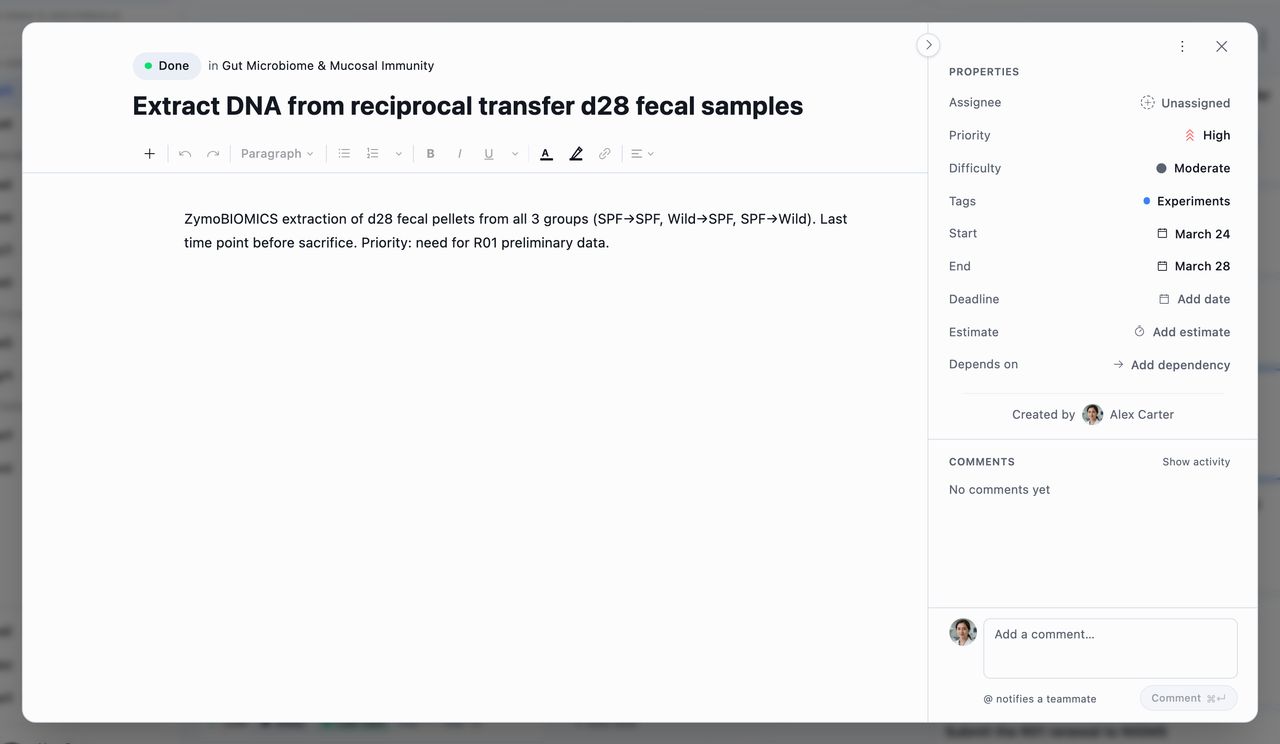
Opening a task gives you a full-width editor. The left side is a complete notebook editor, so a task description can hold images, tables, checklists, and embedded samples, analysis, or pages. Images don't count against the description's size, but a very long description does reach a ceiling. If you get there, Conspecta asks you to move the longer material onto a notebook page, which holds far more. The right side holds the properties:
| Field | What it's for |
|---|---|
| Assignee | One or several people, and drives reminders and the "Assigned to me" filter |
| Priority and Difficulty | Two independent axes, so a quick job can still be urgent |
| Tags | Project-wide labels you create, rename, and recolor from the tag itself |
| Start, End, Deadline | When you plan to work on it, and when it's due |
| Reminders | Up to five pings, each a set time before the start, the end, or the deadline |
| Estimate | How long it should take, typed as minutes (90) or hours (1h 30m, 1.5h), which sizes its calendar block when End has no time |
| Repeat | Files the next card on a schedule, or a set number of days after the last one is finished |
| Hide until | Takes the card out of view until the day and time you pick |
| Depends on | Other tasks that must finish first, which puts a Blocked badge on this one |
Assignee is always listed, and every other field gets its own line once it has a value. Until then it waits as a small button under the list, such as + Priority or + Deadline, which opens the same picker.
Status is the button beside the title, and the oldest entry in Activity says who created the task and when. Move, Export, Duplicate task, and Delete task are in the three dot menu at the top of the panel, next to the close button.
Conspecta checks the three dates against each other. Set an end or a deadline that lands before the start and the calendar stays open with a warning, and a note sits under the field until the dates line up. Both dates still save, so you can fill them in whichever order suits you.
Move sends a task to another project you can edit. To move several, select them in the table. Pick the destination and the card moves to that project's board. A task carrying a protocol run brings the days scheduled under it. Its dependencies, its tags, and its link back to the run and the protocol page it was reading are cleared on the way, because each of those points at the project it left.
Duplicate task makes a copy on the same board and opens it, named <title> (Copy), directly under the original in the same column. It keeps the description and its pictures, tags, assignees, dependencies, dates, schedule, and linked protocol. A task the scheduler made for a protocol run comes across as an ordinary task, with no link to the run. Comments and history stay with the original, and the copy starts its own. A new task offers it once it has been saved, and duplicating needs edit access to the project.
Deleting a task sends it to Trash, where it's restorable for 30 days.
The round arrow on the panel's left edge folds it down to a narrow column, giving the description the full width of the window. Any icon in the column opens it again, and the column keeps a count of the comments waiting behind it. On a phone the panel always stays open, below the description.
Repeating a Task
Repeat files the next card for work that comes around again, such as a weekly LN2 check or passaging a line. Pick one of two rules:
| Rule | When the next card arrives |
|---|---|
| On a schedule | Every so many days, weeks, or months. For weeks, pick the weekdays. For months, pick a weekday to get the first one of the month, or leave them all clear to use today's day of the month |
| After the last one is finished | A set number of days after the last card reaches a finished column, which suits work where the clock starts when you finish |
File into chooses the column the new card lands in, and the editor shows the date of the next card. The card arrives at the top of that column at the start of its day.
Each new card copies the title, description, assignees, priority, difficulty, tags, estimate, start time of day, and reminders from the card where you last pressed Save on the repeat. End and the deadline come along too, the same number of days after the new card's day as they were after the start on that card. Pictures pasted into the description stay on the original card.
The editor lists what each new card carries, as in Each new task starts at 9:00 AM, is due at 5:00 PM the day it arrives and keeps its 2 reminders. To change what future cards say, edit a card and save its repeat again.
A repeat keeps one open card at a time. If the next date comes while the last card is still unfinished, that date is skipped and the open card counts it, as in Every Monday · 2 missed.
Every card of a repeat shows the rule. Open any of them to change it, or press Stop repeating. Deleting a card that repeats asks which you mean. Delete sends that card to Trash and the next one still arrives, and Delete and stop repeating ends the repeat as well.
Hiding a Task Until Later
Hide until takes a card off the board, the table, and the calendar until the day and time you pick, then puts it back in its column where it was. Use it for work that can't start yet, such as a reorder to revisit after a 2 PM supplier call.
Four picks at the top return the card in one click, each with the day and time it comes back beside it:
| Pick | When the card returns |
|---|---|
| This afternoon | 1:00 PM today, offered until noon |
| Tomorrow morning | Tomorrow, at the start of your working hours |
| Next week | Next Monday, at the start of your working hours |
| Until its start | At the task's start, offered while that is still ahead. A start with no time returns at the start of your working hours that day |
For any other moment, pick a day on the calendar, set Time, and click Hide. Time opens at the start of your working hours, which you set under Date & Time Format in Settings.
A card that returns at the start of your working hours reads only the day on its row, as in October 26. At any other time the row adds it, as in October 26, 2:00 PM.
While it is hidden, a task sends no reminders. It still shows in search, and tasks that depend on it stay Blocked. Turn on Upcoming in Filter to see everything that is hidden.
Reminders
A task can hold up to five reminders. Click Reminders, then New reminder, and choose how long before which date: the start, the end, or the deadline. Leads run from the moment itself to 1 week, and Custom takes anything up to 4 weeks, typed as 45m, 3h, or 2d. Set two on the same date to get two pings, such as 30 minutes and 10 minutes before the start.
The end is the End time, or the start time plus the estimate when End has no time. A date with no time takes a time of day as well, as in 1 day before deadline at 9:00 AM. Remove a date and its reminders go with it.
Reminders reach the people the task is assigned to, at each person's own local time, or you if you created the task and left it unassigned.
Assignees also get one notification when a repeat files a card or a hidden task returns.
Each reminder lands in your Inbox, and on your phone and by email when those are on in your notification settings. The first time you set one, Conspecta also asks permission to show browser notifications. Until you grant it, the browser shows a reminder only while the tab is open.
Comments and History
Every task carries an Activity timeline in the right sidebar, under the properties. Comments, review decisions and the record of who changed what share it, newest first. Once a task has a few events, the menu at the right of the Activity heading narrows it to Changes, Comments or Decisions, each with its count, and switches to oldest first. A comment can @ mention anyone on the project.
A task is reviewed the way a notebook page is. Request review, the person-plus button beside the Activity heading, notifies the people you tick, and Review beside the Comment button records Approve, Request changes or Reject. Editing a task after it was approved marks the approval as possibly stale. Reviews and Sign-offs covers the rest.
Finding Things
Search
Search (Cmd/Ctrl + F) matches task titles and their description text across every task in the project, including cards further down a column than the board has loaded. A match is pulled onto the board and shown in the column it belongs to.
Search is separate from the filters, so clearing filters leaves your search in place. A search with no matches offers Clear search, plus Clear filters when those are narrowing it too.
Filter
Filter narrows by status, priority, assignee, creator, tag, difficulty, deadline, and whether a task has dependencies. Picking more values widens a filter, so choosing two people shows both their tasks.
Six one-click presets cover the common questions: Assigned to me, Created by me, Due soon, Overdue, High priority, and Upcoming.
Tags filter both ways:
- Clicking a tag's name adds it to the filter.
- The crossed-out circle at the right of the row excludes that tag, and the tag turns red with a line through it. An excluded tag hides every task carrying it, whatever else that task is tagged, so one click on an admin tag hides all the admin work.
- Untagged sits at the top of the tag list and reaches the tasks you never labeled.
- With a long tag list, the tag filter has its own search box, and once you have typed enough to narrow it you can include or exclude everything still showing in one go.
When a filter leaves nothing on the board or in the table, the view names the filters narrowing it and offers a Clear filters button in place of the columns. A column that is empty only because of the filter reads No matches.
Arriving from See all on the project page's Your tasks card opens the board with only Assigned to me on, replacing the filters you last left on in that project. Clear all filters brings the rest of the project back.
Upcoming
Upcoming shows what is on its way to the board, and its number counts the hidden tasks plus the repeats. With it on, each column holds dashed cards for what will land there, soonest first.
| Card | Reads | Click it to open |
|---|---|---|
| A hidden task | Hidden until Oct 26 | The task |
| A repeat's next card | Its rule and its date, as in Every Monday · arrives Oct 5 | The last card it filed |
The table lists the same entries as rows, and search and the other filters narrow them.
Sort
Sort is the board's own control, with thirteen orders including manual, priority, difficulty, deadline, creation date, last update, and title. Manual order is what dragging cards preserves.
Keyboard
The board is fully navigable from the keyboard:
| Key | Action |
|---|---|
N | New task |
1 / 2 / 3 | Board, Table, Calendar |
J / K | Move down and up a column |
H / L | Move across columns |
Enter or E | Open the highlighted task |
Esc | Clear the highlight |
Cmd/Ctrl + F | Search |
On the calendar, T jumps to today, D / W / M switch views, and the arrow keys step through periods.
These are single presses with no modifier, and they pause whenever you're typing or a dialog box is open.
Working Together
Everyone on the project sees Planner changes as they happen. Any number of you can edit the same task description at once and see each other's cursors, and a card on the board gets a soft halo while someone has it open. Cmd/Ctrl + Z undoes your own edits without touching theirs. When someone else opens a task you have open, their picture appears at the top of it, and the Activity timeline picks up their comments and changes while it stays open.
Project members with view-only access see the whole board and can read every task, but the create buttons, the comment box, and description editing aren't offered.
Saving
As you work, the task's header reads Saving… and then Saved. When a save doesn't go through, it reads Not saved with a Retry button.
Moving a task to another project saves your latest change first, the description included. If that change can't be saved, while you're offline for example, the action doesn't happen and a message says the task couldn't be saved.
When Two Edits Clash
If you and a teammate change different fields of a task, both changes stay. If you both change the same one, a box above the title shows Some fields were updated by another user. with each version under Keep mine and Use theirs. Nothing else you change on that task saves until you choose and click Apply.
On a project only you work in, a description a connected AI assistant changes while you have unsaved edits to it comes into that same box, with the start of each version to choose between.
Exporting a Task
Export, in the three dot menu at the top of a task's right hand panel, produces a PDF, Word document, Markdown file, or Markdown with images zip of the description, with the task's properties listed at the top. Comments and activity are left out.