Analyze Images
Imaging turns microscopy into numbers: counting cells, measuring how much area a marker covers, reading fluorescence intensity, and quantifying colocalization, all in the browser.
Upload your images, answer a couple of questions about what you're measuring, and Conspecta assembles a pipeline you can tune on one image and then run across the whole set. The numbers land in a data table you can chart and drop into a figure.
The workspace has two tabs. Images holds your image collections. Analysis holds the runs you've built from them.
Getting Images In
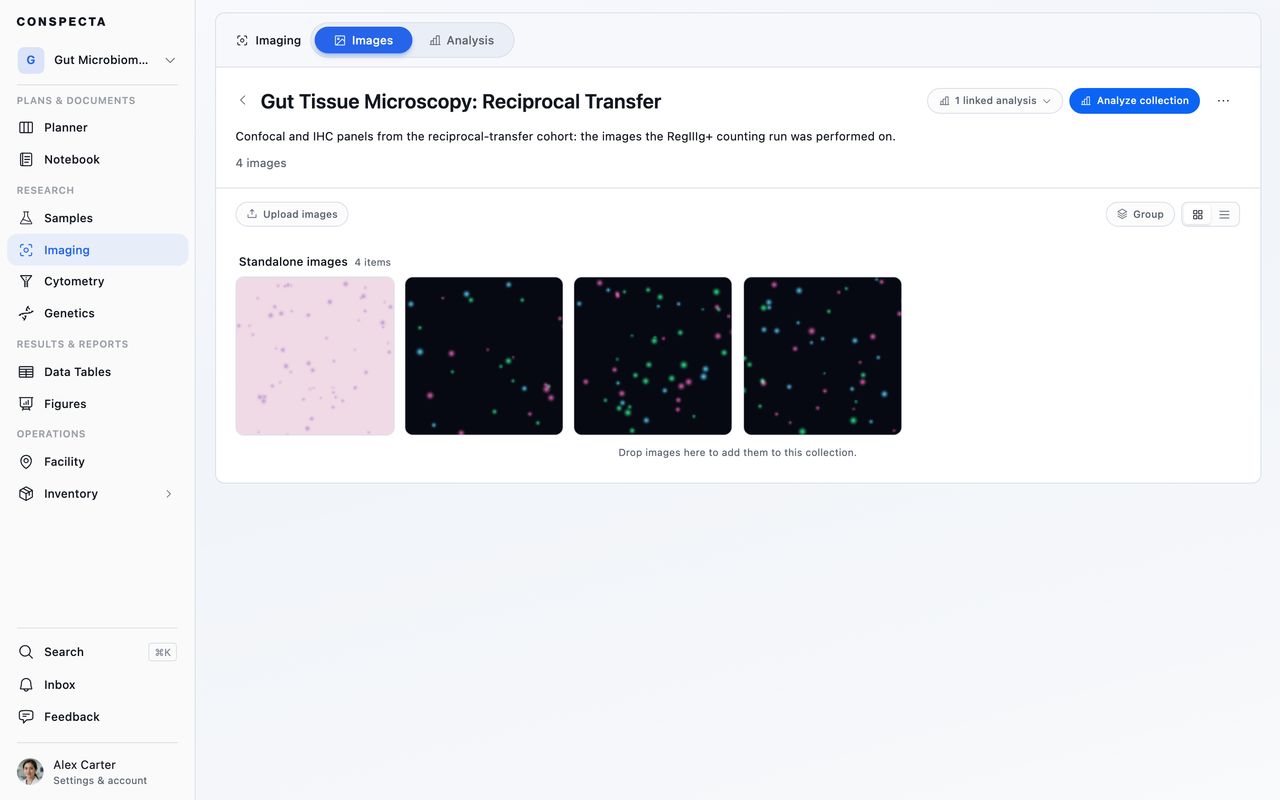
Images live in collections. A collection is the set of images you want to analyze together: a plate, a timepoint, a condition.
Upload images, and Import under the ⋯ on either tab, open a dialog box that asks where the images land, then which images to add. It starts on New collection, so name it and choose whether it's private or shared. Add the images first and you get a name taken from their filenames, which you can change.
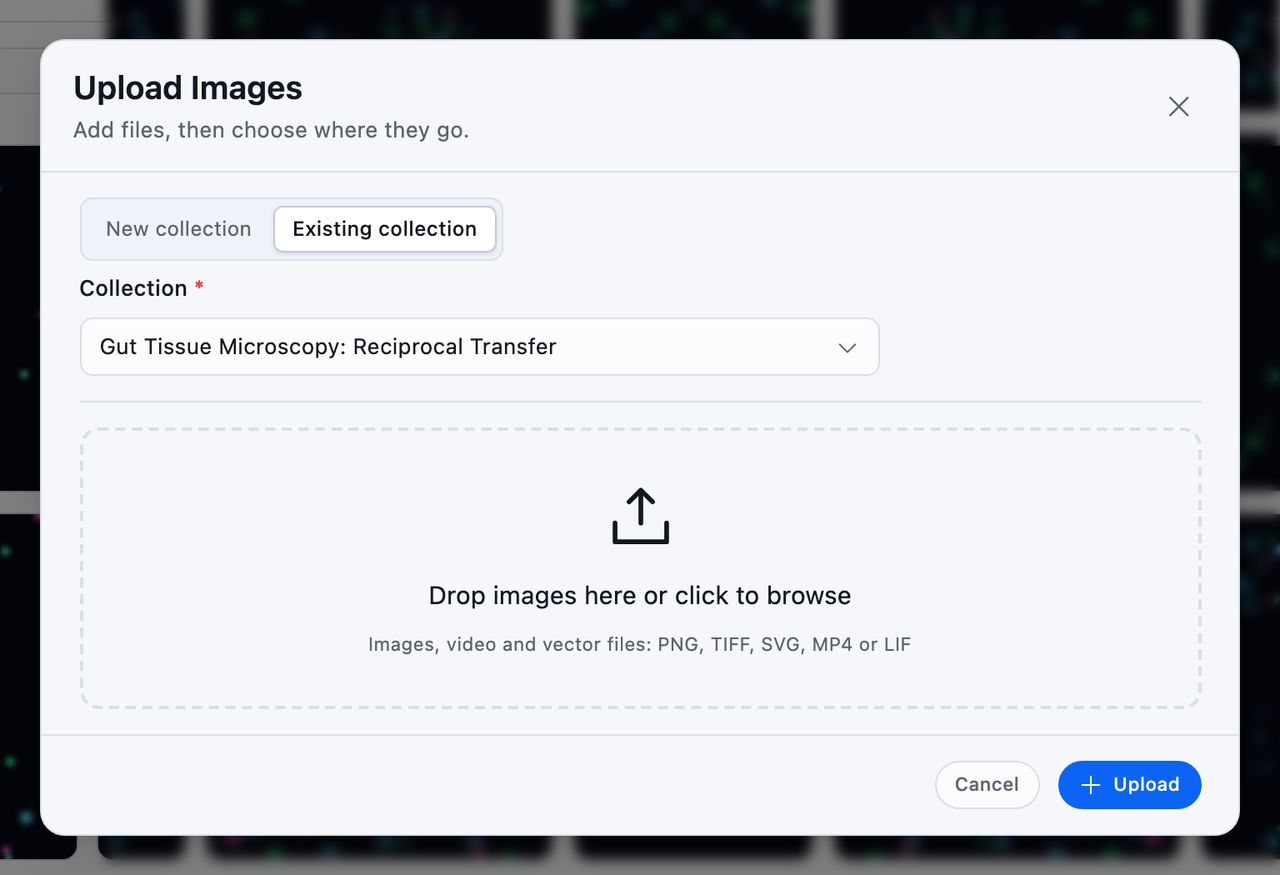
Switch to Existing collection to pick one you already have.
You can also drag files straight onto the Images tab from anywhere in it. Drop them on an open collection and they upload into that one.
Drop them anywhere else, such as a folder you have created or a list already full of collections, and the same dialog box opens on the files you dropped, with a new collection named after them and set to land in the folder you are standing in. Rename it, or switch to Existing collection, before you upload.
Conspecta accepts TIFF, PNG, JPEG, BMP, GIF, WebP, SVG, MP4, WebM, and LIF (Leica Image File) files, up to 200 files at a time, 100 MB per ordinary image, and 5 GB per LIF. Files it can't take are listed individually with the reason, so one bad file never blocks the batch.
LIF Files
Every series inside a LIF becomes an image with its z-slices, channels, and timepoints intact. Conspecta keeps those images and does not store the original LIF file.
Keep the tab open while a large upload runs. LIF files are read and uploaded from your browser, so closing the tab cancels what's left. The collection header shows live progress and lets you retry an individual file that failed.
Inside a Collection
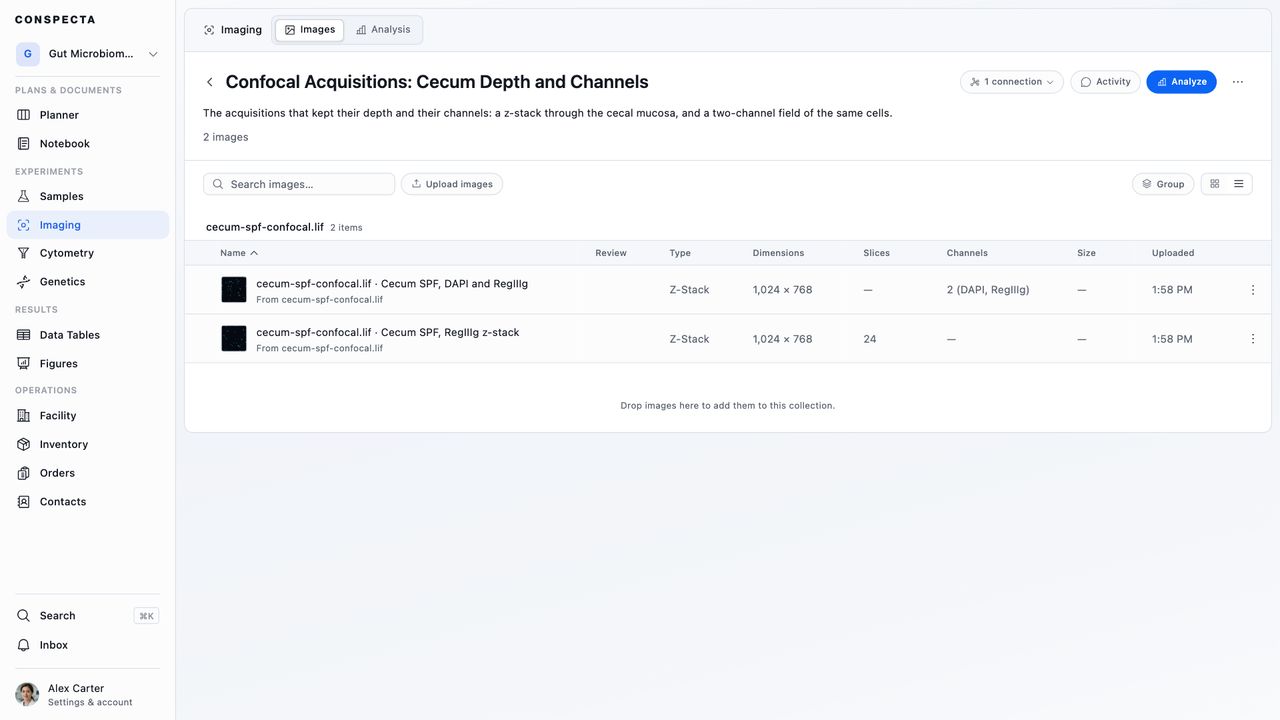
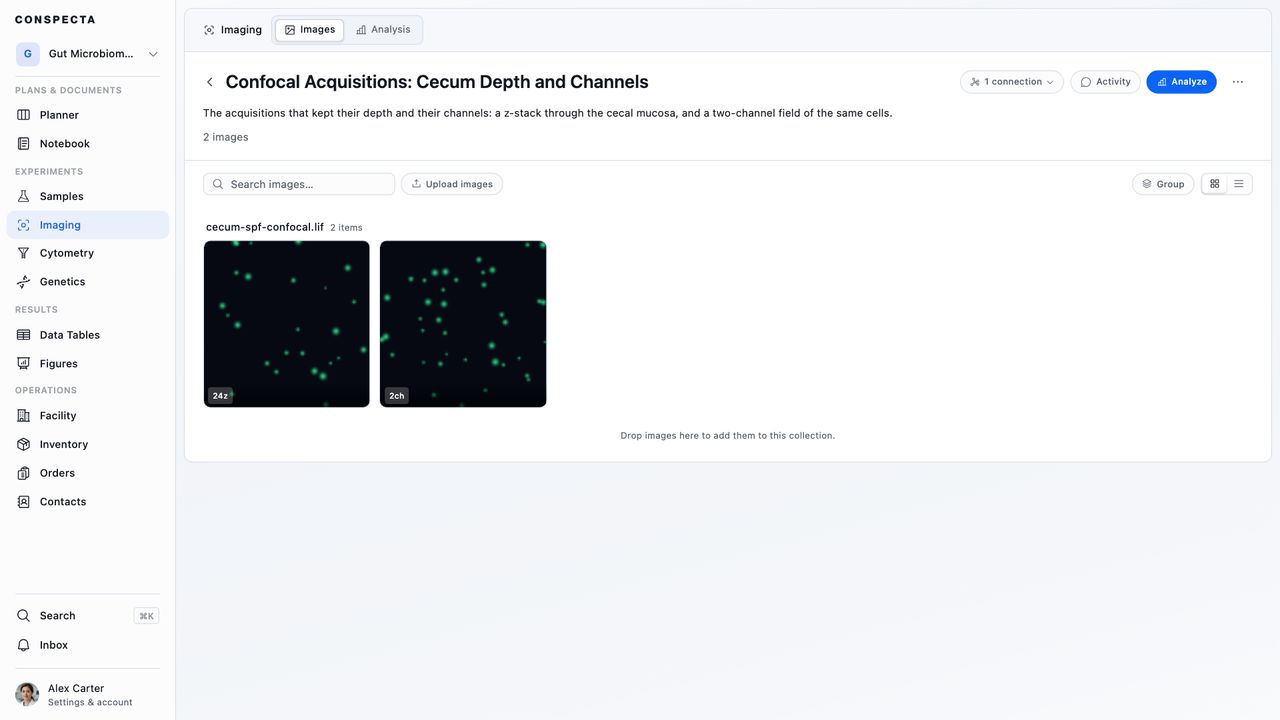
A collection shows its images as thumbnails or as a table with dimensions, slice and channel counts, file size, and upload date. A z-stack carries a badge like 10z · 3ch so you can see its shape without opening it.
Click any image to open it in the viewer. Viewing Images covers zooming, channels, and z-stacks there, and Annotate and Crop Images covers marking one up.
Click the collection's title to rename it, and Add a description… under the title to record what the set is (the experiment, the prep, the condition), so the context travels with the images. Press Enter to save.
The search box in the toolbar matches image names as you type. It also matches the multi-image file a series came from, so typing a LIF's filename narrows the collection to every series that came out of it.
A collection holding series from a LIF gets a Group control in its toolbar. Source file buckets every series under the filename it came from, with anything you uploaded on its own under Standalone images. A collection of ordinary images has only one bucket, so it has no Group control.
Selecting Images
A checkbox appears in an image's corner when you point at it. On a phone or tablet, hold the image for a moment to tick it, in the thumbnails or in the table.
Select images to Rename, Download, Move, or Delete them. In the list view, each image's row carries a ⋯ with the same actions for that one image, hidden while anything is ticked. A view-only member sees Download alone.
Download gets the original files, one on its own or several as a ZIP, up to 256 MB at a time. It covers standalone images and skips a series inside a multi-image file.
Delete takes the image files as well as their place here, so they go to Trash and can be restored for 30 days. If an analysis or another collection uses one of them, the dialog names it first, since those places will show the image as no longer available.
Deleting the last series a collection holds of a multi-image file takes the whole file with it, and that file goes to Trash under its original filename.
Moving Images to Another Collection
Move opens one list of every collection the files can reach: this project, opened for you at the top, then the other projects you can edit. Pick a collection and the files land in it. A clip you have open carries the same entry in its ⋯ menu.
Within this project, every file you ticked moves to the collection you picked. To start a collection for them, pick New collection at the top of this project's list and type its name. The new collection sits in the same folder as the one the files came from, with the same visibility.
Crossing into another project sends the files themselves across, and once you have picked, the dialog box lists which of the following apply. The files count toward the destination team's storage from then on, and this project's copies go to its Trash, restorable for 30 days.
A file that something else here still uses, another collection or an image analysis, is copied instead and stays where it is, so those records keep working. Multi-series microscopy stays in this project, so move the whole collection to take a .lif across. A clip's page closes once the clip has gone. See Moving work between projects.
Working with the Whole Collection
Analyze collection starts an image analysis with these images already chosen.
Connections in the header holds everything attached to the collection: the runs built from it, the notes that reference it, the sample its images came from, the figures they ended up in. Click one to open it, or View as graph to see the whole map and keep exploring from there.
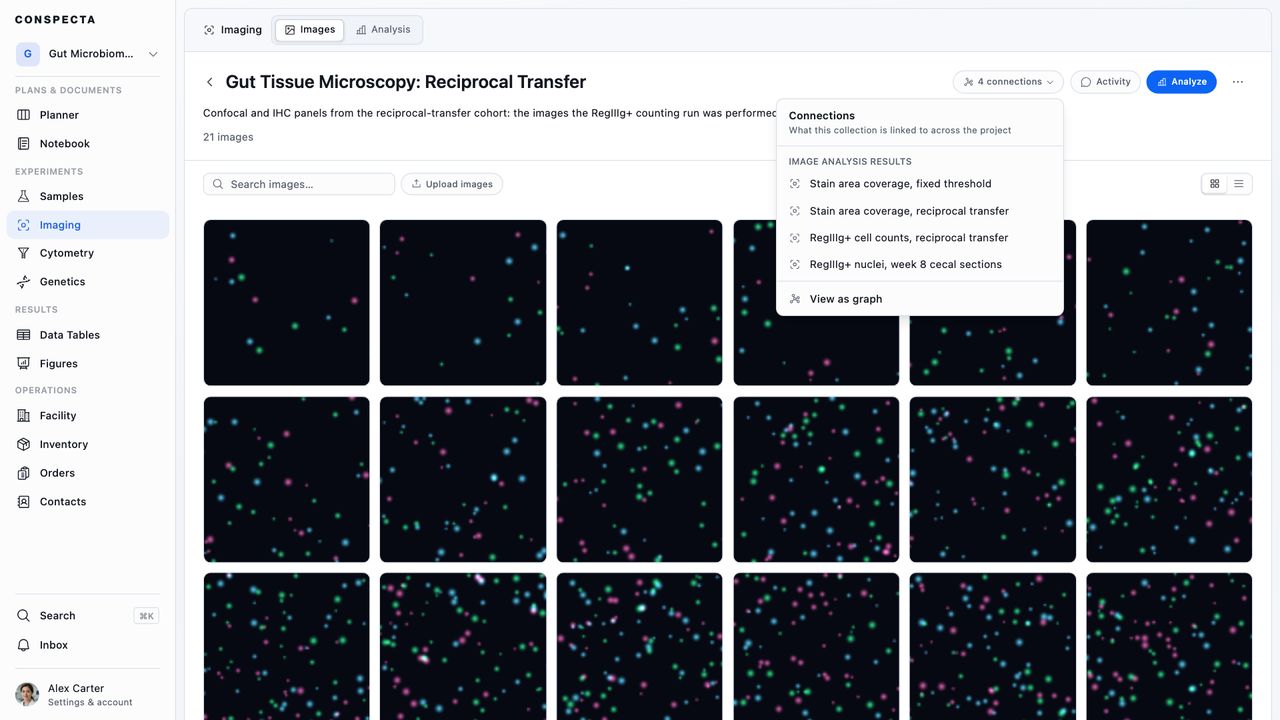
The ⋯ menu at the end of the header holds what you can do to the collection itself:
- Download images takes the whole set as the original files.
- Star pins it to your starred list.
- Rename opens the title for editing.
- Move sends it to another folder or another project.
- Share with the project or Make private sets who sees it.
- Delete collection moves it to Trash, where it can be restored for 30 days.
Only the person who created a collection can change who sees it, so that row appears for them alone. A view-only member keeps the download and the star.
A move to another project takes the collection's pictures and multi-series microscopy with it, and the original project's copies leave as they go. The dialog box names any image analysis here that reads those pictures and stays behind, so you see what the move costs before you confirm. See Moving work between projects.
Building an Analysis
New analysis asks what you're looking at, in plain language, and builds the pipeline from your answers.
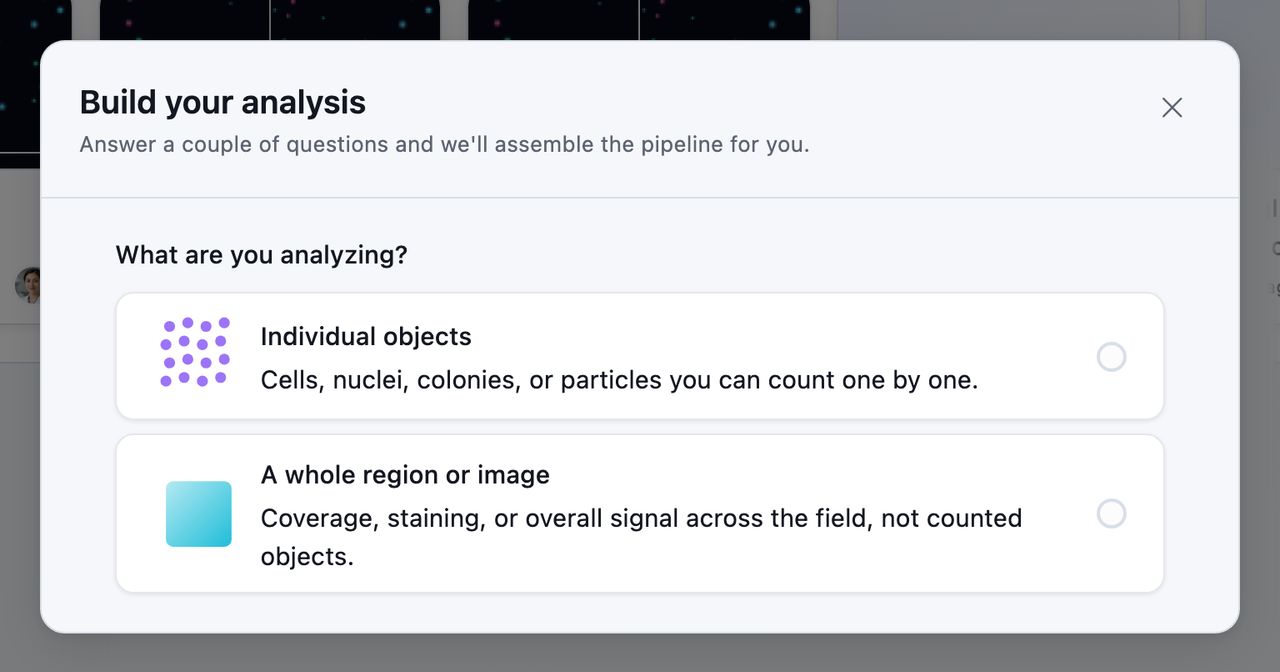
The last screen shows what your answers assembled, as the steps that will run.
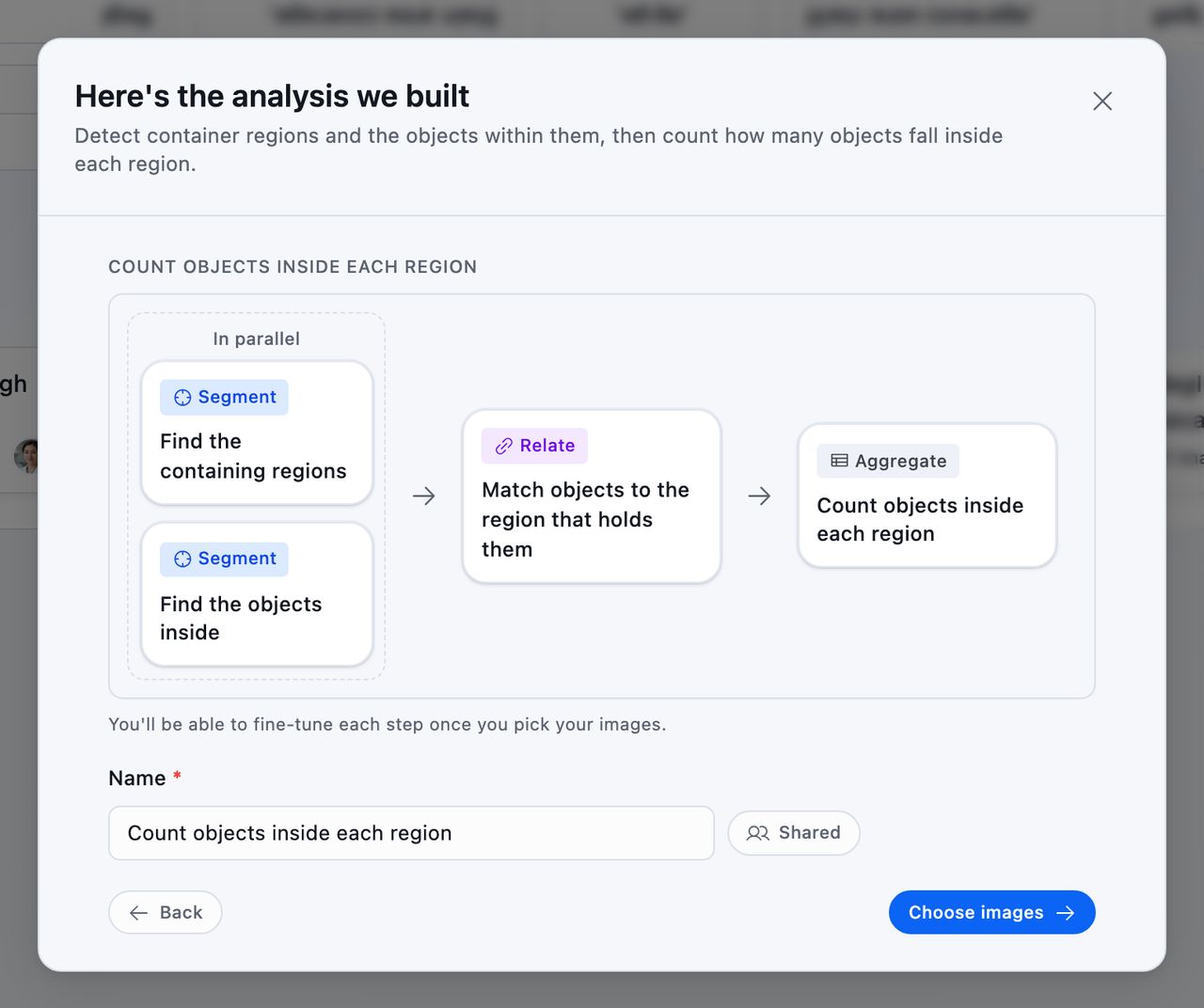
The first question is What are you analyzing?
- Individual objects for cells, nuclei, colonies, particles
- A whole region or image for coverage, overall brightness, or overlap
From there the questions narrow. Counting objects asks whether each container needs its own count, whether you want all of them or only the marker-positive ones, and what your images show: colonies on a plate, fluorescent cells or nuclei, or simple light or dark shapes. Measuring a whole region asks whether you want area covered, overall signal, the positive fraction, or how much two markers overlap.
Colonies and fluorescent cells are detected with an AI model, and each of those choices notes that it counts toward your team's monthly usage. On a plan that includes no compute usage those two choices are grayed out, with the reason on each.
Simple light or dark shapes covers everything else (stained tissue, particles, spots). It uses an adjustable cutoff and none of your team's usage, so pick it when your objects stand out clearly from their background.
At the end you get a review screen naming the analysis Conspecta built, a diagram of its steps, a title to type, and a choice of private or shared. Then you pick your images.
Your answers land you on one of twelve analysis types, and the review screen fills the title with its name. Once the image analysis is open, the Pipeline section of the sidebar holds the steps that type runs, and Tune an Image Analysis covers opening those steps and running the set. To measure the same images a different way, start another image analysis from New analysis.
| Analysis | Reach for it when |
|---|---|
| Count objects | Bright objects sit on a dark, evenly lit background |
| Count touching objects | Objects touch, and a plain count reads a clump as one |
| Count objects on an uneven background | The background is bright and varies across the frame |
| Count objects, ignoring debris | Speckle, scratches or fibers are mixed in with what you want counted |
| Count marker-positive objects | You want the bright ones counted against the total |
| Count objects inside each region | Objects sit inside containers, such as bacteria inside macrophages |
| Measure intensity of each object | You want each object's own brightness, one row per object |
| Measure intensity inside each object | A second channel is read inside each detected object |
| Marker intensity | Signal strength across the whole field is the question |
| Marker classification | You want the fraction of the field above a signal cutoff |
| Area coverage | You want how much of the field is occupied |
| Colocalization | You want to know whether two markers occupy the same pixels |
Tip: The two that read one channel against another, Count objects inside each region and Measure intensity inside each object, need two separate acquisition channels, so they run on a LIF or another multi-channel image set with at least two channels. The builder marks both options LIF required, and an image analysis opened on an image that cannot supply them says so above Run. A flattened JPEG has no separate channels at all, and a single-channel stack has one where the analysis reads two.
Duplicating an Image Analysis
Duplicate image analysis in an image analysis's ⋯ menu, or in the three dot menu at the top of the screen inside an open one, makes a copy in the same folder and opens it. The copy is named <name> (Copy), and a second copy of the same image analysis becomes (Copy) (1). It keeps the images and settings: the same images and collections, the pipeline and its settings, the object filter, the marks drawn on each image, and the original's sharing.
The copy starts with no results, so it needs a run before it has numbers. It belongs to you and reads as Draft, with no runs, results table or sign-offs. Any trained model and its labels stay with the original, so the copy starts unlabeled. Its activity opens with a line naming the image analysis it was duplicated from, and the original's activity gains a line naming the copy. Duplicating needs edit access to the project.
Keeping Track
Status and Review
An image analysis carries a status. Two of the five move on their own:
| Status | What puts it there |
|---|---|
| Draft | Where a new image analysis starts |
| In progress | Running the set |
| Ready | Accepting a run |
| Active | You, from the status menu |
| Paused | You, from the status menu |
It can also be commented on and signed off like a notebook page, and what came of that sits beside the status:
| Review | Means |
|---|---|
| Review requested | Somebody is waiting on a look |
| Changes requested | It came back with something to change |
| Rejected | It was turned down |
| Approved | It stands approved |
| Approved · edited since | Approved, then edited |
Both read in words in the list view. On a card the review shows as a small colored mark (green for approved, amber for a review still owed, changes requested or an edit since, red for rejected) that you can hover to read the status and who approved it, rejected it or asked for changes. Collections carry it too, on their card and row, because a collection can be sent for review from its own Activity panel.
Each image inside a collection carries its own review as well. In the collection's grid the image's mark sits in the corner of its tile, beside a count of the comments on it, and the list view gives both a Review column. An image approved and then renamed, described, calibrated or labeled reads Approved · edited since. The approval covers the file and those details, so drawing marks on the image, cropping it, or changing its channels and enhancement leaves it approved.
Who Can See It
Collections and image analysis are each either private to you or shared with the project, set when you create them. Share with the project and Make private in a collection's ⋯ menu change it later, and ticking rows in either tab's list offers the same pair on the bulk bar. Only the person who created a record can change who sees it.
An image analysis you have open moves to another project through Move to… in the three dot menu beside the status control at the top of the screen. Its images go with it and you land back on the list, since this project no longer holds it. See Moving work between projects.
Delete image analysis, last in the same menu, moves the open image analysis to Trash and returns you to the list. The message that confirms it has Undo, and the image analysis can be restored from Trash for 30 days. A view-only member doesn't see it.
Activity
The Activity button, the speech bubble at the top of the screen, opens comments, sign-offs, and the record's history together. You get to it from a collection, from the image viewer, and from every image analysis workspace.
In the viewer it opens on the image you are looking at. Two buttons at the top of the panel switch what you are reading, and the heading always names whichever one it is:
- With This image chosen, the history, the comments and the sign-off are that picture's own, so you can approve one image of ten, request changes on another, and leave a note on a third without naming it.
- Whole collection brings back the collection's own comments and sign-offs, and asking someone for a review happens there.
A series inside a .lif or .czi file has no thread of its own, so its comments go to the collection, and the box you type in names the collection.
The history says what changed and who changed it:
- Images added to the collection, removed from it, and renamed, with both the old and the new name. A batch upload reads as one line you can open to see every file.
- The scale you set on an image, and the condition, replicate and timepoint labels you give one.
- The marks you draw on an image, with how many you added or removed.
- Which collection an analysis was built from, and which of its images you unticked.
- What each run was pointed at, how many images it covered, its headline number, and the images it failed on.
- The images a template could not run on, when you applied one.
Show more at the foot of the history loads older entries, back to the day the record was created.
Finding Things Again
Folders and stars work the same as elsewhere in the app. View on the toolbar holds sorting and filtering, on both the Images and Analysis tabs:
- Sort by Last Updated, Date Created, Name (A-Z), Name (Z-A), Status, or Review.
- Filter by Status, Modified, or Review.
The Review filter offers Review requested, Changes requested, Approved, Rejected, and No review. Sorting by Review puts what somebody is waiting on at the top, then what was sent back, then what stands approved, then what was rejected.
Everything in either tab carries a ⋯ of its own, on its card and on its row:
| The ⋯ on | Holds |
|---|---|
| A folder | Rename, Move to..., Star, Share or Make private, and Delete |
| A collection | The same five, plus Download for its original image files |
| An image analysis | The same five, plus Download for the list export of that one row, Duplicate image analysis, which makes a copy and opens it, and Compare, which opens the dialog box with that run already picked |
Star is open to anyone who can see the project, and the rest to anyone who can edit it.
On a folder, Share and Make private act on everything inside it and appear in the direction its contents can travel, so a folder of private collections offers Share alone. In a large workspace both can show, and either one covers everything in the folder. Delete trashes the folder with everything inside it, and the confirmation lists what goes with it.