Manage Reagents and Equipment
Inventory tracks what the lab consumes and uses: reagents, chemicals, consumables, media, kits, and equipment. Its job is to answer three questions without anyone walking to a shelf. How much is left, where is it, and is more on the way.
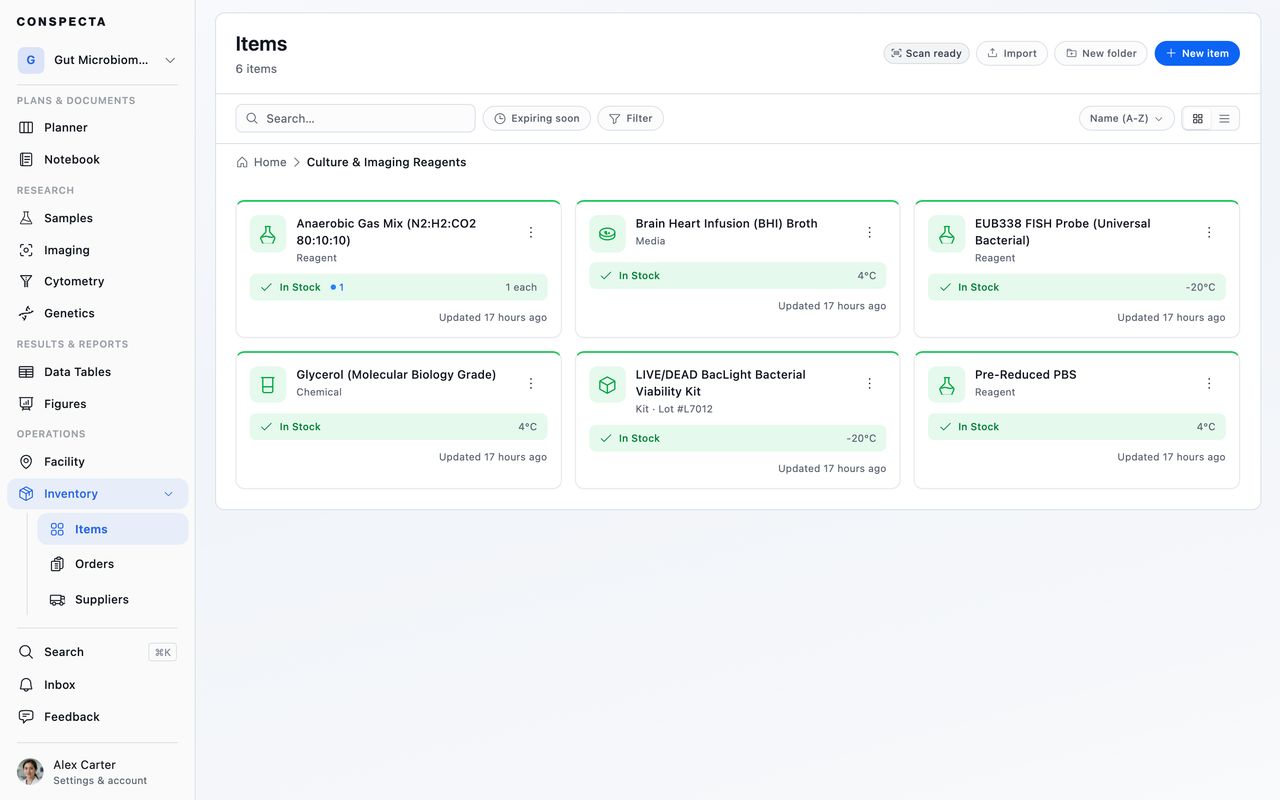
Inventory sits under Operations in the sidebar with three parts beneath it: Items for the things themselves, Orders for what's been requested, and Suppliers for who you buy from. Items and Orders belong to the project you're in, and Suppliers belongs to the whole team.
Adding an Item
New item asks for a category, then a name and whether it's private or shared. The item exists at that point, and everything else is filled in on its profile, which saves as you type.
The seven categories shape nothing but organization, so pick the one that reads right:
| Category | For |
|---|---|
| Reagent | Enzymes, antibodies, stains |
| Consumable | Tips, tubes, plates, gloves |
| Equipment | Instruments and hardware |
| Chemical | Solvents, buffers, acids |
| Media | Growth media and agars |
| Kit | Assay kits and bundles |
| General | Anything else |
Import takes a CSV or TSV, or drag one onto an empty workspace. Column headers are matched loosely, including the names other lab tools export, and a default category covers rows that don't name one.
Name is the only required column. Expiry, shelf life, storage condition, weight, volume, concentration, purity, form, CAS number, controlled substance class, export control, regulatory status, lead time, minimum order, handling notes, and links to the safety data sheet, certificate of analysis, and technical data sheet are all recognized.
Write dates as YYYY-MM-DD. A cell like 03/04/2026 is refused rather than guessed, because it means 3 April in one country and 4 March in another. Any row the app can't read is flagged in the preview and skipped, so you can fix it and import again.
Stock
The number on an item is not a field you type into. It's the result of the transactions recorded against it, which is what makes an inventory trustworthy: every change has a reason and a name attached.
Four buttons move stock:
- Receive adds what arrived from a delivery or purchase
- Consume removes what you used
- Transfer moves quantity to a different location
- Adjust corrects the number after a physical count
Tip: Adjust asks for the new total, not the difference. If you counted 14 tubes on the shelf, type 14. The other three take an amount to add or remove.
Consuming more than you have is refused rather than allowed to go negative. Transferring everything moves the item's location along with the quantity, since an empty shelf isn't where the item lives anymore.
Stock status follows from the number and the item's reorder point: at or below zero it's Out of Stock, at or below the reorder point it's Low Stock, otherwise In Stock.
The reorder point also decides whether the item can reach anyone's inbox. Without one the item is untracked, so a material you just created sits at zero without telling the rest of the project. Set a reorder point and the item tells you when to act instead of waiting to be noticed.
When it's time, Request more opens an order prefilled with this item, and a badge shows how many orders for it are already in flight so you don't double-order.
Lots
Reagents that arrive in batches get lot tracking. Add Lot records a lot number, its quantity, and its expiration date, so you can use the oldest stock first and trace a result back to the batch that produced it.
Lots are a record of batches, not a second stock count. Deleting a lot removes its batch record and leaves the item's total alone. If the stock is genuinely gone, consume or adjust it.
Item Details
The Details tab holds everything you'd otherwise keep in a spreadsheet or on the bottle:
- Properties for the supplier, SKU, catalog and barcode numbers, unit, reorder point, unit price and currency, lead time, minimum order, expiry, shelf life, and how many days ahead to warn you
- Physical for weight, volume, concentration, purity, and form
- Antibody (on reagents) for the fluorochrome, clone, host species, and reactivity. The fluorochrome field suggests known dyes as you type, and any name you enter is kept.
- Regulatory for CAS number, controlled substance class, export control, and regulatory status
- Safety for hazard classifications, storage conditions, handling notes, and links to the safety data sheet, certificate of analysis, and technical data sheet
Set a storage condition and Conspecta warns you if the item's assigned location doesn't match it, which catches an antibody parked in the wrong fridge.
Scan barcode on the Properties list reads a code from a connected scanner straight into the barcode field, so you don't transcribe digits by hand.
The Activity tab shows the item's history with its stock transactions woven in, so "who used the last of it" is one scroll rather than an investigation. On a shared item in a team project it also carries comments and sign-offs, and you can ask a named colleague for one.
Finding Things
Sort by name, quantity, stock status, category, or when the item was created or updated. Sorting by Stock brings out-of-stock to the top, then low stock, which is the list to work from before an order.
Filter by category, and search by name, SKU, catalog number, description, or tags. Expiring soon lists everything within 30 days of its date or already past it, across every folder.
Folders group items by bench, project, or supplier. Select several for the bulk bar: Move, Share, Make private, Rename, star, or Delete. Share and Make private appear only when everything selected is your own, since only an item's creator can change its visibility.
Ordering
Order requests live in Orders, alongside their suppliers. Conspecta records what you asked for and tracks it through Requested, Processing, and Complete. The actual purchase still happens in your supplier's own portal.
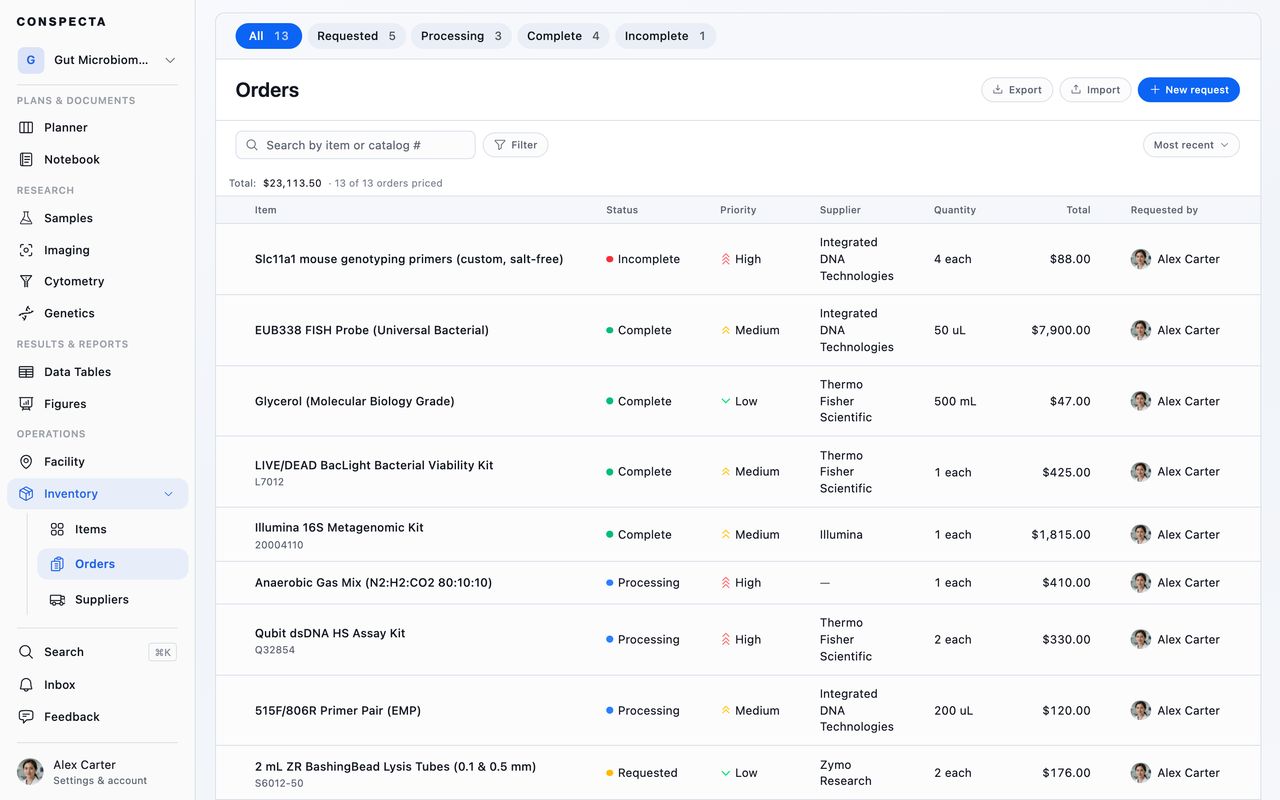
Completing an order that's linked to an item receives the delivery into stock, so the quantity, the lot number, and the transaction all land in one step. That flow, along with the vendor list, is covered in Work with suppliers.
Select several orders for the bulk bar: Mark processing, Mark complete, Mark incomplete, Export CSV, Move them to another project, or Delete. Orders belong to the project they were raised in, so a request filed against the wrong project can be moved rather than re-entered. See Moving work between projects.
Exporting
The Inventory export is in Settings → Export, and produces an Excel workbook with three sheets: the items with their quantities and suppliers, the lots with their numbers and dates, and every stock transaction with who performed it and when.